How to make AI photos in 7 simple steps (2026 guide)
How to make AI photos in ChatGPT, Gemini, Midjourney and Canva: seven steps from prompt to download, with example prompts and a full worked example.
 Written byRahis SaifiCo-founder and news editor
Why you can trust The AI Future
Our writers research every product, link each claim to its source and correct mistakes openly. Companies can't pay for coverage or see reviews before they're published.
Read our editorial policy
To make AI photos, open an image generator such as ChatGPT, Google Gemini, Midjourney or Canva, describe the picture you want in one or two clear sentences, and press generate. You then refine the result with follow-up instructions and download it. The whole process takes a few minutes, and ChatGPT and Gemini both let you start for free. Honestly, I think that's the best reason to try it before paying for anything.
This guide explains how to make AI photos step by step, using each platform's official help pages as of late October 2026. Nobody at The AI Future ran hands-on tests for it. Every prompt below is an example to adapt, not a tested result. For a deeper look at prompt writing, see our AI photo prompt guide.
If you prefer to watch first, this tutorial from Ferdy Korpershoek shows how to generate and refine images in Google Gemini with Nano Banana.
Before you start
- An account on one image tool. ChatGPT, Gemini and Canva have free tiers. Midjourney requires a paid plan.
- One clear idea. "A golden retriever on a beach at sunset, photo" is an idea. "Something cool" isn't.
- A reference photo (optional). All four tools accept an uploaded image to guide or edit the result.
- Permission for any real person. Only upload photos of yourself, or of people who agreed. Making deceptive or intimate images of real people without consent is harmful and illegal in many places.
Step 1: choose the right AI image tool
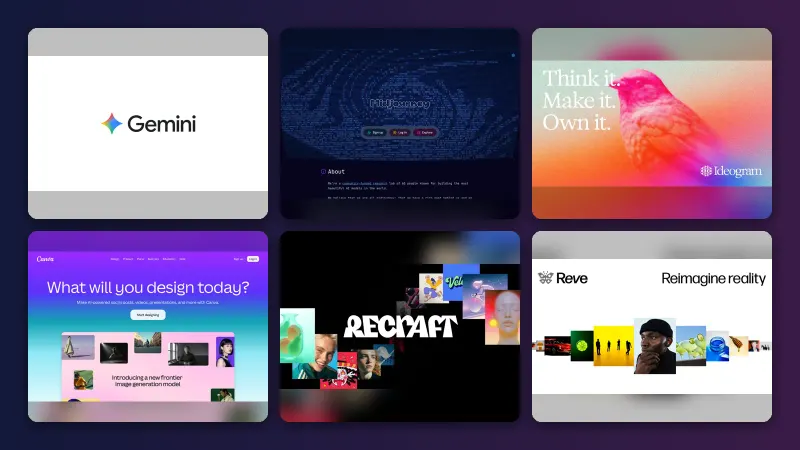
Each tool suits a different job, and the table shows how they compare, based on official pages checked October 2026.
| Tool | Current image model | Free option | Best for |
|---|---|---|---|
| ChatGPT | ChatGPT Images 2.5 | Yes, on all tiers | Conversational edits, text in images |
| Google Gemini | Nano Banana 2 (Nano Banana Pro on paid plans) | Yes, 1K downloads without a plan | Photos of yourself, quick local edits |
| Midjourney | V8.2 (default since 24 July 2026) | No, from $10/month | Artistic, stylised images |
| Canva | Dream Lab and Magic Media | Yes, uses your AI allowance | Images that go straight into a design |
Want a wider shortlist? Our roundup of the best AI image generators compares ten options, including Ideogram.
Step 2: write a clear prompt
A prompt is the text description of the image you want. Midjourney's Prompt Basics guide lists the details worth naming: subject, medium, environment, lighting, colour, mood and composition. Google's Gemini help page adds that prompts should start with words like "draw", "generate" or "create" and name a style such as "photorealistic".
Two more rules from Midjourney's docs probably apply to every tool, not just Midjourney. Use exact numbers ("three cats", not "cats"), and describe what you want rather than what you don't, since a prompt mentioning "no cake" may still produce a cake.
Example prompt to adapt:
Create a photorealistic image of a ceramic coffee mug on a wooden table by a window, soft morning light, shallow depth of field, warm muted colours, close-up shot.
Step 3: generate your first image
The steps differ a little by platform, so follow the one you picked in step 1.
In ChatGPT
- Open ChatGPT on the web, iOS or Android.
- Describe the image in a chat, or select More, then Images, according to OpenAI's help article.
- Optionally pick a template, such as a poster or logo, from Templates in the Images sidebar.
- Send the prompt. OpenAI says generation "may take a few minutes", and you can keep chatting meanwhile.
In Google Gemini
- Go to gemini.google.com and sign in.
- Open the sidebar and click Images, per Google's instructions.
- Choose a template or type your prompt. Gemini uses Nano Banana 2 when the model is set to Flash or Pro.
Google says you must be 13 or over to generate images, and 18 or over to edit them, with a personal account.
In Midjourney
- Subscribe to a plan and log in at midjourney.com, as the Getting Started Guide explains.
- Open the Create page.
- Type your prompt in the Imagine bar at the top and press Enter. Midjourney returns four images.
Midjourney's docs say short prompts often work best there. Parameters such as --ar for aspect ratio go at the end.
In Canva
- On the Canva homepage, select More, then Dream Lab, per Canva's help page.
- Enter a prompt and select Generate. Dream Lab creates four options.
- Inside a design, use Magic Media in the side panel instead. Canva says you can choose a photography, digital art or fine art style and a square, landscape or portrait layout.
Step 4: refine with follow-up instructions
The first image is a draft, and in my view the quickest way to improve it's to change one thing at a time with a short follow-up.
In ChatGPT, you can select part of the image with the selection tool and describe the change. OpenAI warns that "edits may extend beyond the area you selected." In Gemini, open the image and click Chat to describe edits. Canva's Dream Lab accepts follow-ups like "Make the car blue", and Midjourney offers variations, upscalers, pan and zoom out.
Example follow-ups to adapt:
Keep everything the same, but make the mug dark green and add steam rising from the coffee.
Change the camera angle to a top-down flat lay.
Step 5: turn your own photo into an AI image
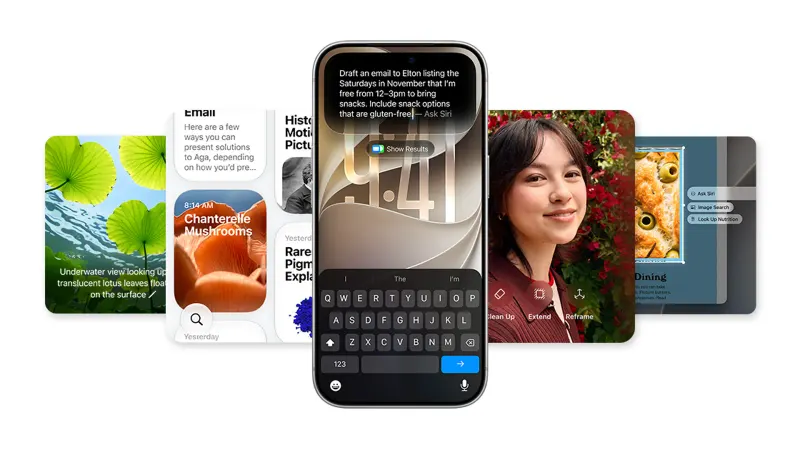
This answers the common question "how do I AI a photo?" Upload a picture and say what should change. Expect a few tries before it looks right, because the tools often alter more than you asked.
- ChatGPT: upload an image and describe the edit, OpenAI says.
- Gemini: upload one or more images and ask for edits or a combined new image. Google says Nano Banana 2 keeps a person's look consistent across images.
- Midjourney: V8.2 adds an Edit Model that uses images and plain-text instructions, according to its Version page.
- Canva: add a reference image in Dream Lab to guide style or composition.
Example prompt to adapt, using a photo of yourself:
Using my uploaded photo, create a professional headshot. Keep my face and hairstyle the same. Navy blazer, plain light-grey studio background, soft even lighting.
For dedicated tools, see our guides to the best free AI headshot generators and the best AI avatar generators from a photo.
Step 6: set the size and resolution
Pick a shape that fits where the image will go: square suits Instagram, while portrait suits phone wallpapers and Stories.
ChatGPT has an aspect ratio picker. You can also just state the ratio in the prompt, which works in the other tools too. Gemini downloads images at 2K with a Google AI plan, or 1K without one. Midjourney V8.2 supports aspect ratios up to 14:1. It also makes native 2K "HD" images, which is a lot of room to work with. Canva's Boost resolution sharpens Dream Lab images but uses AI allowance.
Step 7: download and check before you share
In Gemini, hover over the image and click Download full size. ChatGPT saves every image under Images, where Save downloads it. Midjourney stores creations on its Organize page, and Canva keeps a Dream Lab History.
Before posting, zoom in on hands, text and backgrounds, and check the usage terms too. Midjourney's plans page says companies with more than $1,000,000 in yearly gross revenue must buy the Pro or Mega plan.
Example: a complete worked example
Here's how a small bakery owner might make a product photo for Instagram in Gemini. The prompts are examples to adapt, and I'd guess most people need two or three rounds of edits.
- Tool: Gemini, because it's free and handles quick edits.
- First prompt:
Generate a photorealistic image of three cinnamon rolls on a white marble counter, morning sunlight from the left, shallow depth of field, warm tones, square format, shot from a 45-degree angle.
- Refine: open the best result, click Chat and ask for a change.
Add a light dusting of icing sugar and a small linen napkin in the background. Keep the lighting the same.
- Add text (optional): Google says Nano Banana 2 has "better text rendering".
Add the words "Fresh every morning" in a simple white serif font in the top-left corner.
- Download: click Download full size, then check the spelling and the rolls' edges before posting.
Common mistakes and how to fix them
- Vague prompts. Name the subject, setting, lighting and style. Canva's help page advises including "style, colors, lighting, and layout".
- Long lists of instructions. Midjourney's docs say these "can confuse the process". Cut to the essentials.
- Negative wording. "No people" can add people. Describe an "empty street" instead.
- Changing too much at once. Make one edit per follow-up so you can see what worked.
- Blocked prompts. All four tools filter content that breaks their policies. Reword and remove anything restricted.
Tips to get better results
Making realistic AI photos
Use photography words: "photorealistic", "35mm photo", "natural window light", "shallow depth of field". Name a time of day and a camera angle. Keep skin, hands and text simple, since those are likely where errors will show (hands, to be fair, are the usual culprit).
Generate variations, then refine
Canva recommends generating several versions and refining based on what you like. Midjourney and Dream Lab both return four images per prompt, which seems designed for exactly that.
Save prompts that work
Keep a note of your best prompts; I'd start a simple text file. On mobile, ChatGPT lets you share a prompt template so someone else can make their own version.
Next steps
- Learn prompt structure in depth with our AI photo prompt guide.
- Bring your images to life with our list of image to video AI tools.
- Need a prompt for an AI video generator? See our AI video prompt guide.
FAQ
What AI can make images?
Many tools can. The best known are ChatGPT Images, Google Gemini with Nano Banana 2, Midjourney, Ideogram and Canva's Dream Lab and Magic Media. ChatGPT, Gemini and Canva have free tiers. Midjourney starts at $10 a month, according to its plans page, checked October 2026.
How to AI a photo?
Upload your photo to ChatGPT, Gemini, Canva Dream Lab or Midjourney's Edit Model, then describe the change in plain words, such as "turn this into a watercolour painting". Make one change at a time. Only use photos of yourself, or of people who have agreed.
How do I AI a photo?
In Gemini, open the sidebar, upload your image, type the edit you want and click Submit. In ChatGPT, upload the image and describe the change, or use the selection tool to target one area. Then download the result. Google requires users to be 18 or over to edit images.
How to make realistic AI photos?
Ask for a "photorealistic" image and describe it like a photographer would: subject, setting, lighting, lens and angle. For example, "natural window light, 50mm lens, shallow depth of field". Generate several versions, keep the best, then fix small details with follow-up edits.
Can Google AI generate images?
Yes. The Gemini app generates and edits images with Nano Banana 2, which is free to use with a Google account. Paid Google AI plan subscribers can also redo images with Nano Banana Pro and download at 2K instead of 1K, according to Google's Gemini help page.
Sources
- Generate & edit images with Gemini Apps (Gemini Apps Help, Google)
- Images in ChatGPT (OpenAI Help Center)
- Getting Started Guide (Midjourney)
- Prompt Basics (Midjourney)
- Version (Midjourney)
- Comparing Midjourney Plans (Midjourney)
- Generate images with Dream Lab (Canva Help Center)
- Use Magic Media to create photos, graphics, videos, and 3D (Canva Help Center)
- Nano Banana Tutorial 🍌 Generate And Refine Images With Google Gemini | Ferdy․com (YouTube, Ferdy Korpershoek)