AI video prompt guide: how to write prompts that work in 2026 (with examples)
How to write an AI video prompt in six steps, based on the official Google, Runway, Kling and Luma guides, with copy-paste examples and a worked example.
 Written byFahad HashmiContributing writer, AI in energy and industry
Why you can trust The AI Future
Our writers research every product, link each claim to its source and correct mistakes openly. Companies can't pay for coverage or see reviews before they're published.
Read our editorial policy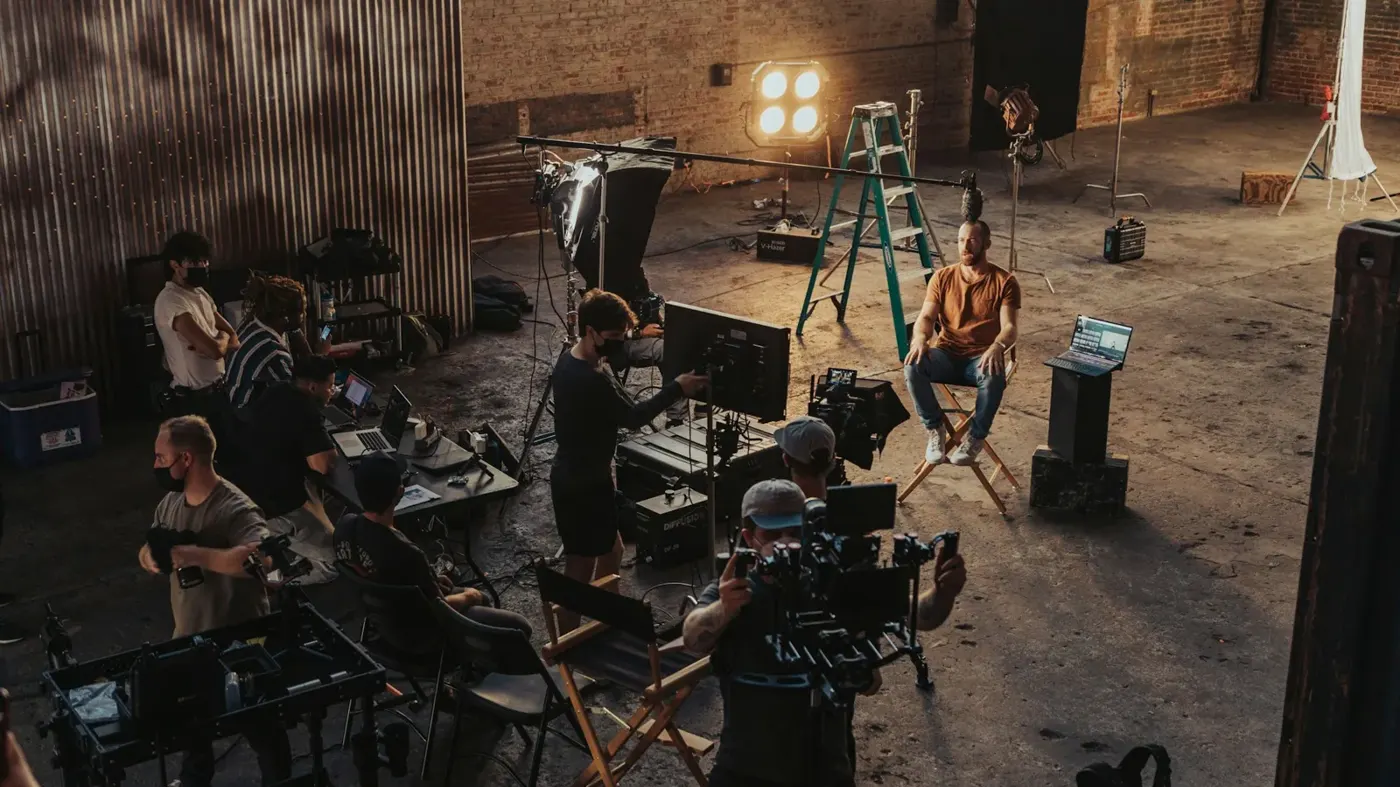
Here is the short version. A good AI video prompt describes one shot the way a director would brief a camera crew: who is in frame, what they do, where it happens, how the camera moves, what the light looks like and what style it should have. Write that in plain sentences, generate a few versions, then change one element at a time until the clip works.
That structure is not our invention. It matches the official prompting guides from Google (for Veo and Gemini Omni Flash), Runway (Gen-4), Kling (VIDEO 3.0) and Luma. This guide condenses them into six steps, with copy-paste AI video prompt examples and one worked example. We compiled it from those official docs as of late October 2026; nobody at the site ran hands-on tests for this piece. If you have not picked a tool yet, start with our list of the best AI video generators.
What you need before you start
- One video model. Veo or Gemini Omni Flash, Kling, Runway, Hailuo or Seedance all respond to the same basic structure. Note that Google says the Veo 3.1 Preview in the Gemini API has been shut down and points developers to Gemini Omni Flash instead.
- A shot list. One line per clip. Most models generate short clips: Runway says Gen-4 makes videos in 5 or 10 second durations, and Kling VIDEO 3.0 runs 3 to 15 seconds.
- A reference image (optional). For image-to-video, the picture sets the look and your text only has to describe motion.
- A place to save prompts. A plain text file is enough. You will reuse what works.
One warning about old tutorials: OpenAI announced in March 2026 that it would discontinue Sora in the consumer app and API, so guides built around Sora prompts are now mostly historical. Our Sora review covers what happened.
If you prefer to watch first, this walkthrough from VEED STUDIO covers prompting techniques for Veo 3.1.
Step 1: Think of the prompt as a shot, not a story
Think of the model as a camera that films exactly one take. It does not know what happened before the clip or what comes after. Google's guide calls this the "anatomy of a prompt" and breaks it into subject, action, scene, camera angle, camera movement, lens effects, visual style, temporal elements and audio, adding that you don't need to use all elements in every prompt.
Luma's guide boils the same idea down to a six-part formula: Subject + Action + Setting + Camera + Lighting + Style. Use that as your template:
[Shot type] of [subject with 2–3 concrete details] [action, one clear verb] in [setting, time of day, weather]. [One camera movement]. [Lighting]. [Style or film look].
Example to adapt:
Medium shot of an elderly fisherman in a yellow raincoat coiling rope on the deck of a small wooden boat at dawn. Slow dolly in. Soft overcast light, light drizzle. Shot on 35mm film, muted blue-grey palette.
Step 2: Be specific about the subject and action
Google puts it bluntly: "Specificity helps avoid generic outputs." "A dog" leaves every choice to the model. "A playful Golden Retriever puppy" (one of Google's own examples) fixes breed, age and mood in four words.
The action needs the same care. Use one strong verb and, if you want a small story, sequence it. Google's sample prompts chain actions in order, for example a hand slicing a book open, then extracting a chip, then the character's eyes widening at a sound. Keep the clip length in mind: a 5-second clip has room for one or two beats, not five.
A barista with rolled-up sleeves pours steamed milk into a latte, slowly drawing a leaf pattern, then slides the cup across the counter toward the camera.
Step 3: Choose one camera angle and one camera move
Camera language is where most beginner prompts are vague. Google's guide lists the terms its models understand: eye-level, low-angle, bird's-eye, close-up, over-the-shoulder, plus moves such as pan, tilt, dolly, truck, crane, arc shot and handheld. It also notes that some advanced angles and lenses are not officially supported, so results vary.
The most useful rule comes from Luma: "Use only ONE camera movement per generation." "Slow push-in then pan left" asks for two shots inside one clip. Split it into two prompts and cut them together.
This Kling tutorial from Funded Frog walks through camera movement prompts step by step.
Step 4: Add light, style and (if supported) sound
Lighting and style are cheap words with a large effect. Google groups them under visual style: lighting ("golden hour glow", "film noir style with deep shadows"), tone, artistic style ("shot on 35mm film", "claymation style") and ambiance (colour palette, fog, textures). Luma recommends concrete style anchors such as film stock or colour grading references to avoid what it calls the "generic AI look".
Many current models generate audio too. Google advises you to state clearly that you want audio and to use separate sentences to describe it, with dialogue written as "the man in the red hat says: ...". Kling VIDEO 3.0 matches lines to characters when you pair each character with their dialogue, and supports Chinese, English, Japanese, Korean and Spanish.
A medium shot in a quiet bookshop at night, lit by a single brass desk lamp. The shopkeeper looks up and says: We closed an hour ago. Audio: rain against the window, a clock ticking.
Step 5: For image-to-video, describe only the motion
When you upload a start image, the rules change. Runway's guide says the input image already sets subjects, composition, colour, lighting and style, so the text prompt should focus on describing motion. It recommends referring to people as "the subject" or with simple pronouns so the model does not reinterpret what is already in the image, and using positional language for several subjects ("The subject on the left walks forward").
Runway splits motion into four layers you can add one at a time: subject motion, camera motion, scene motion and style descriptors. Its own example:
a handheld camera tracks the mechanical bull as it runs across the desert. the movement disturbs dust that trails behind the mechanical creature. cinematic live-action.
Our guide to image-to-video AI tools compares which apps handle this best.
Step 6: Iterate one change at a time
Runway recommends starting with a simple prompt and adding one new element at a time, so you can see which change helped. That is just controlled testing: if you change camera, light and action together and the clip improves, you do not know why.
Luma describes a similar loop: explore cheap variations at lower settings, refine the best direction, then spend your premium credits only on the final render. Save every prompt that works with a note on the model and settings.
Example: a complete worked example
Goal: a 15-second vertical (9:16) teaser for a small bike repair shop. Here is how the numbers work out on a model with 5-second clips.
| Shot | Length | Prompt to adapt |
|---|---|---|
| 1. Establishing | 5 s | Wide shot of a narrow bike repair workshop at morning, bicycles hanging from ceiling hooks, sunlight through a dusty front window. Slow dolly in. Warm natural light, 16mm documentary grain. |
| 2. Detail | 5 s | Extreme close-up of greasy hands tightening a bicycle chain with a wrench, metal glinting. Static camera. Shallow depth of field, warm side light. Audio: ratchet clicks, quiet radio. |
| 3. Payoff | 5 s | Medium shot of a young woman in a denim apron spinning a bike wheel and smiling at the camera. Slow arc shot around her. Golden hour light from the open door, same film grain. |
Budget: 3 shots × 3 variations each = 9 generations for a first pass. If one shot fails twice, simplify it (drop the camera move first) rather than adding more words. Keep the style tail ("warm light, 16mm documentary grain") identical across all three prompts so the clips cut together. Add the shop name and address as a text overlay in your editor; Luma notes that models cannot reliably render readable text.
On Kling VIDEO 3.0 you could instead write this as one 15-second Custom Multi-Shot prompt ("Shot 1, ... Shot 2, ... Shot 3, ..."), which its guide says the model will strictly follow. Our Kling AI guide walks through that interface.
Common mistakes and how to fix them
This is the "where it breaks" section. Each fix comes from the official guides above.
| Symptom | Likely cause | Fix |
|---|---|---|
| Bland, stock-looking clip | Generic subject and no style | Add 2–3 concrete subject details and a lighting or film reference (Google, Luma) |
| Camera does something random | Two moves in one prompt, or none stated | One move per clip, or write "static camera" (Luma) |
| Unwanted object keeps appearing | Prompt says "no X", which names X | Use a negative prompt field listing just the item, e.g. "wall, frame" (Google), or rephrase positively (Runway) |
| Face or outfit changes in image-to-video | Text re-describes the person | Call them "the subject" and describe only motion (Runway) |
| Garbled text or logo | Asking the model to write words | Add text in post-production (Luma) |
| Rushed or chopped action | Too many beats for the clip length | Cut to one or two actions per 5 seconds, or use a longer duration |
The negative prompt advice differs by tool. Google's guide recommends describing what you don't want in a separate negative prompt rather than writing "no walls". Runway's Gen-4 guide says to "Use positive phrasing and avoid negative prompts" altogether. Check which one your tool supports.
Tips to get better results with any AI video prompt
- Front-load the important words. Luma advises putting your key details in the first 20–30 words.
- Match prompt length to the model. Runway's Gen-4 favours short, simple prompts. Google's Veo prompt guide shows long, paragraph-length prompts that describe an 8-second sequence in detail. Neither is wrong; follow your model's docs.
- Use a chatbot as an AI video prompt generator. Paste the six-part template from step 1 into ChatGPT, Claude or Gemini with your idea and ask for three versions. Then edit by hand. Our guide to the AI prompt generator workflow covers this in more detail.
- Build a small prompt library. Keep a constant "style tail" per project and swap only shot, subject and action.
- Aim for realism with physics, not adjectives. Small details such as dust, steam or reflections on wet pavement do more than "hyper-realistic". See our picks for AI videos that look real, and if you are on the other side of that question, read how to tell if a video is AI.
FAQ
What is the best AI video prompt structure?
Shot type, subject, action, setting, one camera move, lighting and style, written as plain sentences. Google, Luma and Runway all describe variations of this. Start short, then add one element at a time.
How long should an AI video prompt be?
It depends on the model. Runway recommends simple prompts for Gen-4, while Google's Veo examples run to a full paragraph. A practical default is two to four sentences, about 40 to 80 words, for a 5 to 8 second clip.
Do negative prompts work for AI video?
Sometimes. Google supports a separate negative prompt and suggests listing items ("wall, frame") rather than writing "no walls". Runway advises against negative prompts and recommends positive phrasing instead.
Which is the best prompt to video AI tool?
There is no single winner; it depends on clip length, audio, price and whether you start from an image. Our roundup of the best AI video generators compares current options.
Next steps
Pick one model and practise the six-step loop on a three-shot list. For the full workflow from idea to export, read our pillar guide on how to generate video with AI. For tool-specific prompting, see the Hailuo AI prompt guide and our Seedance tutorial.
Sources
- Video generation prompt guide (Google Cloud Documentation)
- How to create effective prompts with Veo 3 (Google DeepMind)
- Video generation in the Gemini API (Google AI for Developers)
- Gen-4 Video Prompting Guide (Runway)
- Kling VIDEO 3.0 Model Guide (Kling AI)
- How to Write AI Video Prompts: The Complete Guide (Luma)
- OpenAI is shutting down its Sora video generation app (Engadget)
- How to Prompt Veo 3.1 Like a Pro (3 Techniques That Actually Work) (YouTube, VEED STUDIO)
- Kling AI Camera Movement Tutorial 2026 | Step-by-Step (YouTube, Funded Frog)