How to use Kling AI: step‑by‑step guide to making videos with Kling 4.0
How to use Kling AI in 2026: text-to-video, image-to-video and references with Kling 4.0, plus current plans, credits and copy-paste prompts.
 Written byAlap ZahidReviews and guides editor
Why you can trust The AI Future
Our writers research every product, link each claim to its source and correct mistakes openly. Companies can't pay for coverage or see reviews before they're published.
Read our editorial policy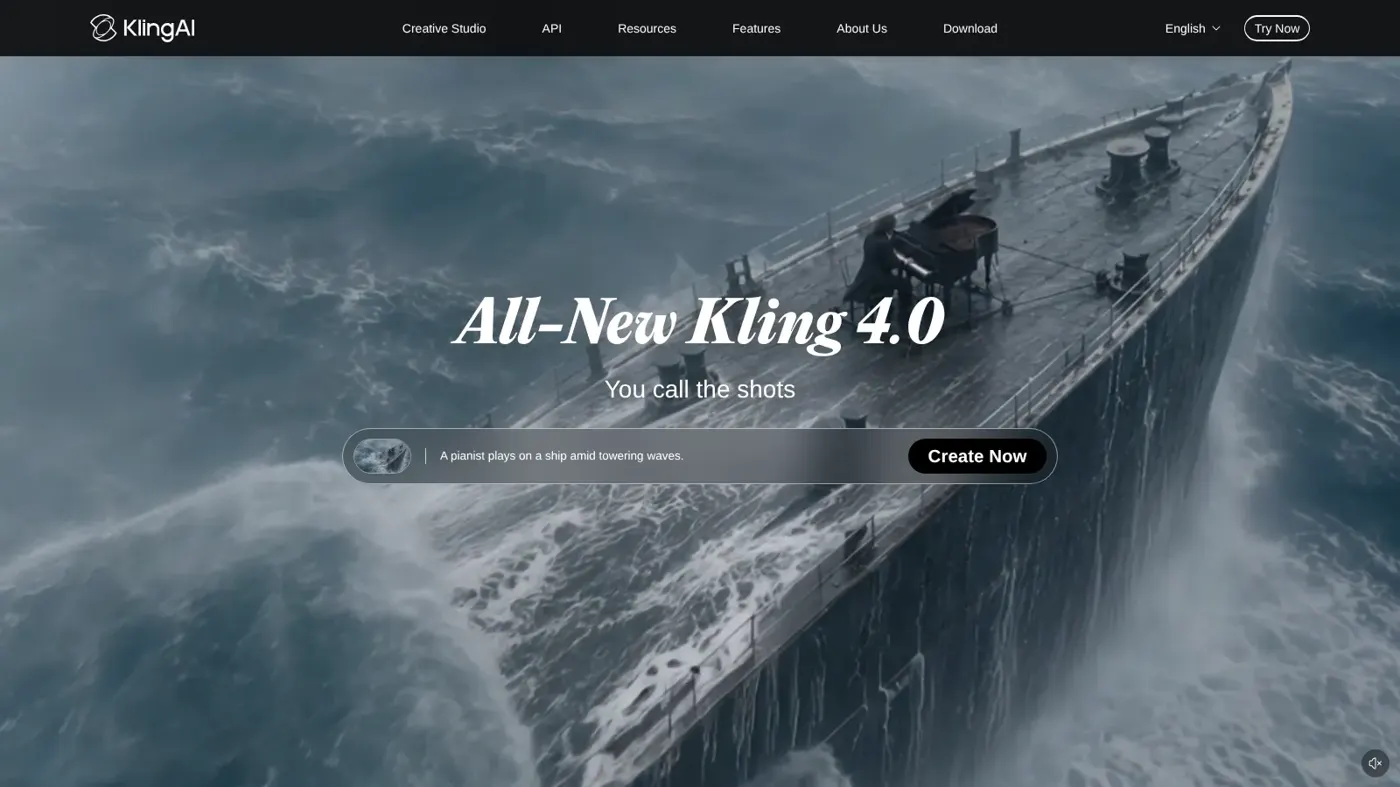
To use Kling AI, sign in at kling.ai, open Video Generation, pick the Kling 4.0 model, then either type a text prompt (text-to-video) or upload a starting image (image-to-video), choose your length, resolution and aspect ratio, and click generate. Each clip costs credits, which you get free each month or through a paid plan. By the end of this guide you'll have made your first Kling video and know how to write prompts that get you closer to what you pictured.
We put this walkthrough together from Kling's official user guides, its pricing page and published tutorials, as of late October 2026. Nobody at The AI Future tested it hands-on for this piece, so every step below points back to the official docs. If you're brand new to AI video, our beginner's guide to making AI videos covers the basics first.
If you'd like a quick look at what the newest model can do before you start, this launch video from Kling's official channel introduces Kling 4.0.
What you need before you start
- A Kling AI account. You can sign up on the web at kling.ai, and Kling also lists apps for iOS, Android, macOS and Windows.
- Some credits. Every generation uses credits. Non-subscribers can claim monthly free credits when they log in, according to the Kling membership page.
- An idea or an image. For text-to-video you only need a sentence or two. For image-to-video, have a clear photo or illustration ready (up to 30 MB per image).
Watch out: only use the official site or app stores. In 2025, a malware campaign used fake Kling AI websites and Facebook ads to push infostealer malware, as Wikipedia's Kling AI entry notes. If a "Kling" link comes from an ad, type kling.ai yourself instead.
Which Kling model should you use?
Kling is made by the Chinese tech company Kuaishou, and it updates fast. The current flagship is Kling 4.0, released on 15 October 2026 according to Kling's release notes. A lighter, faster version called Kling 4.0 Flash started early access on 28 September 2026 for top-tier yearly subscribers, per a Kling release timeline from ScriptByAI.
Here is what the official Kling 4.0 user guide lists for the full model:
| Setting | Kling 4.0 |
|---|---|
| Modes | Text-to-video, image-to-video, first and last frames, up to 10 keyframes, Omni Reference |
| Clip length | 3 to 30 seconds in one generation (default 10) |
| Resolution | 720p, 1080p or 4K (10-bit HDR listed as coming soon) |
| Aspect ratios | 21:9, 16:9, 1:1, 9:16 or Auto |
| Audio | Two-channel stereo with lip sync, in languages including English, Spanish, French, German and Hindi |
| Prompt length | Up to 8,000 tokens |
Older models such as Kling 3.0 and 2.6 are still in the model menu. This guide follows Kling 4.0 because it's the current flagship. If you want our take on the previous generation, see our Kling 3.0 review.
Kling AI pricing and credits (checked October 2026)
Kling runs on credits. The membership FAQ explains that credits are deducted "based on factors such as the number of outputs, model type, duration, and resolution." Here are the plans shown on the official membership page with monthly billing:
| Plan | Price | Credits per month | Price per 100 credits |
|---|---|---|---|
| Basic | Free | Monthly free credits on login | - |
| Standard | $6.99 first month, then $8.80/month (list price $10) | 660 | $1.06 |
| Pro | $25.99 first month, then $32.56/month (list price $37) | 3,000 | $0.87 |
| Premier | $144.99 first month, then $181.99/month (list price $207) | 18,000 (8K to 38K options) | $0.81 |
| Ultra+ | $432.99 first month, then $544.99/month (list price $619) | 57,000 | $0.76 |
Yearly billing is shown with a 34% discount. A few things matter more than the headline price:
- Free plan limits. The comparison table reserves 1080p/4K video, watermark removal and commercial use for paid plans, and Basic users get one video per generation instead of four.
- Credits expire. Monthly credits last 31 days, purchased credits last two years, and subscribers' daily bonus credits expire at midnight the same day.
- No fixed price per clip. Kling doesn't publish a per-generation credit rate for Kling 4.0, as Nemo Video's breakdown of Kling 4.0 costs points out. The cost appears in the interface before you generate, so check it each time.
Step 1: Sign in and open video generation
Go to kling.ai and click Try Now. Sign in or create an account. From the creative studio, choose Video Generation.
You should now see the creation workspace, with a prompt box, an upload area and the generation settings. Your credit balance shows in your account, so glance at it before you start.
Step 2: Pick Kling 4.0 and a creation mode
Open the model menu and select Kling 4.0. If your account shows Kling 4.0 Flash and you just want quick drafts, Flash is designed for "faster generation and greater cost efficiency," according to the official guide.
Next, choose one of the two entry points the Kling 4.0 guide describes:
- Omni Reference (the default). Use it for text-to-video, or when you have images, videos or voice samples to reference.
- Keyframes. Use it for the classic image-to-video workflow, where your uploaded image becomes the first frame (or first and last frames) of the clip.
Tip: you can't mix the two in one generation. Pick Omni Reference for this first run, since it handles plain text prompts.
Step 3: Write a text-to-video prompt
Kling's official text-to-video prompt guide gives a simple formula:
Prompt = subject (with description) + subject movement + scene (with description) + optional camera language, lighting and atmosphere.
Subject, movement and scene are the essentials. Everything else adds polish. Paste this example into the prompt box and adapt it to your own idea:
Medium shot with a blurred background. A giant panda wearing black-rimmed glasses sits by a café window, turning the page of a book. A steaming cup of coffee rests on the table beside it. Soft morning light, warm cinematic colour palette.
This is an example to adapt, built on the panda prompt Kling uses in its own guide. It is not an output we tested.
The Kling 4.0 guide adds one important rule: describe what you want to see, not what you don't. Instead of "premium look," write something concrete like "side backlighting outlines the object's edges, the background is blurred." The only negatives it recommends are "no subtitles" and "no background music," because the model may add those by default.
For a longer look at writing prompts for cinematic clips, this official tutorial walks through film-style generations with Kling 3.0 and 3.0 Omni. The prompting ideas carry over to 4.0.
Step 4: Set length, resolution and aspect ratio
Below the prompt box, set three things:
- Duration. Kling 4.0 takes 3 to 30 seconds, in one-second steps. The default is 10 seconds.
- Resolution. Choose 720p, 1080p or 4K. Free accounts are limited to lower resolutions, since 1080p/4K is a subscriber benefit on the pricing page.
- Aspect ratio. Use 9:16 for TikTok, Reels and Shorts, 16:9 for YouTube, 1:1 for square posts, or 21:9 for a wide cinematic look.
Longer clips and higher resolutions use more credits. For a first try, 5 to 10 seconds at 720p is a sensible place to start.
Step 5: Generate and review your clip
Check the credit cost shown next to the generate button, then click the generate button. Rendering can take a few minutes, and paid plans add faster, unlimited queueing according to the pricing page.
When it's done, play it back. You should now see a short clip that matches your subject, action and setting. If the motion is off, change one part of the prompt at a time (action, camera or lighting) so you know which change made the difference.
Tip: Nemo Video notes that Kling's credit policy returns credits when a generation fails. A clip that finishes but that you don't like still costs credits, so it pays to get the prompt right before you scale up the length.
Step 6: Turn an image into a video
Image-to-video is the most used feature on Kling, according to the official image-to-video guide, because it gives you more control. Here's how to do it in Kling 4.0:
- Switch to the Keyframes entry point.
- Upload your image as the first frame. If you want the clip to end on a specific shot, upload a last frame too. Kling 4.0 supports up to 10 keyframes for more complex sequences.
- Write a prompt that describes the subject and how it moves.
The formula here is shorter, because your image already supplies the scene: subject + movement, background + movement. Kling's guide gives a good example. Typing "Put on sunglasses" over the Mona Lisa confuses the model, while "Mona Lisa puts on sunglasses with her hand" works much better. Try this pattern with your own photo:
The woman turns her head toward the camera and smiles, her hair moving in the wind. Leaves drift across the background.
If your result barely moves, that's a known pattern. The guide explains that photos are prone to generating static videos when the prompt doesn't spell out a clear action.
Step 7: Add references for consistent characters
Omni Reference lets you combine up to 15 assets in one generation: up to 10 images, 5 videos (30 seconds in total), 7 elements and voice profiles. Kling numbers each upload automatically, as @Image1, @Image2, @Video1 and so on.
The key, says the Kling 4.0 guide, is to tell the model what each asset is for. If you only list the IDs, the model guesses, and results get less predictable. Use this structure:
@Image1 defines the scene. Preserve its spatial layout, furnishings and lighting.
@Image2 defines the female protagonist. Preserve her facial features, hairstyle and clothing.
The female protagonist walks toward the window, stops, and looks back.
That example comes straight from Kling's documentation. Swap in your own scene and character. If you're making a series of ads or a recurring character, this official tutorial shows how Kling approaches consistency across shots.
Step 8: Add sound and download
Kling 4.0 generates audio together with the video. Add a line at the end of your prompt describing dialogue, voiceover, ambient sound, music and sound effects. Put any spoken words in quotation marks so the model knows exactly what to say.
When you're happy with the clip, download it. On the free plan, your video carries the Kling watermark and isn't cleared for commercial use (more on that in the FAQ below).
Example: a complete worked example
Let's put it all together for a common job: a 10-second vertical clip for a small coffee shop's Instagram. The settings and prompt below are an example to adapt, structured the way the Kling 4.0 guide recommends.
Settings: Kling 4.0, Omni Reference, 10 seconds, 1080p (paid plan) or 720p (free), 9:16.
Reference: upload one photo of your café counter as @Image1.
@Image1 defines the scene. Preserve the counter, the shelves and the warm lighting.
Overall: realistic, cosy morning atmosphere, soft window light, shallow depth of field.
0–3 s: Close-up of a barista's hands pouring steamed milk into a white cup, forming a leaf pattern.
3–7 s: The camera slowly pulls back to show the barista sliding the cup across the counter.
7–10 s: A customer's hand picks up the cup; steam rises in the window light.
Audio: gentle café chatter, the hiss of the steam wand, a cup set down on wood. No subtitles. No background music.
Why this works: one reference with a clear role, a timeline split into short beats, concrete visual details instead of words like "inviting," and the two negatives Kling actually recommends. If the camera move is too fast, add "slow, steady" to the 3–7 s line and regenerate.
Common mistakes and how to fix them
Using vague, abstract words
"Vintage feel" or "premium look" leaves the model guessing. Kling's own guide suggests replacing "vintage feel" with "yellowed walls, worn furniture edges, and warm incandescent lighting." Describe what the camera would actually see.
Writing negative prompts
Telling the model what not to show can make errors more likely, the Kling 4.0 guide warns. Rather than asking it to hide a character's face, describe the shot you want, such as the character shown in profile.
Uploading references without roles
If you add three images and don't say what each one is for, Kling infers it. Always label them: "@Image1: preserve the character's appearance."
Getting a still, lifeless clip from a photo
This usually means the prompt lacks a clear action. Name the subject and the movement, like "the cat stretches and yawns."
Tips to get better results
- Draft cheap, then upscale. Test ideas with short 720p clips (or Kling 4.0 Flash, if your account has it), and only switch to 1080p or 4K once the prompt works.
- Use a timeline. For clips over about 8 seconds, split the action into beats ("0–3 s: ..."). The official prompt structure is built this way.
- Use first and last frames for control. If you need the clip to land on a specific shot, such as a product pack shot, upload it as the last frame.
- Keep sentences simple. The image-to-video guide recommends simple words and sentence structures over complex language.
- Learn from other models' prompting. Many of the same habits work across tools. Our guide to writing AI video prompts has more templates.
FAQ
Is Kling AI free?
Yes, there's a free Basic plan. Non-subscribers can claim monthly free credits when they log in, and those credits last 31 days. Free users can't generate 1080p or 4K video, their videos keep the watermark, and commercial use is reserved for paid subscribers, according to the official membership page.
What is the latest Kling AI model?
Kling 4.0, released on 15 October 2026. It generates clips of 3 to 30 seconds at up to 4K, with stereo audio, up to 10 keyframes and up to 15 reference assets per generation. A faster, cheaper variant, Kling 4.0 Flash, is also rolling out, per the official user guide.
How much does Kling AI cost in 2026?
Paid plans start with Standard at $6.99 for the first month, then $8.80 a month on monthly billing, for 660 credits. Pro gives 3,000 credits, Premier 18,000 and Ultra+ 57,000. Yearly billing is shown with a 34% discount (checked October 2026 on Kling's membership page).
How many credits does a Kling video use?
It depends on the model, duration, resolution and number of outputs. Kling doesn't publish a fixed per-clip rate for Kling 4.0, so check the cost shown in the interface before you click generate. Longer clips and 4K use more credits than short 720p drafts.
Can I use Kling AI videos commercially?
Paid subscribers can use Kling-generated content for commercial purposes, as long as it isn't used to build a competing product. You're still responsible for checking portrait rights, copyright, trademarks and AI-labelling rules where you publish. Free-plan content doesn't include commercial use.
Can Kling AI make videos with sound?
Yes. Kling 4.0 generates audio and video together, including dialogue with lip sync, ambient sound, music and sound effects, in two-channel stereo. Describe the audio you want at the end of your prompt, and add "no background music" if you'd rather add your own track later.
Next steps
You've made your first Kling clip. To keep going:
- Compare Kling with another creator-focused platform in our Higgsfield AI tutorial.
- Try ByteDance's model with our Seedance AI tutorial, or sharpen your prompts with the Hailuo AI prompt guide.
- See how Kling stacks up against other tools in our roundup of the best AI video generators.
Sources
- Kling 4.0 User Guide (Kling AI)
- Kling AI Release Notes & Version History (Kling AI)
- Kling AI Membership Plan (Kling AI)
- Kling AI Text to Video Prompt Guide (Kling AI)
- Kling AI Image to Video Guide (Kling AI)
- Kling AI: Next-Gen AI Video & Image Generator (Kling AI)
- Kling AI Timeline: Model Release Dates & History (ScriptByAI)
- Kling 4.0 Cost in 2026: What Creators Can Verify (Nemo Video)
- Kling AI (Wikipedia)
- Meet KLING 4.0 | You Call the Shots (YouTube, Kling AI)
- Deep Dive into Cinematic AI Films with Kling 3.0 & 3.0 Omni | Tutorial (YouTube, Kling AI)
- How to Achieve Perfect Consistency in Ads with Kling 3.0 Model | Tutorial (YouTube, Kling AI)