How to make free AI videos in 2026: 5 simple steps
How to make free AI videos with Google Flow, Kling and CapCut: five steps, copy-paste prompts, a worked example with credit math, and the limits of free plans.
 Written byFahad HashmiContributing writer, AI in energy and industry
Why you can trust The AI Future
Our writers research every product, link each claim to its source and correct mistakes openly. Companies can't pay for coverage or see reviews before they're published.
Read our editorial policy
Here is the short version. To make free AI videos, sign in to a tool with a daily free allowance (Google Flow gives 50 credits a day, Kling gives 66), write one prompt per shot, generate short 4 to 10 second clips, then join them in a free editor such as CapCut and add sound. A 30-second video is usually four to six clips stitched together.
That workflow costs nothing, but free plans come with daily caps, watermarks, low resolution and usually no commercial rights. Below: five steps, a worked example with credit math, and where free plans break. We compiled it from official help pages and published pricing breakdowns, checked in late October 2026. Nobody at The AI Future ran hands-on tests for this piece.
One correction to older tutorials: Sora is gone. OpenAI closed the Sora app and website on 26 April 2026 and shut the API on 24 September 2026, so any guide that starts with "open Sora" no longer works. Our Sora review covers what happened.
What you need before you start
- A Google account (or a Kling account). These are the two most useful daily free allowances. Google Flow requires you to be 18 or older and in a supported region.
- A desktop browser. Google recommends a Chromium-based browser such as Chrome or Edge on a computer for the full editing features.
- A shot list. Three to six lines; each becomes one prompt.
- A free editor. CapCut, DaVinci Resolve or iMovie, to join clips and add sound.
- Patience for queues. Free accounts get the lowest priority. Flow warns that between roughly 2 PM and 5 PM UTC you may not be able to generate videos without a subscription.
Here is how the main free options compare, from official pages and published breakdowns (checked October 2026):
| Tool | Free allowance | Refills? | Main catch |
|---|---|---|---|
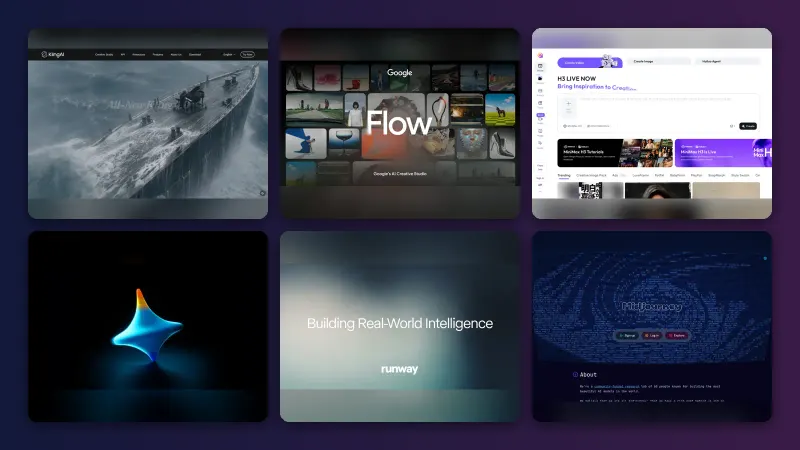
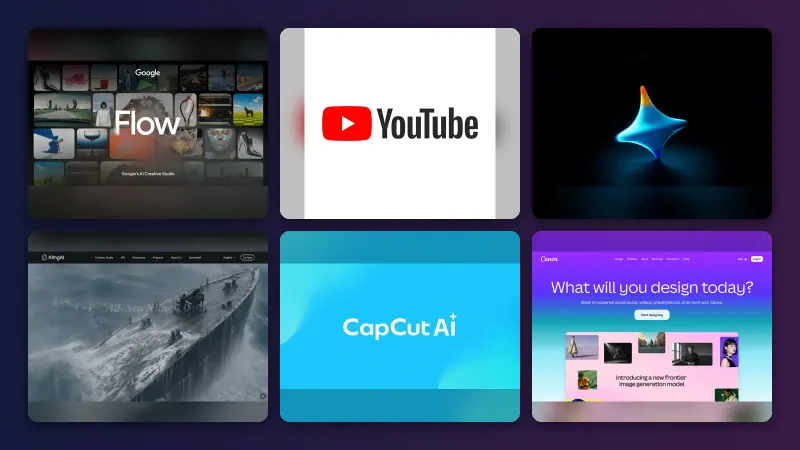
| Google Flow (Veo 3.1 Lite, Gemini Omni Flash) | 50 credits per day | Daily, no rollover | Peak-hour blocks; costs vary by model |
| Kling | 66 credits per day | Daily, expire in 24h | Watermark, 360p to 540p, no commercial use (per eesel) |
| Runway | 125 credits, one time | No | Roughly one or two Gen-4.5 clips, then it is gone |
| YouTube Create app | Gemini Omni Flash, free for Shorts | Not published | Built for vertical Shorts |
| CapCut | Free AI video maker plus editor | Not published | Pro templates add a watermark on free exports |
The Gemini app is not the free route: Google lists video generation under its paid Google AI plans. For more options, see our best free AI video generators.
If you prefer to watch first, this tutorial from Teacher's Tech shows Gemini Omni turning a text prompt into a video clip.
How to make free AI videos in 5 steps
Step 1: Pick the free tool that fits the job
Picking the wrong type of tool wastes your daily credits. Use this decision table:
| If you want... | Use | Why |
|---|---|---|
| Cinematic shots, b-roll, product scenes | Google Flow | Largest free daily allowance with Veo and Omni models |
| Realistic human motion, a second daily allowance | Kling | Separate 66 daily credits, so you can split work across two tools |
| A vertical Short from your phone | YouTube Create | Omni Flash is built in for Shorts |
| A script turned into scenes with voiceover and captions | CapCut AI video maker | Generates from a script, then lets you edit in the same tool |
| A talking presenter reading a script | An avatar tool | See our HeyGen review; free tiers there are small |
Step 2: Plan your shots and your credit budget
Free credits are the real constraint, so do the math before you generate. Two numbers matter: credits per clip and attempts per usable clip.
- Clip length. Flow's Veo 3.1 Lite makes 4, 6 or 8 second clips; Gemini Omni Flash adds 10 seconds.
- Cost per clip. Kling's VIDEO 3.0 costs 30 credits for a 5-second 720p clip without audio, according to eesel's breakdown, so 66 daily credits buy two clips. Flow does not publish a fixed price list; Google says to check the credit cost in the prompt box settings before you generate.
- Draft mode. Omni at 360p costs half the credits of 720p. Draft cheap, then re-render only the winner.
- Attempts. Budget about three tries per shot.
Step 3: Write one prompt per shot
Describe one shot, not a whole story. Google's own guidance is to be specific about the subject, action, environment, lighting and style. A reliable order is: shot type, subject, action, setting, light, camera move, mood. These are example prompts to adapt, not tested outputs:
Close-up of a ceramic coffee cup on a wooden windowsill, steam rising slowly, rain running down the glass behind it, soft grey morning light, slow push-in, calm and cosy mood, 8 seconds.
Wide shot of a small corner cafe at dusk, warm light spilling onto a wet street, a cyclist passes in the foreground, static camera, cinematic, 16:9.
For a deeper template with camera and lighting vocabulary, see our AI video prompt guide.
Step 4: Generate your clips in Google Flow
These steps follow Google's Flow help page:
- Go to Google Flow and start a new project.
- Type your prompt in the prompt box.
- Click the model name (it defaults to Nano Banana Pro, an image model), then click Video.
- Set the aspect ratio, number of outputs, model and length. Keep outputs at one to save credits.
- Click Generate.
Two features help on a free budget. Frames to Video animates between a start and end image you supply, which gives more control than text alone. And Flow's image models run on a separate daily limit: without a plan you get up to 20 Nano Banana Pro images and 400 Nano Banana 2.1 or 2 Lite images a day, which do not use your video credits. Generate your start frames as images first, then animate them.
If Flow is busy or your credits are gone, run the same prompts in Kling. This guide from Jason Gandy walks through Kling from first prompt to more advanced settings, and our Kling tutorial covers the steps in text.
Step 5: Edit, add sound and export
Put your best clips in order on a timeline. In Flow you can extend a Veo clip by clicking Extend and describing how the action continues, though only Veo-generated videos can be extended. For everything else, use a free editor:
- Trim half a second off each end of every clip, where artefacts tend to sit.
- Add music, voiceover and captions. CapCut's AI video maker can add music, subtitles and effects before export. Our guide on adding an AI voice to a video covers narration.
- Avoid Pro templates on a free plan. According to BIGVU, templates marked Pro add a watermark to free exports.
This beginner tutorial from ZoCo Marketing covers the CapCut editing basics you need for this step.
Example: a complete worked example
Goal: a 24-second, 16:9 teaser for a neighbourhood cafe, made for free over a few days.
Shot list (four shots of 6 seconds each):
- Wide exterior of the cafe at dusk, warm light, wet street.
- Close-up of espresso pouring into a cup, slow motion.
- Steam rising from the cup on a rainy windowsill, slow push-in.
- A hand sliding the cup across the counter, shallow depth of field.
Credit math. Four shots at three attempts each is 12 generations. At 30 credits per Kling clip, 66 daily credits cover two, so Kling alone takes six days. Split the work: draft in Flow with Omni at 360p (half the 720p cost) and spend Kling's credits on the hand shot. Divide Flow's 50 daily credits by the live per-clip cost shown in the prompt box to see your daily drafts.
Generation. Make start frames for shots 2 and 4 with Flow's image models (free daily images), then animate them with Frames to Video. Generate shots 1 and 3 from text.
Edit. Join the four clips in CapCut, trim each by half a second at both ends, add a royalty-free music track and a caption with the cafe name, then export at 16:9.
Result: a 22 to 24 second teaser made over two to six days. Free outputs may be watermarked or low resolution, so treat it as a social post or draft, not a paid ad.
Common mistakes and how to fix them
This is where free AI video usually breaks:
- Prompting a whole story in one clip. Fix: one action per prompt.
- Burning credits on full quality first. Fix: draft at 360p or the cheapest model, then re-render only the shot you keep.
- Generating at peak hours. Free Flow users can be blocked roughly 2 PM to 5 PM UTC. Fix: generate in the morning or evening UTC.
- Characters that change between shots. Fix: reuse the same reference image as an "ingredient" or start frame, which Flow supports for consistent characters and objects.
- Assuming free means commercial. Kling's free tier has no commercial usage rights according to eesel, and Fast.io's comparison lists most free tiers as non-commercial. Fix: read the terms before using a clip for a client.
Tips to get better results
- Start from an image. Image-to-video gives you control over composition and colour. Our list of image to video AI tools covers more options.
- Name the camera move. "Slow push-in", "static tripod" or "handheld" reduces random motion.
- Use two tools. Flow and Kling refill separately, roughly doubling your daily drafts.
- Know when to pay. If you need clean 1080p and commercial rights, the cheapest paid tiers are around $10 to $12 a month (Kling Standard at $10 per eesel; Runway Standard at $12 billed annually). Compare paid tools in our best AI video generators roundup and our Runway and Pika comparison.
Next steps
For the full workflow beyond free tools, read our pillar guide on how to generate video with AI. Then go deeper on one platform: the CapCut AI video maker guide, the Kling AI tutorial or how to make AI videos for YouTube.
FAQ
How to make an AI video free?
Sign in to Google Flow, which gives every account 50 credits a day, pick a video model such as Veo 3.1 Lite or Gemini Omni Flash, and type a one-shot prompt. Generate a few 4 to 10 second clips, download the best ones, and join them in a free editor like CapCut with music and captions.
How to make free AI video?
Use a tool with a daily free allowance rather than a one-time trial. Google Flow (50 credits a day) and Kling (66 credits a day) both refill every day. Write one prompt per shot, draft at low resolution to save credits, and expect watermarks or limited resolution on free outputs.
How to make a video with AI free?
Plan three to six shots, write a specific prompt for each covering subject, action, setting, light and camera, then generate them one by one in a free tool. Assemble the clips in a free editor and add sound. A 30-second video is usually four to six short clips joined together.
How to make a video using AI for free?
If you have a script rather than shot ideas, CapCut's free AI video maker turns a script into scenes with voiceover, music and subtitles, which you can edit before export. For original cinematic footage, use Google Flow or Kling instead. Avoid Pro templates on CapCut's free plan, which add a watermark.
How to make AI video free online?
Everything in this guide runs in a browser. Google Flow works best in Chrome or Edge on a computer, Kling and CapCut both have web versions, and no software install is needed. Free online tools cap your daily output and often block commercial use, so check each tool's terms before publishing for a client.
Sources
- Manage your Google Flow credits (Google Flow Help)
- Learn about Google Flow models & supported features (Google Flow Help)
- Create videos in Google Flow (Google Flow Help)
- Get started with Google Flow (Google Flow Help)
- Edit videos & build scenes in Google Flow (Google Flow Help)
- Create & edit images in Google Flow (Google Flow Help)
- Google AI Pro & Ultra plans (Google)
- Kling AI pricing (2026): A complete guide to all plans, credits, and real costs (eesel AI)
- How do credits work? (Runway Help)
- AI Image and Video Pricing (Runway)
- Google launches Gemini Omni video generation tool, here's how to try it (MobileSyrup)
- AI Video Generator with Seedance 2.5 (CapCut)
- CapCut Free vs Pro: What 2026's Restructure Actually Gives You (BIGVU)
- OpenAI sets two-stage Sora shutdown with app closing April 2026 and API following in September (The Decoder)
- Best Free AI Video Generators in 2026: What You Actually Get for $0 (Fast.io)
- Gemini Omni Tutorial: From text to cinematic video! (YouTube, Teacher's Tech)
- Kling AI Tutorial | The Complete Guide (Beginner to Pro) (YouTube, Jason Gandy)
- CapCut Tutorial for Beginners 2026 — Complete Beginner's Guide in Under 11 Minutes (YouTube, ZoCo Marketing)