Higgsfield AI tutorial: how to make your first video, step by step
A beginner Higgsfield AI tutorial: sign up, pick a model, write a prompt, check credits and generate your first clip, with a full worked example.
 Written byAlap ZahidReviews and guides editor
Why you can trust The AI Future
Our writers research every product, link each claim to its source and correct mistakes openly. Companies can't pay for coverage or see reviews before they're published.
Read our editorial policy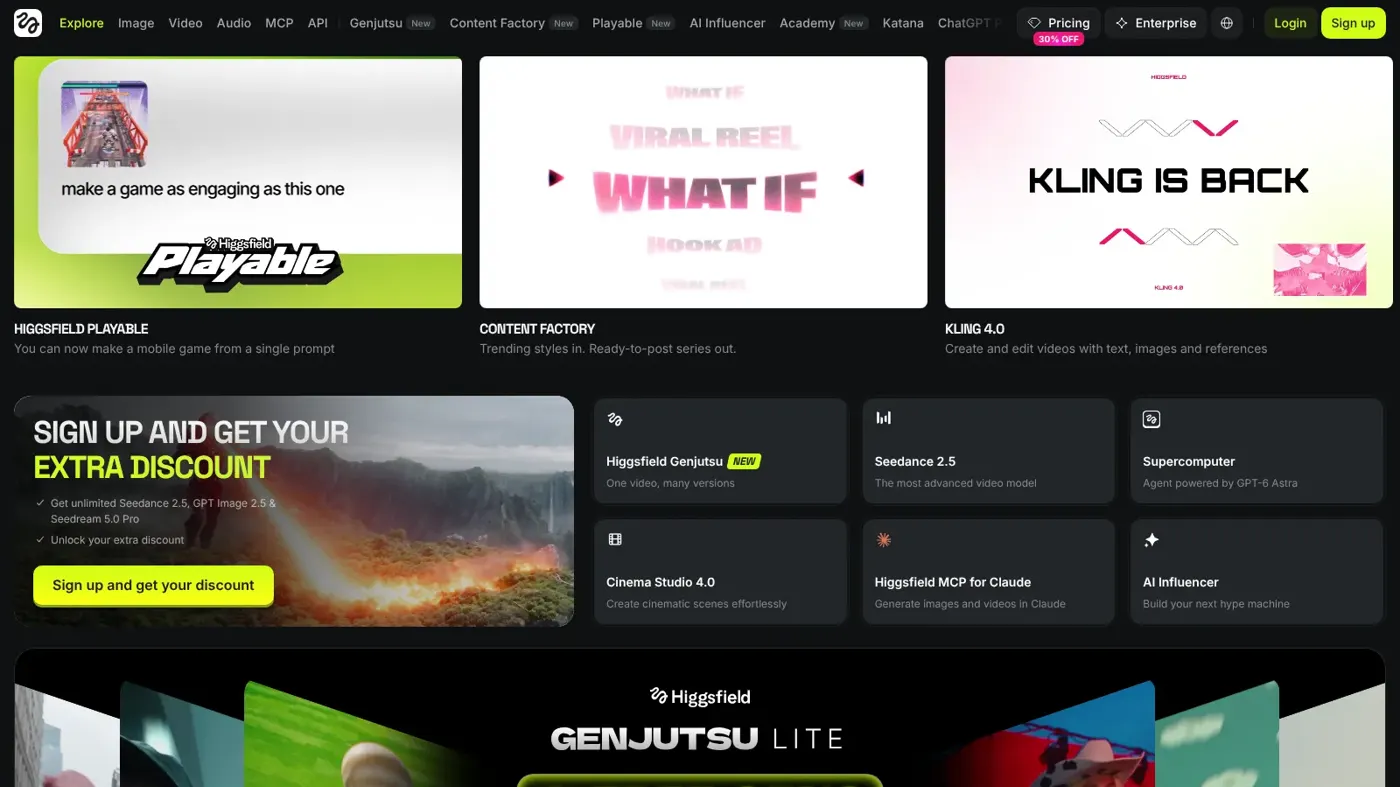
By the end of this Higgsfield AI tutorial you'll have made your first short AI video clip, in about 15 minutes. The short version: sign up at higgsfield.ai, open Video, pick a model (Seedance is the friendliest start), upload a photo or type a prompt, set duration and aspect ratio, check the credit cost on the Generate button, and click Generate. Your clip lands in Assets.
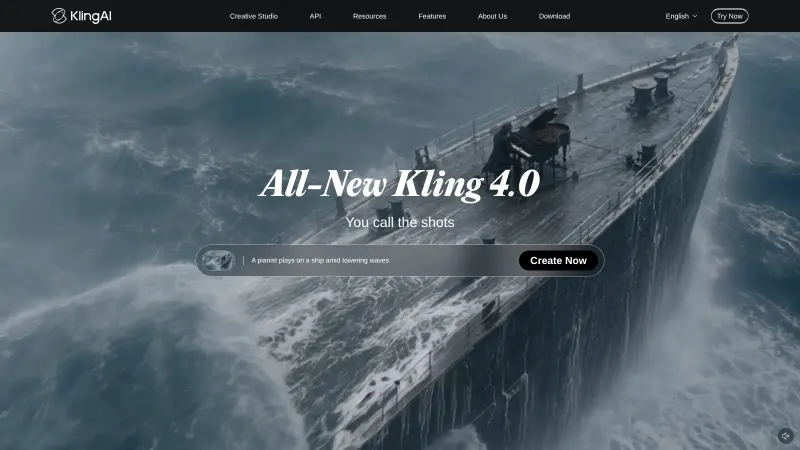
Higgsfield is one workspace that gives you many video and image models side by side. Its own video page lists Seedance 2.0, Kling 3.0, Veo 3.1, Wan 2.7, Sora 2 and others. That choice is great, but it can feel like a lot on day one. So we'll go one click at a time.
We built these steps from Higgsfield's official help centre and pricing page, checked in late October 2026. Nobody at the site ran hands-on tests for this guide. Menus change often, so if a button has moved, look for the same word nearby.
If you prefer to watch first, this recent beginner walkthrough from Metics Media covers the interface step by step.
What you need before you start
- A Higgsfield account. You must be 18 or over, according to the sign-up help page.
- A plan decision. You can start free, but free accounts get a limited set of models, no credits, and a watermark on every output (details in step 1).
- One clear idea. "A 5-second shot of my coffee mug with steam rising" works. "Something cool" does not.
- A reference photo (optional but helpful). Sharp, well lit, subject facing the camera. Higgsfield's Seedance guide says image-to-video is more predictable than text-only and uses fewer credits while you learn.
- A basic video editor (later). To join several clips into one video. Our guide to generating video with AI covers that part.
Step 1: Create your account and pick a plan
Go to higgsfield.ai and click Sign up. Continue with Google, Apple, Microsoft or email. If you choose email, you'll get a 6-digit code to finish registering (Higgsfield help).
Next, decide on free or paid. Here is what the official pages say, checked October 2026:
| Plan | Price | Credits per month | Good to know |
|---|---|---|---|
| Free | $0 | None | Small set of models, visible watermark |
| Starter | $19/mo | 270 | Seedance 2.0 Fast and 2.0 Mini, about 15 Seedance 2.0 Fast videos |
| Plus | $47/mo billed annually ($59 monthly) | 1,200 | All models, about 80 Seedance 2.5 videos |
| Ultra | $99/mo billed annually ($129 monthly) | 3,000 and up | All models, about 200 Seedance 2.5 videos |
Prices and credit estimates come from the Higgsfield pricing page, which was running a discount when we checked, so your price may differ. The help centre confirms there is no free trial period, and that free accounts carry a Higgsfield watermark on every generation.
Watch out: subscription credits don't roll over. Unused ones expire when your plan renews.
You should now see your credit balance in the top navigation bar.
Step 2: Open Video and choose a model
In the top navigation, click Video. Then pick a model from the picker. Each model has a different strength. Higgsfield's model guide sums them up like this:
- Seedance: realistic human motion. Higgsfield calls it "the most forgiving starting point" for video.
- Kling: longer, cinematic or multi-shot clips.
- Higgsfield DOP: VFX and directed camera moves through presets.
- Wan: strong control of the first and last frame.
- Veo, Sora, Grok Imagine and Minimax Hailuo: other models you can switch to any time.
For your first clip, choose Seedance. On Starter, that means Seedance 2.0 Fast or 2.0 Mini. Seedance 2.5 needs a higher plan, per the Seedance help page.
Tip: if you plan to stay on one model, our Seedance tutorial and Kling AI guide go deeper on each.
Step 3: Upload a reference image
Click the upload area and add your photo. Higgsfield's Seedance guide recommends you start with image-to-video at 720p using "a sharp, front-facing, well-lit reference image".
Skip people you don't have permission to show. Faces of real people need their consent. Also avoid logos, famous characters and branded products as the main subject. Higgsfield blocks generations that contain recognizable copyrighted characters, brand names or licensed IP.
You should now see a thumbnail of your image next to the prompt box.
Step 4: Write your prompt
Now describe what should happen. When you start from an image, the picture already holds the look. Your prompt should describe the action, the camera and the mood. Higgsfield's recommended order is: subject and action, then setting and lighting, then camera move, then mood or style.
Here is an example to adapt. It comes straight from Higgsfield's first-generation guide:
A close-up of a dancer mid-spin on a rooftop at golden hour, slow motion, cinematic lighting, shallow depth of field.
Use real camera words. The help centre lists terms Seedance reads directly: dolly in, truck left, arc shot, push in, pull back wide, handheld follow, crane up, orbital move.
For more prompt formulas across tools, see our AI video prompt guide.
Step 5: Set duration, aspect ratio and resolution
Look at the generation bar under the prompt. It holds clip duration, aspect ratio (including Auto, which matches your input image), resolution and bitrate, according to the Seedance help page.
- Duration: pick the shortest option for your first try. Seedance 2.0 clips run 4 to 15 seconds.
- Aspect ratio: 9:16 for TikTok, Reels and Shorts. 16:9 for YouTube.
- Resolution: 720p while you learn.
Leave the batch size at 1. If you set it to 2, 3 or 4, each output is charged separately.
Step 6: Check the cost and click Generate
Look at the Generate button. The exact credit cost shows on the button before you confirm, and it updates as you change settings. If it looks high, shorten the clip or drop the resolution.
Click Generate. Higgsfield says generation usually takes a few minutes, and video can take longer at higher resolutions. If a captcha appears, complete it. Skipping it makes the job fail with "Something went wrong" (troubleshooting page).
Step 7: Review, refine and download from Assets
Your clip appears where you made it and in Assets. Watch the whole thing. Higgsfield notes that most quality problems show up at the 5 to 8 second mark.
If it's not right, change one thing per try: the prompt or the image, never both. When the 720p version looks good, run the identical prompt at 1080p or higher for your final.
This video from Youri van Hofwegen focuses on not wasting credits while you iterate, which pairs well with this step.
Example: a complete worked example
Let's say you sell handmade ceramic mugs and want a 5-second vertical clip for Instagram. Here is the whole flow on the Starter plan.
- Prepare the photo. Shoot your mug on a plain table by a window. Make it sharp and fully in frame. No logos in the background.
- Open the model. Click Video, then choose Seedance 2.0 Fast.
- Upload the mug photo.
- Paste this prompt (an example to adapt, not a tested output):
Steam slowly rises from the ceramic mug on a wooden table, soft morning window light from the left, camera slowly pushes in toward the mug, calm and cozy mood, shallow depth of field.
- Set the bar: shortest duration, 9:16, 720p, batch size 1.
- Check the cost on the Generate button, then click Generate.
- Review in Assets. Say the steam looks fine but the camera barely moves. Change only the camera phrase to "camera dolly in from a wide shot to a close-up" and generate again.
- Final render. Once the motion works, re-run the same prompt at 1080p and download it.
Budget-wise, the pricing page estimates Starter's 270 credits cover about 15 Seedance 2.0 Fast videos. So keep your tests short, and save a few credits for the final.
Common mistakes and how to fix them
"Rejected due to copyright restrictions" or "IP detected"
Your prompt or image named a brand, character or living artist. Describe the look instead. Higgsfield's own example: swap "Spider-Man" for "a hero in a red and blue suit with a web pattern" (IP help page). Credits are usually refunded.
The generation is stuck
If it says Queued, hover over the tile in Assets and click Cancel, then retry. At the Processing or Generating stage you can't cancel, so wait. Failed jobs usually return credits automatically within a few minutes.
"You've hit your limit of generations at the same time"
Your plan's parallel slots are full. Cancel a queued job or wait for one to finish (Higgsfield help).
The camera ignores your instruction
Swap vague words like "cinematic movement" for specific ones such as dolly in, arc right or crane up, as the Seedance guide suggests.
Credits vanish faster than expected
Check Manage Account → Usage. The usual causes are batch sizes above 1, high resolution, long clips, or generations made through MCP, Canvas or Supercomputer, which always cost credits.
Tips to get better results
- Prototype small. Short clips at 720p first, full length and resolution last.
- Write in layers. Subject, details, setting, style, then camera and mood for video. That is the structure in Higgsfield's prompt-writing guide.
- Tell it what to keep. When changing a shot, say "keep the exact same" subject, face or background, then name the one thing to change.
- Reuse characters. Save a character as an Element (type @ in the prompt) so it stays the same across separate clips.
- Not sure where to start? Higgsfield's Supercomputer takes a rough idea and fills in the prompt for you, per the help centre. It always deducts credits, though.
FAQ
Is Higgsfield AI free to use?
Partly. You can generate on a free account, but Higgsfield says access is limited to a small set of models, there are no credits, and every output carries a visible watermark. There is no free trial period. Paid plans started at $19 a month (Starter) when we checked the pricing page in October 2026.
Which Higgsfield model is best for beginners?
For video, Higgsfield's own help centre calls Seedance "the most forgiving starting point". It handles realistic human motion well and reads plain camera terms like dolly in or crane up. For images, the help centre suggests Soul for the signature Higgsfield look or Nano Banana for fast results.
How long does a Higgsfield video take to generate?
Usually a few minutes, according to Higgsfield. Video takes longer than images, especially at higher resolutions. Credit generations run in a priority queue, while Unlimited and free generations share a pool and can be slower when the site is busy. Queued jobs can be cancelled for a refund.
Do Higgsfield credits roll over?
No, not on individual plans. Subscription credits reset at each renewal, or every 30 days on annual plans, and unused ones expire. Credit Packs and Auto-Refill credits work differently and last 90 days from purchase. Enterprise plans are the exception, with volume rollover credits.
How do I remove the Higgsfield watermark?
Subscribe to any paid plan. Higgsfield says paid plans add no visible watermark, but upgrading does not clean up older clips: regenerate them to get a clean version. There is no watermark toggle or one-off removal fee. Higgsfield may still embed invisible markers that identify content as AI-generated.
Next steps
You've made your first clip. Nice work. Now try the same idea on a different model to see how they compare:
- How to use Kling AI for longer, multi-shot scenes.
- Hailuo AI prompt guide for fast, high-motion clips.
- Seedance AI tutorial for lip sync and image-to-video.
Weighing whether Higgsfield is worth paying for? Read our Higgsfield AI review, or compare it with other options in our best AI video generators roundup and our Kaiber AI review.
Sources
- How do I create my first generation? (Higgsfield Help Center)
- How do I write a good prompt? (Higgsfield Help Center)
- How do I create an account and sign in? (Higgsfield Help Center)
- How do Higgsfield plans work? (Higgsfield Help Center)
- How do credits work? (Higgsfield Help Center)
- What uses my credits? (Higgsfield Help Center)
- Why is there a watermark, and how do I remove it? (Higgsfield Help Center)
- Which AI model should I use? (Higgsfield Help Center)
- How do I use Seedance? (Higgsfield Help Center)
- My generation is stuck or failed. What should I do? (Higgsfield Help Center)
- Why was my generation blocked for copyright or IP? (Higgsfield Help Center)
- Pricing plans (Higgsfield)
- AI Video Generator (Higgsfield)
- Higgsfield AI Tutorial for Beginners (2026) | Step-by-Step (YouTube, Metics Media)
- STOP Wasting Credits & Master Higgsfield AI in 18 Minutes (YouTube, Youri van Hofwegen)