How to add AI voice in video: 7 simple steps for 2026
How to add AI voice in video in seven steps: write a script, generate speech in CapCut or ElevenLabs, sync it on the timeline and export, with a worked example.
 Written byRahis SaifiCo-founder and news editor
Why you can trust The AI Future
Our writers research every product, link each claim to its source and correct mistakes openly. Companies can't pay for coverage or see reviews before they're published.
Read our editorial policy
To add an AI voice to a video, you write a short script, turn it into speech with a text-to-speech tool, and drop the audio onto your editing timeline under the footage. Free editors such as CapCut do this in one app; dedicated generators such as ElevenLabs give more control, and you import their audio file into any editor. The whole job takes seven steps.
This guide covers both routes, with example prompts, a worked example and the mistakes that trip up beginners. It was compiled from official help pages, pricing pages and published tutorials, checked in late October 2026. Nobody at the site ran hands-on tests for this piece. If you have not made the video yet, start with our pillar guide on how to generate video with AI.
What you need before you start
- A finished or near-finished video. Lock the cut first. Re-timing a voiceover after every edit wastes time.
- A script. Even 40 words. Step 1 shows how to write one.
- A text-to-speech tool. CapCut's built-in tool or a separate generator. Our list of the best AI voice generators compares the main options.
- An editor. CapCut, DaVinci Resolve, iMovie, Premiere or the editor inside your video generator.
- Headphones. Laptop speakers hide mispronunciations and clipped words.
If you prefer to watch first, this 2026 walkthrough from Janice Ong SG shows CapCut's text-to-speech feature step by step.
Step 1: Write a script that fits the video
The script decides how natural the voice sounds. Write for the ear, not the page. Use short sentences, one idea each.
Time it before you generate anything. Read it aloud at a normal pace against the video. If you run over, cut words rather than speeding up the voice later.
An AI chatbot can draft the first version. Example prompt to adapt:
Write a voiceover script for a 30-second vertical video showing [what the footage shows]. Audience: [who]. Tone: calm and friendly. Use short spoken sentences, no lists, no emojis, and write all numbers as words. Put each new shot on its own line.
That last instruction matters. ElevenLabs' own guide recommends writing numbers as words, such as "one" instead of "1", and warns that emojis and unusual symbols can make output unstable.
Step 2: Pick your route: built-in editor or dedicated voice tool
There are two ways to put an AI voice in a video. The right one depends on how much control you need.
| Route | Example | Best for | Trade-off |
|---|---|---|---|
| Text-to-speech inside your editor | CapCut | Social clips, quick narration, beginners | Fewer voice controls |
| Dedicated voice generator, then import | ElevenLabs | YouTube narration, ads, explainers, other languages | One extra export and import step |
CapCut says its tool offers more than 200 AI voices across languages including English, Spanish, Japanese and Thai, with sliders for speed and pitch. ElevenLabs' pricing page lists a free plan with 10,000 credits a month, shown as roughly 10 minutes of audio. Paid plans start at $6 a month for Starter, which adds a commercial licence and instant voice cloning, and $22 a month for Creator (checked October 2026).
Our take: if the video is for TikTok or Reels and you already edit in CapCut, stay there. If the voice carries the whole video, a dedicated tool is worth the extra step. For free options on either route, see our roundup of free AI text-to-speech tools.
Step 3: Generate the voice in a dedicated tool
This step uses ElevenLabs as the example. The flow is similar in most generators. According to the ElevenLabs product guide, voice choice has the biggest effect on the result, followed by the model, then the settings.
- Open Text to Speech and paste your script.
- Pick a voice. Choose a default voice, one from the Voice Library, or design one with Voice Design. For non-English scripts, the guide advises a native voice; otherwise the output keeps the original accent.
- Pick a model. The company names Eleven v4 as its latest model. It recommends English-only models for English-only content and multilingual models for anything else.
- Set the sliders. The guide calls stability around 50, similarity around 75 and style at 0 the most common starting point. Lower stability gives a livelier read; higher gives a steadier, flatter one.
- Adjust speed if needed. The default is 1.0, with a range of 0.7 to 1.2. The company warns extreme values may affect quality.
- Click Generate Speech, listen, and generate two or three takes. The guide notes the output is non-deterministic, so each take differs.
- Download the audio file you like best.
Kevin Stratvert's beginner tutorial walks through the same ElevenLabs flow, from choosing a voice to downloading the file.
Optional: use a clone of your own voice
Many creators want the narration to sound like them. Voice cloning makes that possible, but only clone your own voice, or someone's voice with their clear, recorded consent. Cloning another person's voice without permission is harmful and illegal in many places. Tennessee, for example, passed the ELVIS Act in 2024 to protect people's voices from AI misuse. ElevenLabs' use policy also gives people a way to report unauthorised use of their voice.
For your own clone, ElevenLabs' instant cloning guide recommends one to two minutes of clean audio with no reverb or background noise. It says recording more than three minutes adds little. The AI copies your delivery, so record in the tone you want to hear back.
Step 4: Or generate the voice inside CapCut
If you skip the separate tool, CapCut handles script, voice and timeline in one place. Its official instructions for the desktop editor are:
- Click Create project and use Import to add your video.
- Go to Text > Add text and paste your script.
- Open the Text to speech panel, choose a voice, and click Generate speech.
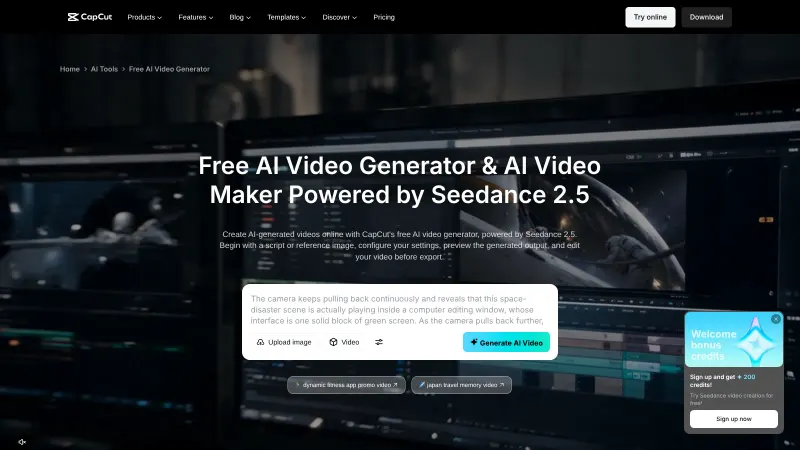
On the mobile app, CapCut's voiceover guide describes the same idea: tap Text, add your text, then tap Text to speech and pick a voice. You can adjust speed and pitch there. CapCut says it can also clone your own voice from a few recorded sentences. The same consent rule applies. Our CapCut AI video maker guide covers the rest of the app.
Step 5: Place the audio on the timeline and sync it
Import the voice file into your editor and drag it onto an audio track below the video. In CapCut, generated speech lands on the timeline automatically.
- Line up the first word with the first meaningful shot, not frame one. A half-second pause feels natural.
- Split the audio at sentence breaks. Nudge each piece so lines land on the matching cuts.
- Trim dead air. Long gaps between generated sentences make the read feel robotic.
Step 6: Mix the voice with music and captions
A clear voice can still get buried. Lower background music well under the narration, and fade it in and out. Add captions, since many viewers watch with sound off. CapCut's tool page also lists fade in, fade out and one-click background noise removal.
Listen once on headphones and once on a phone speaker. Fix anything that sounds off before export.
Step 7: Export and label the video correctly
Export at your platform's resolution and aspect ratio. Then check disclosure rules. YouTube's help centre requires creators to disclose realistic AI content that, for example, makes a real person appear to say something they did not. The same page lists "Cloning one's own voice to create voice overs or dubs" among examples that do not need disclosure. Our guide to making AI videos for YouTube covers the upload side.
Example: a complete worked example
Here is one full run, start to finish. It is an illustration built from the official steps above, not a tested output.
The video: a 30-second vertical clip of a small bakery opening for the day. Five shots: lights on, dough, oven, shelf, first customer.
Step 1, script. The chatbot prompt from step 1 returns a draft. After trimming it to fit when read aloud, it reads:
Six in the morning. The lights come on.
The dough has been resting since midnight.
Into the oven it goes.
By seven, the shelves are full.
And the first customer is already at the door.
Note "Six" and "seven" are written as words, as the ElevenLabs guide recommends.
Steps 2 and 3, voice. The free ElevenLabs plan is enough. A calm, warm narrator from the default voices. An English-only model. Stability around 50, similarity around 75, style 0, speed 1.0. Three takes, keeping the best. With roughly 10 minutes of audio a month on the free plan, a 30-second script leaves plenty of room for retakes. Note the free plan has no commercial licence, so a paid bakery ad would need Starter or above.
Step 5, sync. Import the file into CapCut. Split it into five lines and place each on its matching shot.
Step 6, mix. Add soft music well under the voice. Turn on captions.
Step 7, export. 1080 by 1920 for Reels or Shorts. A stock narrator voice over real bakery footage does not show a real person saying something they did not, so no disclosure is needed under YouTube's examples.
Common mistakes and how to fix them
- Voice mispronounces a name. Spell it phonetically in the script, for example "Nee-ah" for Nia.
- Numbers read strangely. Write them as words. ElevenLabs flags digits as a common cause of errors, especially in multilingual models.
- Narration sounds flat. Lower stability slightly and generate again, as the ElevenLabs guide suggests for livelier reads.
- Voice sounds rushed. Cut words instead of pushing speed past 1.0. Extreme speed settings can hurt quality.
- Wrong accent in another language. Use a native voice for that language rather than an English voice.
- Cloned voice has echo or noise. Re-record the sample in a quiet room. The clone copies everything it hears.
Tips to get better results
- Generate in short chunks. One paragraph per take is easier to fix than one long file.
- Match voice to audience. A tutorial wants a steady voice; a trailer can take a dramatic one.
- Keep one voice per channel. A consistent narrator builds recognition across videos.
- Try audio tags for emotion. ElevenLabs says its Audio Tags feature, in Eleven v4 and v3, lets you steer delivery.
- Dubbing a whole video? A dubbing tool may be faster than step-by-step text to speech. See our list of AI video dubbing tools.
Next steps
Once you can add AI voice in video, the next skills are making and editing the footage itself. Try our guides on how to use HeyGen for avatar presenters that speak your script, how to AI edit a video, and how to use Kling AI for generated b-roll.
FAQ
How to make an AI voice over?
Write a short script for the ear, paste it into a text-to-speech tool such as ElevenLabs or CapCut, and choose a voice that suits the audience. Generate two or three takes, pick the best, and download the audio. Write numbers as words and avoid emojis, which can confuse the voice model.
How to add an AI voice to a video?
Generate the voice as an audio file, import it into your video editor, and drag it onto an audio track below the footage. Split it at sentence breaks so each line matches its shot. Lower any music under the voice, add captions, then export. In CapCut, generated speech lands on the timeline automatically.
How to do an AI voice?
Pick a text-to-speech tool, choose a stock or designed voice, and type what it should say. For a voice that sounds like you, record one to two minutes of clean audio and create a clone of your own voice. Only clone someone else's voice with their clear consent; doing it without permission is illegal in many places.
How to put AI voice in video?
The quickest route is CapCut: import your video, go to Text, add your script, open Text to speech, pick a voice and generate. The voice appears on your timeline, synced to the text. For more control, generate in a dedicated voice tool first, then import the file into any editor.
Sources
- ElevenLabs Pricing for Creators & Businesses of All Sizes (ElevenLabs)
- Text to Speech (product guide) | ElevenLabs Documentation (ElevenLabs)
- Instant Voice Cloning | ElevenLabs Documentation (ElevenLabs)
- Use Policy (ElevenLabs)
- Text to Speech Online Free | 200+ AI Voices | CapCut TTS (CapCut)
- Unlock Video Potential: Empower Your Videos with CapCut Voice Over (CapCut)
- Disclosing use of GenAI content - YouTube Help (Google)
- PHOTOS: Gov. Lee Signs ELVIS Act Into Law (State of Tennessee)
- How to Use CapCut Text to Speech Feature (Step-by-Step Tutorial) 2026 (YouTube, Janice Ong SG | Tech Business Lifestyle Guide)
- How to Use ElevenLabs AI (Complete Voiceover Beginner Tutorial) (YouTube, Kevin Stratvert)