How to use the CapCut AI video maker: a step‑by‑step guide for 2026
Learn how to use the CapCut AI video maker to turn a script into a video, add AI captions and voice, and pick the right plan.
 Written byRahis SaifiCo-founder and news editor
Why you can trust The AI Future
Our writers research every product, link each claim to its source and correct mistakes openly. Companies can't pay for coverage or see reviews before they're published.
Read our editorial policy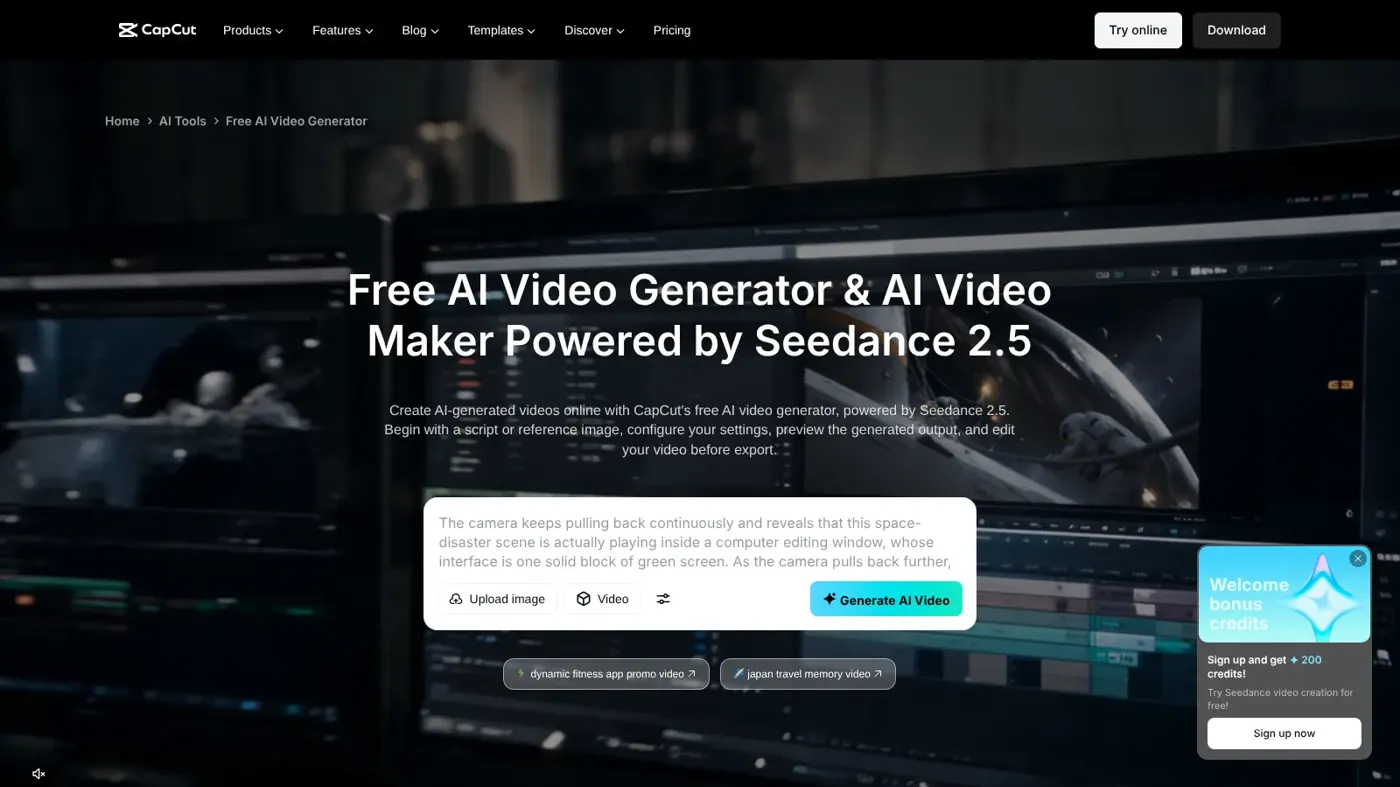
To use the CapCut AI video maker, open CapCut on desktop or the web, choose AI video maker, then Instant AI video. Paste a script (or let CapCut write one), pick a visual style, aspect ratio, voiceover and length, and click Create. CapCut builds a draft with scenes, voiceover and music that you can edit and export.
By the end of this guide you'll have a finished 30 to 60 second video made from a script, with AI captions and an AI voice, in about 20 minutes. We built every step from CapCut's own guides and tool pages, checked in late October 2026. Nobody at The AI Future tested CapCut hands-on for this piece, so where the interface may differ on your account, we say so. If you're new to AI video in general, start with our pillar guide on how to generate video with AI.
What you need before you start
- A CapCut account. The Free plan covers templates and basic editing tools, according to CapCut's pricing page.
- The CapCut desktop app or CapCut Web. CapCut's official steps for the AI video maker are written for both (CapCut AI video maker page). A laptop screen makes the Scenes panel easier to use than a phone.
- A short script or idea. About 120 words gives you roughly a minute of voiceover. One topic, one message.
- Optional: your own clips or photos. You can swap them in for AI-generated visuals later.
Is CapCut available where you live?
In the US, yes. Since January 22, 2026, US CapCut has been run by TikTok USDS Joint Venture, and the app is on the App Store and Google Play, according to a September 2026 status check by Hooked. TikTok's own announcement said the joint venture's safeguards "will also cover CapCut, and Lemon8" (Engadget). CapCut is still blocked in India. CapCut also notes that plan availability and features "may vary by region, platform, and current offering", so a button in this guide may be missing on your account.
CapCut plans and AI credits (checked October 2026)
CapCut's AI features run on monthly AI credits. Here's what the official pricing page showed in late October 2026. CapCut says displayed prices are "for reference only", so sign in to see your final price.
| Plan | Price | What you get |
|---|---|---|
| Free | $0 | Free templates and basic editing tools |
| Pro | $19.99/month or $179.99/year | 1,200 monthly AI credits, access to AI features, all premium templates, 1 TB storage. Seedance 2.5 video from $0.12 per second in the first month |
| Ultra | $79/month | 8,645 monthly AI credits, everything in Pro plus exclusive AI features, 1 TB storage |
| Teams | From $12.49/month per seat | 1,200 monthly AI credits per seat, Pro features for every seat, brand kit |
New users can start a 7-day free trial of Pro with no credit card, per the pricing FAQ. Hooked also reports a cheaper Standard tier at $9.99 a month on the US App Store, and says subscription credits last one month while purchased credits last two years (Hooked, CapCut updates).
Tip: Try the whole workflow on the free trial or Free plan first. Only upgrade once you know which AI features you'll use every week.
If you'd rather watch first, this 2026 tutorial from Jordan Solves It walks through CapCut's AI video generator.
How to use the CapCut AI video maker, step by step
These steps follow CapCut's own guide to its AI video generator and its AI video maker tool page. CapCut currently says the tool is powered by its Seedance 2.5 model.
Step 1: Open the AI video maker
Open CapCut on your computer and choose AI video maker from the homepage. On CapCut Web, select AI video maker > Instant AI video from the main dashboard. On desktop, click New project if you're asked.
You should now see a script box with style, aspect ratio, voiceover and duration settings around it.
Step 2: Write or generate your script
Paste your script into the Enter script box. No script yet? Click Generate script (on desktop it may read Create one with AI) and describe your topic. Here's an example to adapt:
Write a 45-second script for a vertical video called "3 ways to keep basil alive indoors". Friendly tone, a hook in the first sentence, three short tips, and a one-line call to action at the end. About 110 words.
Stuck for ideas? CapCut Web also has Brainstorm with AI. You type a topic, it draws a mind map, you pin the points you like, then click Generate script and choose a length (CapCut guide).
Step 3: Choose a style, aspect ratio, voice and length
Pick a visual style. CapCut lists options such as realistic film, cartoon 3D and cinematic movie. Then set:
- Aspect ratio: 9:16 for TikTok, Reels and Shorts, 16:9 for YouTube.
- Voiceover: choose a voice from the dropdown.
- Duration: match it to your script length.
Watch out: AI video costs credits on paid models such as Seedance 2.5, which is billed per second. Check the cost CapCut shows before you click Create.
Step 4: Click Create and review the draft
Click Create. CapCut generates a video with visuals, voiceover and transitions matched to your script. Play it through once without editing. Make a note of any scene where the picture doesn't match the words.
Step 5: Replace or regenerate scenes
Go to Scenes > Media. For each weak scene you can drag in your own file, pick from CapCut's stock library, or generate new media with AI (CapCut guide). When you regenerate, describe the shot clearly. For example:
Close-up of a small basil plant on a sunny kitchen windowsill, soft morning light, shallow depth of field, realistic.
For more on writing shot descriptions, see our AI video prompt guide.
Step 6: Adjust the AI voice
In the Scenes panel, open Voiceover to try different voice styles. On desktop, this is also where you can pick a digital avatar with a matching voice (CapCut). CapCut says its text-to-speech library has more than 200 AI voices across languages such as English, Spanish and Japanese, with controls for speed, pitch and volume (CapCut text to speech).
Want to voice a video you've already edited? In the desktop editor, go to Text > Add text, paste your script, open the Text to speech panel, choose a voice and click Generate speech. Our guide on how to add AI voice in video covers this in more depth.
CapCut also offers voice cloning from a few recorded sentences. Only clone your own voice, or a voice you have clear permission to use.
Step 7: Add AI captions
In the AI video maker, open Elements and choose a caption template. CapCut says these add synced subtitles in a ready-made style (CapCut).
If you're working in the regular editor instead, go to Text > Auto captions and click Generate. CapCut detects the spoken language and creates synced captions, which you can then edit or translate (CapCut auto caption generator).
You should now see caption blocks on the timeline. Read every one. Names, numbers and brand terms are where speech recognition slips most.
This video from Youri van Hofwegen gives a broader tour of CapCut's AI editing tools if you want to go beyond the basics.
Step 8: Add music and effects
Open Music, browse CapCut's library, and drag a track into the timeline. Lower its volume so the voice stays clear. CapCut's tool page also points you to subtitles and special effects at this stage (CapCut). Keep effects light: one transition style across the whole video looks cleaner than five.
Step 9: Export and share
Click Export in the top-right corner. Set the file name, resolution, frame rate and quality, then click Export again. Choose Edit more if you want to keep refining in the full editor first (CapCut guide).
Example: a complete worked example
Let's put it all together for a 45-second vertical video about indoor basil. Treat the prompts as examples to adapt, not tested outputs.
- Open CapCut Web and go to AI video maker > Instant AI video.
- Generate the script with this prompt:
Write a 45-second script titled "3 ways to keep basil alive indoors". Start with a hook question. Give three tips: light, watering and pinching off flowers. End with "Follow for more small-space gardening tips." Keep it under 115 words.
- Read the script and fix anything you disagree with. You're the expert on your content.
- Set the options: realistic film style, 9:16, a warm, friendly voice, about 45 seconds.
- Click Create and watch the draft once.
- Swap weak scenes in Scenes > Media. Use your own phone clip of your basil if you have one. Otherwise regenerate with a prompt like:
Hands gently pinching the flower buds off a basil plant, kitchen counter, natural daylight, realistic, vertical framing.
- Add captions from Elements, using a bold, high-contrast template. Check the spelling of "basil" and any numbers.
- Add soft background music and lower it under the voice.
- Export at 1080p if your plan allows, then upload.
You should end up with a short, captioned, voiced video ready for TikTok, Reels or Shorts. For a channel-focused version of this workflow, see how to make AI videos for YouTube.
Common mistakes and how to fix them
Visuals don't match the script
Vague scripts give vague scenes. Fix it by naming concrete objects and actions in each sentence ("a hand watering a pot", not "taking care of it"), then regenerating only the weak scenes.
Running out of credits
Per-second models add up fast. Write and approve your script before generating, keep drafts short, and check the cost shown before each generation. CapCut's pricing page lists Seedance 2.0 Mini as a cheaper option that uses "up to 58% fewer credits".
Captions with wrong words
Auto captions are a first draft. Fix it by reading every caption block before export, especially names and numbers.
A button from this guide is missing
CapCut changes its interface often and features vary by region and plan. Fix it by updating the app, trying CapCut Web, or checking whether the feature needs Pro.
Music that gets your video flagged
Music you bring from elsewhere, including AI-generated tracks, may not be cleared for every platform. Fix it by using CapCut's built-in library for commercial or monetised videos, and check each platform's rules before you upload.
Tips to get better results with CapCut AI
- Write for the ear. Short sentences sound better in an AI voice than long ones with lots of commas.
- Put the hook in the first five seconds. Ask a question or show the result first.
- Mix AI and real footage. One or two of your own clips make the video feel personal and trustworthy.
- Keep one style. Pick one visual style, one caption template and one transition, and stick with them.
- Use other CapCut AI tools with care. CapCut Web's AI hairstyle changer lets you preview new looks on a photo you upload. Use it only on your own photos or with the person's permission. Making deceptive images of real people without consent is harmful and illegal in many places.
- Label AI content. Many platforms ask you to disclose realistic AI-generated video. It also builds trust with viewers.
FAQ
Is the CapCut AI video maker free?
You can open the AI video maker and try it on a free account, and CapCut markets it as a free tool. Heavier use draws on AI credits. Pro costs $19.99 a month with 1,200 monthly credits, and new users get a 7-day free trial with no card required (CapCut pricing, checked October 2026).
What AI model does CapCut use for video?
CapCut's AI video maker page says it is powered by Seedance 2.5, ByteDance's video model. The pricing page also lists Seedance 2.0 Mini as a cheaper, lower-resolution option. Models change often, so check the selector in the app. Our Seedance AI tutorial covers the model itself.
Can CapCut turn a script into a video?
Yes. Paste your script into Instant AI video, or click Generate script to have AI write one. CapCut then matches visuals, voiceover and transitions to your words. You can replace any scene with your own media or new AI-generated clips before you export.
How do I add AI captions in CapCut?
In the AI video maker, open Elements and pick a caption template. In the regular editor, go to Text > Auto captions and click Generate. CapCut recognises the spoken language and syncs the captions, which you can edit, style or translate afterwards.
Is CapCut still available in the US?
Yes. Since January 22, 2026, US CapCut has been operated by TikTok USDS Joint Venture, and it is listed on the App Store and Google Play, according to Hooked's September 2026 update. It remains blocked in India.
Does CapCut add a watermark to AI videos?
CapCut's public pages we checked don't spell out watermark rules for every plan, and they may vary by region and feature. Hooked reports that Seedance 2.0 adds an invisible watermark and C2PA content credentials (Hooked). Check your export screen before you publish.
Next steps
You now know how to use CapCut's AI video maker from script to export. To go further:
- Compare CapCut with other tools in our roundup of the best AI video generators.
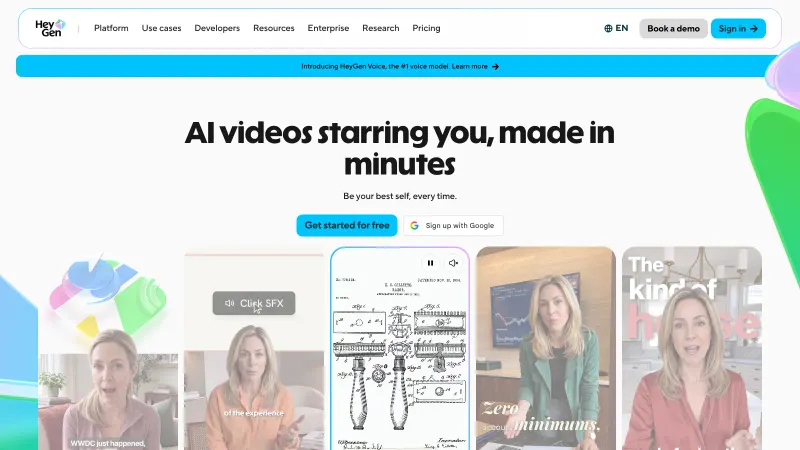
- Make avatar videos with our HeyGen guide.
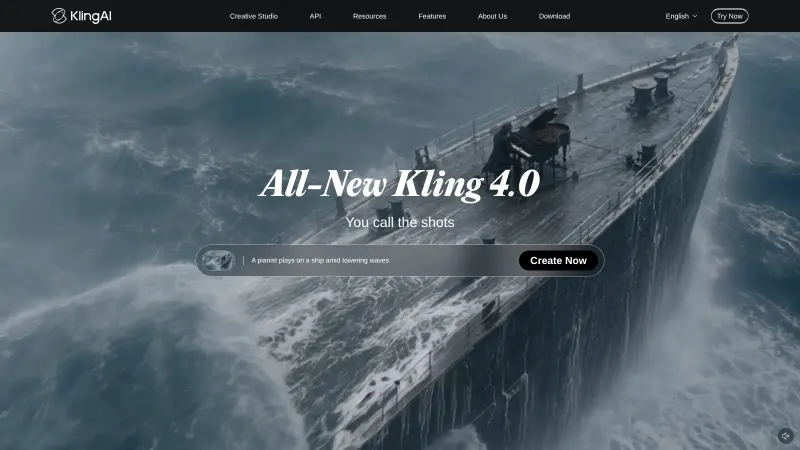
- Try cinematic clips with our Kling AI guide or the Higgsfield AI tutorial.
Sources
- AI Video Generator with Seedance 2.5: Make AI Videos Online (CapCut)
- Create Stunning Videos for Free With CapCut AI Video Generator (CapCut)
- CapCut Pricing | Choose the Right Plan (CapCut)
- Auto Caption Generator: Generate Captions Online (CapCut)
- Text to Speech Online Free | 200+ AI Voices (CapCut)
- Free AI Hairstyle Changer Online (CapCut)
- Is CapCut Getting Banned in the US? Where Things Stand (Hooked)
- CapCut Updates: What Changed in the Last 12 Months (Hooked)
- TikTok finalizes deal for its US entity (Engadget)
- Capcut AI Video Generator Tutorial 2026 (NO Confusion) (YouTube, Jordan Solves It)
- How to Use CapCut AI Tools Better than 99% of Editors (YouTube, Youri van Hofwegen)