How to make AI videos for YouTube in 5 simple steps (2026)
How to make AI videos for YouTube: script, voice, visuals, edit and upload in five steps, plus YouTube's current rules on AI disclosure and monetisation.
 Written byAlap ZahidReviews and guides editor
Why you can trust The AI Future
Our writers research every product, link each claim to its source and correct mistakes openly. Companies can't pay for coverage or see reviews before they're published.
Read our editorial policy
To make AI videos for YouTube, you write a script with an AI chatbot, turn it into narration with an AI voice tool, generate or gather visuals, put it all together in an editor, and upload it through YouTube Studio with the "AI use" setting answered honestly. That is five steps, and none of them needs a camera. The part most beginners miss is the last one: YouTube has clear rules on labelling realistic AI content and on which AI channels can earn money.
By the end of this guide you'll know how to make AI videos for YouTube from a blank page to a published upload, with copy-paste prompts and one full worked example. We built it from YouTube's own Help Center pages, official tool pricing pages and published guides, all checked in late October 2026. Nobody at the site ran hands-on tests for this piece. If you want the general version for any platform, start with our pillar guide on how to generate video with AI.
If you prefer to watch first, this walkthrough from HSM The Digital Playground covers the same overall process for YouTube.
What you need before you start
- A YouTube channel. Any Google account can create one. You will upload through YouTube Studio.
- A video idea with a clear viewer. "Why volcanoes erupt, for curious 12-year-olds" works. "A space video" does not.
- An AI chatbot. ChatGPT, Claude or Gemini all draft scripts well. A free account is enough to start.
- An AI voice tool. ElevenLabs is the common pick. Its free plan includes 10k credits per month, but the commercial licence only appears from the paid Starter plan up, which matters if you plan to monetise.
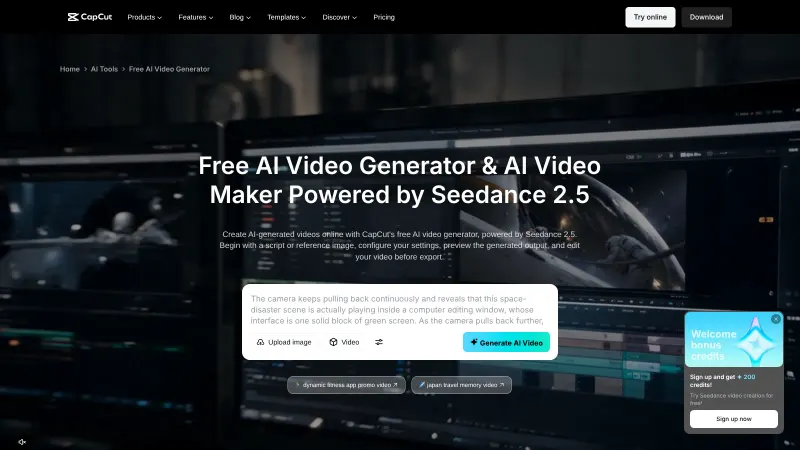
- A source of visuals. An AI video generator, YouTube's own Shorts tools, stock footage, or a mix. Our list of the best AI video generators compares the main options.
- An editor. CapCut, Descript, DaVinci Resolve or iMovie. Descript has a free plan with 60 media minutes a month, and paid plans start at $16 per person per month billed annually (checked October 2026).
Step 1: Write the script with an AI chatbot
The script decides how good the video is. Open your chatbot and paste the prompt below. Swap the parts in square brackets for your own topic.
Example prompt (adapt it): Write a YouTube script about [topic] for a [6]-minute video. Audience: [who]. Tone: friendly and clear. Start with a hook in the first 10 seconds, no "in today's video". Split it into 4 to 6 sections with a heading each. For every section, add a line in brackets describing what should be on screen. End with one question for the comments.
You should now see a script with headings and bracketed visual notes. Those notes become your shot list in step 3.
Now read the script out loud and rewrite anything that sounds generic. Add your own opinion, a real example or a fact you checked. This edit is not optional. As we explain in the rules section below, YouTube will not monetise AI content made from generic templates "without adding the creator's original, authentic insights or perspective", in the words of its channel monetization policies.
Watch out: Chatbots can state wrong facts with confidence. Check every number and name against a real source before you record anything.
Step 2: Turn the script into a voiceover
- Open your voice tool and start a new text-to-speech project.
- Pick a voice that suits your topic. Calm and steady works for explainers.
- Paste one section of the script at a time, not the whole thing. Short chunks are easier to fix.
- Listen back. Regenerate any line with odd stress or a mispronounced name.
- Export as WAV or high-quality MP3.
On ElevenLabs, the pricing page estimates about 10 minutes of speech on the free plan and about 30 on Starter. A 6-minute narration fits either. Cloning your own voice is another option: YouTube lists "cloning one's own voice to create voice overs or dubs" as a minor use that does not need disclosure. For more detail, see our guide on how to add AI voice in video.
Step 3: Create the visuals
Go back to the bracketed notes in your script. Each note is one shot. You have three main routes, and most channels mix them.
| Route | Good for | Example tools |
|---|---|---|
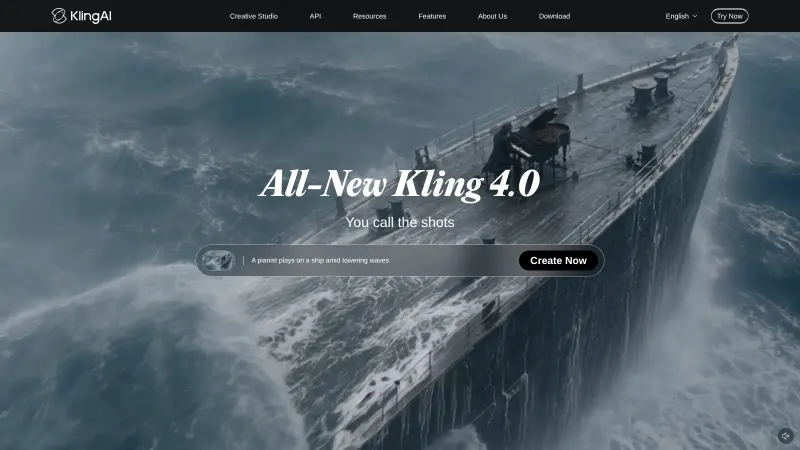
| AI-generated clips | Scenes you could never film, b-roll, stylised explainers | Gemini Omni, Kling, YouTube Shorts' prompt tool |
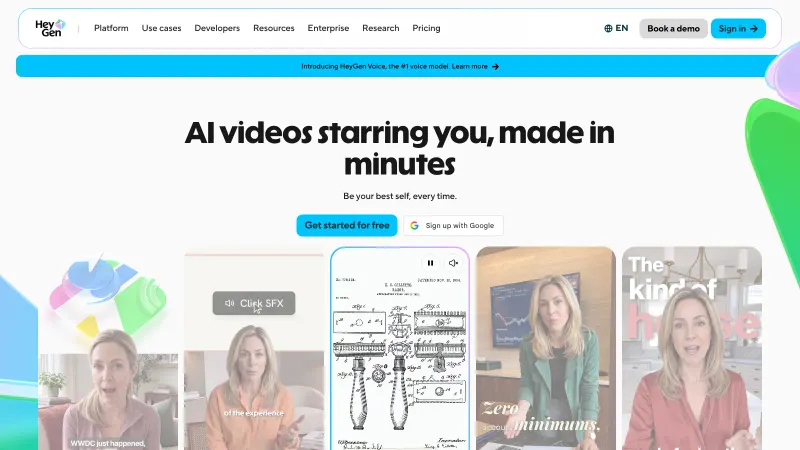
| AI avatar presenter | Talking-head explainers without showing your face | HeyGen, Synthesia |
| Stock and screen recording | Tutorials, real-world footage, product demos | Pexels, Pixabay, any screen recorder |
Google's Gemini page says its paid Google AI Pro plan includes access to more features like video generation, and describes Gemini Omni as a way to "blend text, images and video" into clips. For other platforms, see our guides to using Kling AI and using HeyGen for avatars.
Most AI generators make short clips, so write one prompt per shot:
Example prompt (adapt it): Slow aerial drone shot over an active volcano at dusk, glowing lava flowing down dark rock, light ash in the air, wide angle, documentary style, 16:9.
Making Shorts? TechRadar reports that the YouTube mobile app can generate clips of up to eight seconds from a text prompt using Google's Veo model: you tap Create and choose "Create a video from a prompt", and every clip gets an "AI-generated" label and a SynthID watermark. Availability can vary by country, so check your own app. This tutorial from CodNeura walks through that built-in feature.
Tip: Generate two or three versions of each shot and keep the best one. Our AI video prompt guide has more prompt patterns.
Step 4: Edit everything together
- Create a new 16:9 project at 1080p (or 9:16 for Shorts).
- Drop the voiceover on the audio track first. It sets the timing.
- Place each clip over the line of narration it matches.
- Add auto-captions. CapCut and Descript both generate them.
- Add quiet background music from a licensed library.
- Watch the whole video once without stopping. Cut anything that drags.
You should now have a finished video file. If you need help with the editor itself, see our CapCut AI video maker guide or our Descript review.
Step 5: Upload with the right AI disclosure
- Open YouTube Studio and click Create, then Upload videos.
- Add your title, description and thumbnail. AI can help write these.
- In the Attributes section, find "AI use". Select Yes if your video meets YouTube's disclosure rules, or No if not. These are the steps on YouTube's GenAI disclosure page.
- Finish the remaining settings and publish.
The next section explains when you must tick Yes.
YouTube's rules for AI videos: disclosure and monetisation
When you must disclose AI content
YouTube says it requires creators to "disclose AI-generated or altered content that seems realistic". You must disclose content that makes a real person appear to say or do something they didn't, alters footage of a real event or place, generates a realistic scene that didn't happen, or creates music that is the main focus of the video.
You don't need to disclose content that is clearly unrealistic (such as animation or fantasy scenes) or minor help, which YouTube says includes using AI for a "video outline, script, thumbnail, title, or infographic", captions, upscaling and idea generation. So in our volcano example below, the photorealistic AI eruption footage needs a Yes. A cartoon explainer with an AI-written script would not.
YouTube may also add a label automatically for content made with its own AI tools, files carrying C2PA metadata, or content its systems detect. Creators who consistently fail to disclose may face penalties "including removal of content or suspension from the YouTube Partner Program".
Can you monetise AI videos?
Yes, if the content is original. To join the YouTube Partner Program you need 1,000 subscribers plus either 4,000 qualified watch hours in the last 12 months or 10 million qualified Shorts views in the last 90 days. The same page notes updated YPP terms that creators must accept in YouTube Studio by 31 January 2027.
Under the monetization policies, content must not be "mass-produced, generic, repetitive, or manipulative". The examples of what can't earn include image slideshows or scrolling text with little narrative, and AI-generated content made with generic templates that gives "the impression of mass production". The separate reused content rule covers repurposing other people's videos without significant commentary or changes, and it applies "even if you have permission from the original creator". Reviewers look at your channel as a whole, so a few lazy uploads can affect everything.
Example: a complete worked example
Here is how the five steps fit together for one 6-minute explainer, "Why do volcanoes erupt?", on an education channel.
- Script. Paste the step 1 prompt with the topic filled in. Rewrite the hook around a real eruption you have read about, and check every figure against a geology source. Result: about 850 words in five sections, each with a bracketed visual note.
- Voice. Generate the narration section by section on a paid ElevenLabs plan so you hold a commercial licence. Fix two mispronounced place names. Export one WAV file of about 6 minutes.
- Visuals. Turn the visual notes into about 15 prompts. Use an AI generator for the eruption and magma chamber shots, a simple animated diagram for the tectonic plates, and stock footage for a real volcano observatory.
- Edit. Lay the voice down first, match clips to each section, add captions and soft music. Export at 1080p.
- Upload. In YouTube Studio, add a title and thumbnail, then answer Yes under "AI use", because the photorealistic eruption shots show realistic scenes that never happened.
Common mistakes and how to fix them
- Publishing the raw AI script. It sounds like every other channel. Fix: add your own angle, examples and checked facts before recording.
- Choosing No on "AI use" for realistic footage. Fix: if a viewer could mistake it for real, select Yes.
- Using a free voice plan for a monetised channel. Fix: check the tool's licence terms; on ElevenLabs the commercial licence starts with Starter.
- Uploading near-identical videos daily. YouTube's policy targets content that feels interchangeable. Fix: give each video a distinct topic, story or point of view.
- Mismatched visuals. Random clips under the narration lose viewers. Fix: write the shot list from the script, one prompt per line.
Tips to get better results
- Hook fast. Put the most interesting line in the first 10 seconds.
- Keep one look. Reuse the same style words in every visual prompt so clips match.
- Mix sources. A guide from Dupple suggests combining stock footage with AI visuals, since it can look more polished than fully generated video.
- Think about other languages. AI dubbing can take one video to new audiences. Compare options in our list of AI video dubbing tools.
Next steps
You now have the full process. To go deeper on each part, try our step-by-step guides to using Kling AI for cinematic clips, using HeyGen for avatar presenters, and making free AI videos if you want to start without paying.
FAQ
How to make AI video for YouTube?
Write a script with an AI chatbot, turn it into narration with an AI voice tool, create visuals with an AI generator or stock footage, edit them together, and upload through YouTube Studio. Answer the "AI use" question honestly during upload.
How to make YouTube video with AI?
Use AI for the slow jobs, not the thinking. Let it draft the script, voice and visuals, then add your own research, opinion and edits. That keeps the video useful and in line with YouTube's originality rules.
How to make AI YouTube videos?
Follow the five steps above. For Shorts, the YouTube app itself can generate short clips from a prompt, according to TechRadar, so you may not need another tool to start.
How to use AI to make YouTube videos?
The most common uses are scripting, voiceover, b-roll, captions, thumbnails and titles. YouTube treats AI help with scripts, thumbnails, titles and captions as minor uses that don't need disclosure. Realistic AI footage of real people, places or events does.
How to make an AI YouTube channel?
Pick a niche where you can add real value, such as explainers or tutorials, and plan a series where each video has a different topic. Create the channel, publish consistently and disclose realistic AI content. To earn money, you'll need to meet the YouTube Partner Program thresholds and pass a review against YouTube's policies on generic and reused content.
Sources
- Disclosing use of GenAI content (YouTube Help)
- YouTube channel monetization policies (YouTube Help)
- YouTube Partner Program overview & eligibility (YouTube Help)
- ElevenLabs Pricing for Creators & Businesses of All Sizes (ElevenLabs)
- Descript Pricing | Plans for Every Creator, Free to Start (Descript)
- Gemini – Your AI assistant from Google (Google)
- YouTube Shorts now lets you turn text into 8-second videos using Veo 3's AI magic (TechRadar)
- How to Make AI YouTube Videos: Full Workflow (2026) (Dupple)
- How to Make AI Videos for YouTube: Step-by-Step Tutorial (2026) (YouTube, HSM The Digital Playground)
- How to Make FREE AI Videos with YouTube's New Video Creation Feature | Step-by-Step Tutorial (2026) (YouTube, CodNeura)