Hailuo AI video generation prompt guide: camera moves, examples and plans for 2026
A beginner's Hailuo AI prompt guide for MiniMax H3: prompt order, official camera commands, text and image-to-video examples, plans and credits.
 Written byFahad HashmiContributing writer, AI in energy and industry
Why you can trust The AI Future
Our writers research every product, link each claim to its source and correct mistakes openly. Companies can't pay for coverage or see reviews before they're published.
Read our editorial policy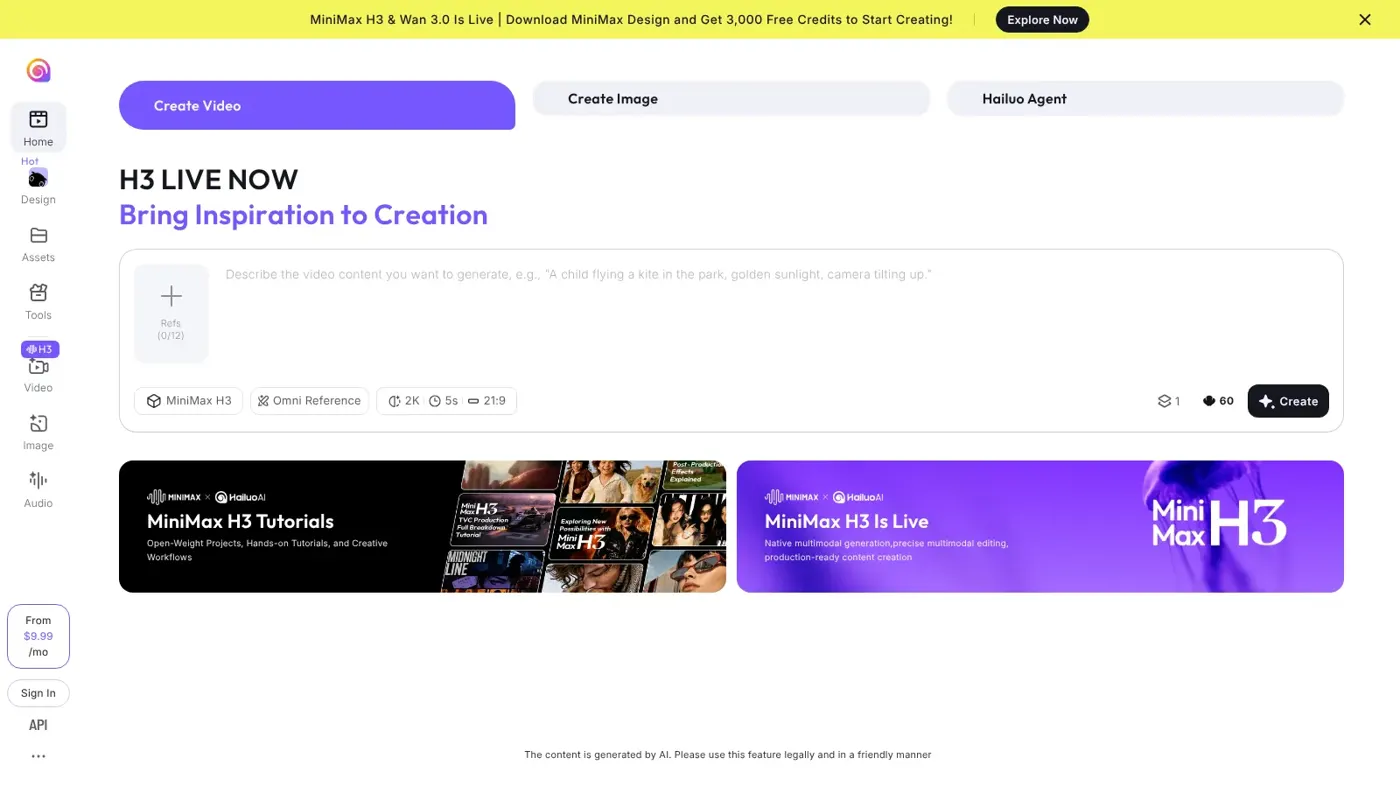
By the end of this guide you'll be able to write a Hailuo AI prompt that gives you a usable clip on the first or second try, in about 15 minutes. Here is the short version of this Hailuo AI video generation prompt guide: describe one shot in plain sentences (subject, action, setting, light), add the camera move, add sound, and set the length and aspect ratio. For precise camera work, Hailuo's official docs support bracket commands such as [Push in], [Pan left] and [Static shot].
Hailuo AI is the consumer video app from the Chinese company MiniMax. Its current flagship model is MiniMax H3, which MiniMax released on 31 July 2026. We put this guide together from MiniMax's official API docs, the Hailuo AI website and published prompting guides, checked in late October 2026. Nobody at the site ran hands-on tests for it, so treat every prompt below as an example to adapt, not a tested result. If you are brand new to AI video, start with our pillar guide on how to generate video with AI.
If you prefer to watch first, this full tutorial from Franklin AI walks through the Hailuo app for 2026.
What you need before you start
- A Hailuo AI account. Sign in at hailuoai.video. New accounts get one-time free trial credits.
- One clear shot in mind. "A barista pours latte art, close-up, morning light" is a shot. "A coffee shop video" is not.
- A reference image (optional). For image-to-video you need a JPG, PNG or WEBP still. A product photo or a character portrait works well.
- A few credits to spare. Plan on two or three versions of every shot. That is normal, not a failure.
Which Hailuo model is current?
MiniMax H3 is the model the Hailuo homepage leads with, and MiniMax's video docs now list H3 as its video generation model. DataNorth reports that H3 reads text, images, video and audio as one context and returns clips of up to 15 seconds at up to 2K, with native stereo sound. You will also see it called Hailuo 3.0 or Hailuo 03. Segmind's explainer confirms these are the same model.
The older Hailuo 2.3, Hailuo 2.0 and Hailuo 1.0 models are still listed on the Hailuo plans page, so older tutorials still partly apply.
Current plans and credits
Here is what the official Hailuo subscription page showed (checked October 2026):
| Plan | Monthly price | Billed yearly | Credits per month | About this much H3 video |
|---|---|---|---|---|
| Free | $0 | n/a | One-time trial credits | Hailuo models only |
| Standard | $14.99 | $8.40/mo ($100.80/yr) | 1,000 | ~84s at 2K or ~143s at 768P |
| Pro | $54.99 | $30.40/mo ($364.80/yr) | 4,500 | ~375s at 2K or ~643s at 768P |
| Master | $119.99 | $71.20/mo ($854.40/yr) | 10,500 | ~875s at 2K or ~1,500s at 768P |
| Max | n/a | $184/mo ($2,208/yr) | 27,000 | ~2,250s at 2K or ~3,857s at 768P |
The Hailuo homepage was also running a promotion: download the MiniMax Design app and get 3,000 free credits. MiniMax's own docs mention that MiniMax Design lets you try H3 video generation 3 times for free. Promotions change often, so check before you count on them. For other free options, see our guide to making free AI videos.
Step 1: Open the video creator and pick your model
Go to hailuoai.video/create and sign in. Click Create Video. You should now see a prompt box with a model selector below it. On our check of the page it defaulted to MiniMax H3 in Omni Reference mode, with settings for resolution (2K), length (5s) and aspect ratio (21:9).
Leave H3 selected unless you have a reason to switch. The plans page lists H3 at 4 to 15 seconds in 768p or 2K, while H3 Max runs 5 to 15 seconds at 480p or 768p and costs less per second.
Tip: Start at 768P while you are still testing your idea. Switch to 2K only for the version you plan to keep. On the Standard plan, the subscribe page prices 2K at $0.101 per second and 768P at $0.059 per second.
Step 2: Write your prompt in the right order
A good Hailuo prompt reads like a short note to a camera operator. Write it in this order:
- Subject. Who or what is on screen, with two or three visual details.
- Action. What happens, from start to finish.
- Setting and light. Where it happens, time of day, mood.
- Camera. Framing and movement (Step 3 covers the syntax).
- Sound. Dialogue, sound effects, ambience or music. H3 generates audio with the picture.
- Style and format. Live action or animation, length, aspect ratio.
Kapwing's H3 guide uses a longer version of the same idea: References, Retention, Scene, Timeline, Camera, Audio, Constraints. You only need all seven parts for a reference-heavy ad. A simple clip needs subject, action, camera and sound.
Here is a beginner text-to-video prompt to copy and adapt:
Close-up of a barista's hands pouring steamed milk into a white cup, forming a heart in the latte. Warm morning light through a café window, steam rising. Shallow depth of field. [Push in] slowly toward the cup. Sound: soft espresso machine hiss and quiet café chatter. Photorealistic, 16:9.
MiniMax's own examples follow this pattern. One prompt in the official H3 feature highlights opens with "15s, 16:9" and then describes the room, the camera feel and the sound in separate sentences.
Watch out: For text-only generations through the API, MiniMax says the aspect ratio is required and cannot be adaptive. In the app, just pick a ratio before you click Create.
Step 3: Add camera movement with bracket commands
This is the part most people skip, and it makes the biggest difference. MiniMax's H3 guide says that for finer control you can add camera motion instructions such as [pan], [zoom] or [static] directly after the key description.
The full command list lives in MiniMax's text-to-video API reference, which documents 15 commands for Hailuo 2.3, Hailuo 02 and the T2V-01-Director model:
| Movement | Commands | What it does |
|---|---|---|
| Truck | [Truck left], [Truck right] | Camera slides sideways |
| Pan | [Pan left], [Pan right] | Camera turns on the spot |
| Push | [Push in], [Pull out] | Camera moves toward or away from the subject |
| Pedestal | [Pedestal up], [Pedestal down] | Camera rises or lowers |
| Tilt | [Tilt up], [Tilt down] | Camera angles up or down |
| Zoom | [Zoom in], [Zoom out] | Lens zooms without moving the camera |
| Shake | [Shake] | Handheld or impact shake |
| Follow | [Tracking shot] | Camera follows the subject |
| Static | [Static shot] | Locked-off camera |
The same page gives three usage rules:
- Combine moves inside one bracket to run them at the same time, such as [Pan left,Pedestal up]. MiniMax recommends three at most.
- Chain moves in order to run them one after another, such as "...[Push in], then...[Pull out]".
- Plain language also works, but MiniMax says explicit commands give more accurate results.
MiniMax's own example is short: "A man picks up a book [Pedestal up], then reads [Static shot]." Notice that each command sits right after the action it belongs to.
A red vintage car drives along a cliff road at sunset [Tracking shot], then stops at a lookout [Pull out] to reveal the ocean below. Sound: engine purr, wind, distant waves.
With H3 you can also write camera moves in normal filmmaking language. Kapwing recommends terms like "dolly in, track left, pan right, rack focus, handheld, locked-off, and whip pan" over vague phrases like "make it cinematic".
This walkthrough from How To Fix Pro shows camera movement control inside Hailuo AI.
Step 4: Turn an image into video
Image-to-video gives you the most control, because the first frame is already decided. The Hailuo creator shows a Refs counter (up to 12 files) next to the prompt box. Its hint text suggests writing "@Image1 as start frame, @Video1 for motion, @Audio1 as soundtrack".
- Click the Refs area and upload your still.
- In the prompt, say what the image is for: "@Image1 as start frame".
- Describe only what changes: the motion, the camera and the sound. The image already covers the look.
- Click Create.
MiniMax's API docs give useful limits that are a safe guide for the app too. Images can be JPG, PNG, WEBP or HEIC, up to 30 MB, between 256 and 5,760 pixels per side. The output takes its aspect ratio from your image. You can also set a last frame, or both a first and last frame, and let H3 fill the motion between them.
@Image1 as start frame. The woman turns her head toward the window and smiles as a breeze lifts her hair. Keep her face, hairstyle and green jacket exactly as in Image 1. [Push in] slowly to a close-up. Sound: light wind and birdsong.
Watch out: MiniMax's API says image-to-video (first or last frame) and reference-to-video cannot be mixed in one request. If you want a character reference and a start frame at once, run two passes.
For a wider look at this workflow across tools, see our roundup of the best image to video AI tools.
Step 5: Use references for characters, motion and sound
Omni Reference is what sets H3 apart. MiniMax's guide explains that reference generation keeps the features of the reference subject or asset consistent throughout the video. You can mix images, video clips and audio.
The key is to give each file one job. Kapwing suggests saying what should transfer and what should not, for example: "Video 1 defines the hand trajectory and movement timing only. Do not copy its actor, wardrobe, setting, lighting, or camera movement."
Image 1: the main character. Image 2: the sneaker. Video 1: running motion only, do not copy its setting or lighting. The character jogs through a rainy city street at night wearing the sneaker from Image 2. Neon reflections on wet pavement. [Tracking shot] at knee height, then [Tilt up] to her face. Sound: footsteps splashing, rain, low synth music. 9:16.
Step 6: Set length, check the result and iterate
Pick your length (H3 goes from 4 to 15 seconds) and click Create. Watch the result once for motion and once with sound on. Then change one thing at a time: the camera command, the action wording or the light. Changing everything at once makes it hard to see what helped.
If you use the API, MiniMax also offers an H3-Context-IR task that returns an enhanced prompt without creating a video. The H3 Max model has a prompt expansion setting you can turn off when you want the model to follow your words exactly.
Example: a complete worked example
Say you want a 6-second vertical teaser for a small candle brand, built from one product photo.
The plan. Image-to-video, MiniMax H3, 768P for drafts, 6 seconds. The aspect ratio comes from the photo, so crop it to 9:16 first.
The prompt to adapt:
@Image1 as start frame. A lit soy candle in an amber glass jar sits on a wooden shelf. The flame flickers gently and a thin curl of smoke rises. Warm evening light, soft shadows, cosy living room blurred in the background. [Static shot] for two seconds, then [Push in] slowly toward the flame. Keep the jar label sharp and readable. Sound: a quiet crackle from the wick and soft acoustic guitar.
Why it works. The image sets the look, so the prompt spends its words on motion. The camera commands are chained in order. The label instruction protects the brand detail, which MiniMax reports H3 handles well (accurate text and brand rendering).
The credit maths. On the Standard plan, 1,000 credits buy about 143 seconds of H3 video at 768P, per the subscribe page. That works out to roughly 7 credits per second, so each 6-second draft costs about 42 credits. Three drafts plus one 2K final (about 12 credits per second, so around 72 credits) comes to roughly 200 credits. These are our estimates from the published figures, not Hailuo's own numbers.
What you should see. A still opening, then a slow move toward the flame, with the crackle in sync. If the camera drifts during the first two seconds, move [Static shot] closer to the start of the sentence and regenerate.
Common mistakes and how to fix them
- Too many actions in one clip. Three events in six seconds get blurred together. Fix: one main action per clip, and stitch clips later.
- Camera and subject motion mixed up. "Dynamic shot as she runs" is vague. Fix: describe what she does, then what the camera does, as Kapwing advises.
- Commands far from their action. A [Pan right] at the very end of a long prompt may not land where you meant. Fix: put each command right after the action it belongs to.
- Too many moves stacked. Fix: keep combined brackets to three moves or fewer, per MiniMax's docs.
- Describing the whole image again in image-to-video. Fix: describe only what changes.
- Forgetting sound. H3 makes audio anyway. Fix: say what you want to hear, or the model will guess.
Tips to get better results
- Open with format. MiniMax's own examples start with length and ratio, like "15s, 9:16".
- Describe actions as a path. Start state, movement, end state: "lifts the bottle to chest height and turns the label to camera."
- Protect what matters. Name the details that must not change, such as a face, a logo or an outfit.
- Use close framing for faces. Kapwing notes that identity is harder to keep when the face is small in the frame.
- Draft cheap, finish sharp. Use 768P or H3 Max for drafts, then 2K for the keeper.
Want more prompt patterns that work across tools? Our AI video prompt guide covers the general formula.
FAQ
Is Hailuo AI free?
Partly. The Hailuo plans page lists a free tier with one-time trial credits that work on Hailuo models only. Paid plans start at $14.99 a month, or $8.40 a month billed yearly, for 1,000 credits (checked October 2026). Promotions, such as bonus credits for installing MiniMax Design, come and go.
What is the latest Hailuo AI model?
MiniMax H3, released on 31 July 2026. It is also called Hailuo 3.0 or Hailuo 03. It takes text, images, video and audio as input and makes clips of 4 to 15 seconds at up to 2K, with sound. Hailuo 2.3 and older models are still available in the app.
How do I control the camera in Hailuo AI?
Add bracket commands right after the action they belong to, for example "she opens the door [Push in]". MiniMax documents 15 commands, including [Pan left], [Tilt up], [Zoom in], [Tracking shot] and [Static shot]. You can combine up to three in one bracket, or chain them in order.
Who makes Hailuo AI?
Hailuo AI is made by MiniMax, a Chinese AI company that also builds language, speech and music models. The video models are available in the Hailuo app at hailuoai.video and through the MiniMax API for developers.
Can I use Hailuo AI for image to video?
Yes. Upload a still in the Refs area and write "@Image1 as start frame", then describe the motion, camera and sound. MiniMax's docs also support a last frame, or a first and last frame together. The output takes its aspect ratio from your image.
How long can a Hailuo AI video be?
With MiniMax H3, one generation can run from 4 to 15 seconds, per MiniMax's API docs and the Hailuo plans page. For longer videos, generate several clips and join them in an editor. Our guide to making AI videos for YouTube covers that step.
Next steps
You now have a prompt structure, the camera command list and a worked example. To compare how other platforms handle prompts and camera control, try our Kling AI guide, the Higgsfield AI tutorial or the Seedance tutorial. Still choosing a tool? See our list of the best AI video generators.
Sources
- Video Generation - MiniMax API Docs (MiniMax)
- Create Text-to-Video Generation Task - MiniMax API Docs (MiniMax)
- Create Video Generation Task - MiniMax API Docs (MiniMax)
- H3 Feature Highlights - MiniMax API Docs (MiniMax)
- Hailuo AI Subscription Plans for Video and Image Tools (Hailuo AI)
- Hailuo AI: MiniMax H3 LIVE NOW (Hailuo AI)
- AI Video & Image Creator | Start Creating (Hailuo AI)
- MiniMax H3 release: omni-modal 2K video model (DataNorth)
- MiniMax H3: Release Date, Open Weights, and API Pricing Explained (Segmind)
- How to Prompt MiniMax H3 (Hailuo 3.0): A Guide for AI Video Creators (Kapwing)
- The Ultimate MiniMax Hailuo Guide (2026 Full Tutorial) (YouTube, Franklin AI)
- How to Control Camera Movement in Hailuo AI Full Guide 2026 (YouTube, How To Fix Pro)