How to use Grok Imagine: make AI images, edits and videos step by step
Learn how to use Grok Imagine to generate images, edit photos and make AI videos, plus which X Subscription tiers include it in 2026.
 Written byAlap ZahidReviews and guides editor
Why you can trust The AI Future
Our writers research every product, link each claim to its source and correct mistakes openly. Companies can't pay for coverage or see reviews before they're published.
Read our editorial policy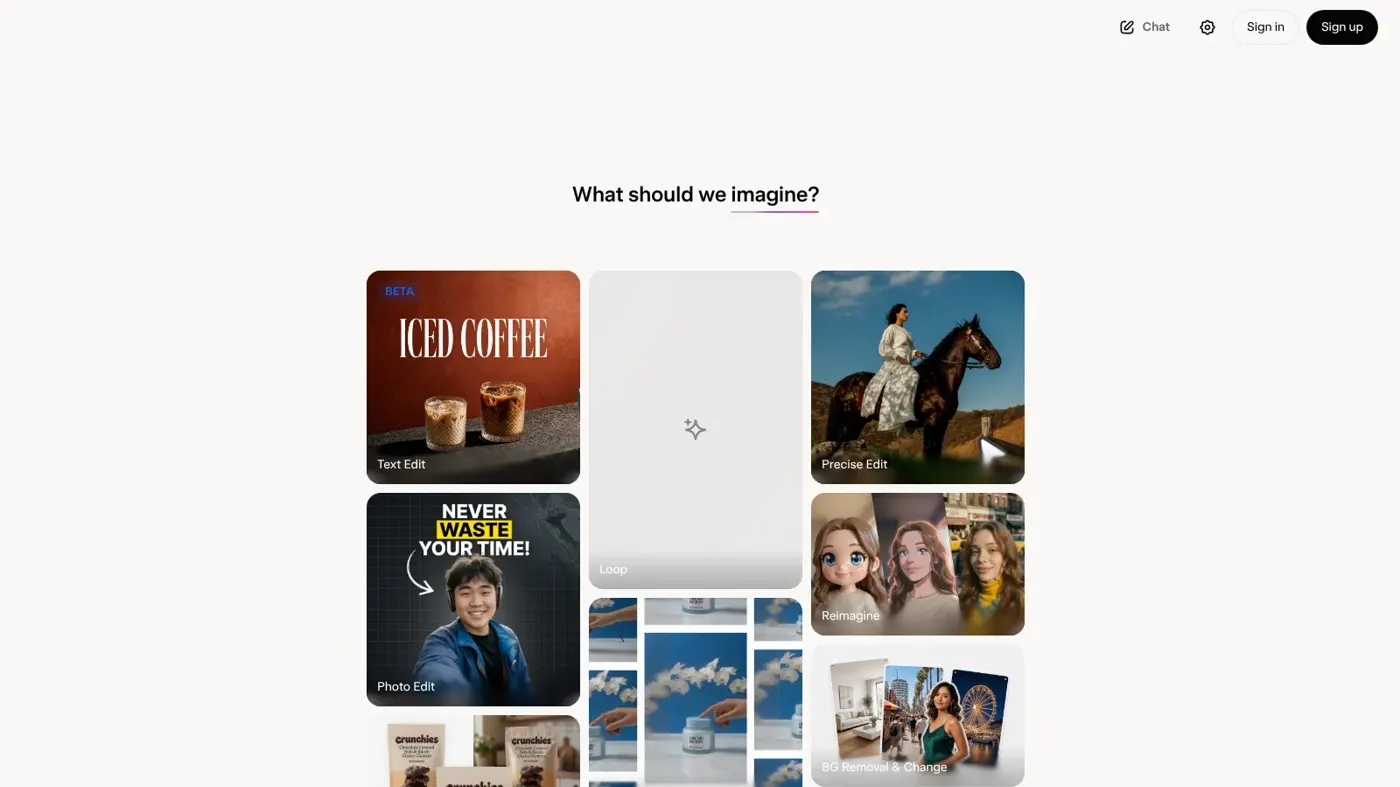
To use Grok Imagine, sign in at grok.com or in the Grok app on a paid plan, open Imagine, type a prompt and choose Image or Video. You can then edit any picture with a follow-up prompt, or animate it into a short clip. Images go up to 2K and videos up to 15 seconds, according to the official Grok page.
By the end of this guide you'll have made an image, edited it and turned it into a video in about 15 minutes. We built every step from the official Grok pages, help FAQ and developer docs from SpaceXSI (the company formerly called xAI), plus published guides, all checked in late October 2026. Nobody at The AI Future tested the tool hands-on for this piece. If you are new to AI video in general, start with our pillar guide on how to make AI videos.
What you need before you start
- A Grok account. Sign in at grok.com with an email address or your X account, or download the iOS or Android app (Grok).
- A paid plan. The current Grok plans page lists Imagine from the cheapest paid tier upward. Several trackers report that free accounts lost Imagine access in March 2026 (HunterMussel, Tech Insider).
- An idea and one or two photos. A product shot, a sketch or a picture you took yourself is perfect for the editing and animation steps.
- A computer or phone with a modern browser. The official FAQ recommends grok.com in Chrome or another Chromium browser, since some users on other addresses miss features (Grok FAQ).
Which X Subscription tiers include Grok Imagine (checked October 2026)
Grok and X now share one subscription. The plans page shows four tiers, and every Grok product draws from one shared weekly usage pool rather than separate daily limits, according to the official FAQ.
| Tier | Price | What it means for Imagine |
|---|---|---|
| Plus | $8/month | Grok Chat, Voice, Imagine and Build in the shared pool. SmartScope's plan summary reports Plus covers image generation but not video. |
| Premium | $30/month (first month $15 at the time of checking) | "Make stunning AI images & videos", with 4x the usage of Plus |
| Super | $100/month | Adds 1080p video and faster generations, with 15x the usage of Plus |
| Ultra | $200/month | Earliest access to new models and 50x the usage of Plus |
The Plus video detail comes from SmartScope's breakdown of the X Subscription, so confirm it on the plans page before you pay. Prices exclude tax and can change.
If you prefer to watch first, this 2026 walkthrough from Moe Lueker shows how to create videos with Grok Imagine.
How to use Grok Imagine, step by step
Step 1: Sign in and check your plan
Go to grok.com or open the Grok app and log in. If you pay for your subscription through X, link it first: on the website, open Settings → Account and click Connect your X Account, so Grok can see your subscription status (Grok FAQ).
Next, open Settings → Usage. You should see a progress bar, a breakdown by product (including Imagine) and your weekly reset date. That page is your "fuel gauge" for the rest of this guide.
Step 2: Open Imagine
Go to grok.com/imagine on the web, or tap Imagine in the app. Image 2.0, the newest image model, runs as the Quality mode there and in the iOS and Android apps (DataNorth). You can also ask for an image or video inside a normal chat, because Grok creates images and video in the same thread (Grok).
Tip: keep Imagine open in its own tab while you learn. The gallery view makes it easier to compare versions.
Step 3: Generate your first image
Choose Image, paste a prompt into the box and press generate. A good prompt names the subject, the setting, the light and the style. Here's an example to adapt:
A ceramic coffee mug on a wooden café counter, morning sunlight from the left, steam rising, soft shadows, product photography, shallow depth of field
You should now see a few versions of your picture. Pick the one you like best. Image 2.0 was trained with particular attention to typography and layout, so short text such as a shop name usually holds up better than in older models, according to SpaceXSI's launch notes as reported by DataNorth.
Step 4: Edit an image with Grok Imagine
This is where Grok's image editing capabilities come in. Open the image you picked, or upload your own photo, then type what should change. The Grok page says you can restyle and edit generated content with follow-up prompts. Try:
Keep everything the same, but change the mug to matte navy blue and add the word "Bloom" in white on the side
Image 2.0 adds more precise tools, according to DataNorth:
- Magic Wand: point at one region and change only that part.
- Segmentation: select an exact area to modify.
- Background removal: export the subject with a transparent background.
- Multi-reference editing: combine up to five images in one generation.
- Smart Resize: recompose one image across nine aspect ratios, from a tall 1:2 banner to a wide 2:1 banner.
- Templates: ready-made workflows for product shots, headshots, icons, posters and more.
The developer docs confirm editing with up to five source images for combining subjects, transferring styles and composing scenes (SpaceXSI Docs).
Watch out: only edit photos of people with their consent. Grok also has a "spicy" mode; making sexual or deceptive images of real people is harmful and illegal in many places, and SpaceXSI's Acceptable Use Policy bans it.
Step 5: Turn an image into a video
Now animate your picture. With the image open, switch to Video. The still becomes the first frame of the clip (SpaceXSI Docs). Describe only the movement, because the model can already see the scene:
Steam curls slowly upward, sunlight flickers gently, the camera pushes in a little toward the mug
You should see your clip in under a minute or so. The Tech Insider guide recommends image-to-video when you want predictable results, because you fix the composition before any motion is added (Tech Insider). For more tools that do this job, see our roundup of image to video AI tools.
Step 6: Make a video from text or references
You can also start from a blank box. Choose Video and describe the scene and the motion together. The current video model generates native 1080p from text or an image, with lip-synced speech, up to 14 reference images and 3 voice references (SpaceXSI Docs). On the consumer plans, 1080p is listed from Super upward (Grok plans).
A barista pours latte art in a small, bright café, close-up on the cup, slow camera push-in, warm morning light, calm mood
Grok's official channel shows how references work in this short demo.
Step 7: Download, check the watermark and track your usage
When you're happy, download the image or MP4. Every Grok Imagine image and video carries a Grok watermark showing it was made with AI. There is no setting to remove it, and removing or obscuring it breaks the Acceptable Use Policy (Grok FAQ). Then glance at Settings → Usage again. Videos cost much more of your weekly pool than chat messages do, according to the same FAQ.
Example: a complete worked example
Let's put it all together. Imagine you run a small flower shop called Bloom and want a short clip for social media.
- Generate the hero image. In Image mode, paste:
A bouquet of pink peonies in a glass vase on a white marble counter, soft window light, pastel background, clean product photography, square format
- Edit it. Pick the best version and type:
Keep the bouquet and vase the same. Add a small kraft paper tag on the vase that reads "Bloom" in simple black letters
If only the tag area is wrong, use the Magic Wand on it and prompt again. - Resize for each platform. Use Smart Resize to get a tall version for stories and a wide one for a website banner.
- Animate it. Switch to Video and paste:
Petals sway slightly as if a soft breeze passes, light shifts gently across the counter, slow push-in, calm and fresh mood
- Review and download. Watch the clip twice. If the vase warps, shorten the motion prompt to one action and try again. Then download it, add music and captions in your editor, and post.
That's one image, one edit and one video, which fits comfortably in a learning session. Want captions and voice? Our guide to adding AI voice to a video takes it from here.
Common mistakes and how to fix them
- "I can't find video." Check your tier. Premium is the first plan the plans page markets for images and videos (Grok plans).
- "My 720p video came out at 480p." 720p videos fall back to 480p once you hit your tier's 720p cap, according to the FAQ. Wait for the weekly reset, buy Extra Usage Credits (from $5 on the web) or upgrade.
- "My subscription isn't showing." You're probably signed in with a different login. X subscription benefits only apply to the account linked to your X account (Grok FAQ).
- "The video drifts or melts." You asked for too much movement. Keep to one or two actions per clip and describe the camera separately.
- "The whole image changed when I asked for one fix." Start your edit prompt with "Keep everything the same, but..." or use the Magic Wand to limit the change to one region.
Tips to get better results
Write prompts in layers
For video, a reliable order is subject and action, setting, camera move, then light and mood (Tech Insider). Our AI video prompt guide has more formulas, and this GuideLab video walks through prompting Grok Imagine specifically.
Start with an image you control
Generating or uploading the first frame, then animating it, gives you more control than pure text-to-video. Change one thing per edit.
Save your usage for finals
Draft ideas as images, which use less compute, and only animate the winners. The FAQ notes that high-quality video uses far more of your pool than a chat message.
Use the API if you build apps
Developers can call the Imagine API, where images start at $0.02 each and video starts at $0.02 per second (SpaceXSI models and pricing). Subscriptions and API credits are billed separately.
FAQ
Does Grok AI generate videos?
Yes. Grok Imagine makes videos from a text prompt, from an image, or from reference images and voices. Clips run up to 15 seconds, and the latest model supports native 1080p (SpaceXSI Docs). On consumer plans, video is marketed from Premium ($30/month) and 1080p from Super ($100/month).
Does Grok AI generate images?
Yes. Type a prompt in Imagine or in a normal Grok chat and it creates images up to 2K resolution (Grok). Image 2.0, released in August 2026, is the default Quality mode on web and mobile, according to DataNorth.
What are Grok's image editing capabilities?
You can edit with plain follow-up prompts, and Image 2.0 adds a Magic Wand for region edits, segmentation, background removal, multi-reference editing with up to five images, Smart Resize across nine aspect ratios and ready-made templates (DataNorth). Only edit photos of real people with their consent.
What is the Grok Imagine daily limit?
There is no fixed daily number any more. Since June 2026, paid plans use one weekly usage pool shared across Chat, Imagine, Voice and Build, and video uses more of it than images (Grok FAQ). Check Settings → Usage to see what's left and when it resets.
Is Grok Imagine free?
Not at the moment, as far as we can verify. The plans page lists Imagine from the $8 Plus tier, and the FAQ only mentions free-tier limits for Chat and Voice. Trackers report free Imagine access ended in March 2026 (HunterMussel). For no-cost options, see our guide to making free AI videos.
Can I remove the Grok watermark?
No. Every Grok Imagine image and video carries a watermark that labels it as AI-made. There is no setting to turn it off, and removing or hiding it is against SpaceXSI's Acceptable Use Policy (Grok FAQ). Some places also require AI content to be labelled by law.
Next steps
You now know how to use Grok Imagine from first prompt to finished clip. To compare it with other tools, try our Kling AI guide, the Higgsfield AI tutorial or the Seedance AI tutorial. Or browse our picks of the best AI video generators.
Sources
- Grok — Useful AI Chatbot with Voice & Image Generation (SpaceXSI)
- Plans - Grok (Grok)
- FAQ - Grok Website / Apps (SpaceXSI Docs)
- Imagine Overview (SpaceXSI Docs)
- Grok Models & Pricing (SpaceXSI Docs)
- Acceptable Use Policy (SpaceXSI)
- SpaceXAI Releases Grok Imagine Image 2.0 (DataNorth AI)
- The X Subscription Premium: Grok Bot, Cursor, Grok CLI, X Perks, and Weekly Limits for $30/Month (SmartScope)
- How to Use Grok Imagine: 12 Steps, $0.25/Sec 1080p [2026] (Tech Insider)
- Grok Just Locked Its Best Features Behind a Paywall (HunterMussel)
- Grok AI Video Generator Tutorial: Grok Imagine Guide to Create Viral Videos 2026 (YouTube, Moe Lueker)
- Use 14 references in Grok Imagine videos (YouTube, Grok)
- How to Prompt Grok Imagine for Better Images & Videos (2026 Guide) (YouTube, GuideLab)