How to make AI cartoon video: step by step, with examples
Learn how to make an AI cartoon video in six steps: script, original character, consistent scenes in Kling, voice and editing, plus a full worked example.
 Written byAlap ZahidReviews and guides editor
Why you can trust The AI Future
Our writers research every product, link each claim to its source and correct mistakes openly. Companies can't pay for coverage or see reviews before they're published.
Read our editorial policy
To make an AI cartoon video, write a short script, design one original character, turn that character into a reusable reference in an AI video generator, generate your scenes shot by shot, add a voice, and then edit the clips together with captions and music. By the end of this guide you'll have a 20 to 30 second cartoon with the same character in every scene, and you can do your first one in an afternoon.
We built this walkthrough from the official guides for Kling, ElevenLabs and CapCut, plus published tutorials, as of late October 2026. Nobody here tested these tools hands-on for this piece, so treat the example prompts as starting points to adapt. If you're brand new to AI video in general, our pillar guide on how to generate video with AI covers the basics first.
Prefer to watch first? This 2026 tutorial from Mariana Montoya shows how to design and animate an AI character from scratch.
What you need before you start
- An idea for one original character. Invent your own. Don't recreate characters from existing films or shows: they're protected by copyright and trademark, and you can't safely publish or earn money from them.
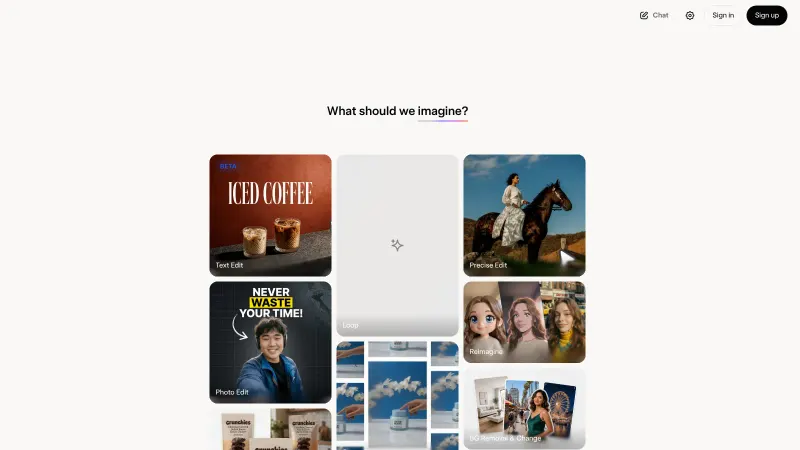
- An AI video generator with character references. This guide uses Kling, whose VIDEO 3.0 Omni guide describes "Elements" that keep a character's look consistent across shots. Kling's site now also headlines Kling 4.0; menus may differ slightly if you pick a newer model.
- A voice tool (optional). ElevenLabs has a free plan with 10,000 credits a month, but its pricing page lists the commercial licence from the paid Starter plan up.
- A video editor. CapCut works in the browser and on phones, and adds captions and music.
- About two hours and a small credit budget. Kling charges per second of video: 6 to 12 credits a second for VIDEO 3.0 Omni, depending on resolution and whether native audio is on, according to its guide.
Tip: want the fastest possible result instead? Skip to "The shortcut" further down. CapCut can generate a whole cartoon video from a topic in one go, with less control over the character.
How to make an AI cartoon video, step by step
Step 1: Write a tiny script and shot list
Keep your first cartoon short: three scenes, 20 to 30 seconds. A guide from LongStories recommends a simple structure of setup, main event and payoff, and suggests deciding your audience and tone before opening any tool. Open any chatbot and paste this example prompt, changing the parts in brackets.
Write a 30-second cartoon script for [kids aged 5 to 8]. Main character: [a small grey mouse named Pip who keeps a lighthouse]. Three scenes: setup, problem, happy ending. For each scene give: shot length in seconds, camera framing (wide, medium or close-up), what happens, and at most one short line of dialogue.
You should now have a table or list of three scenes with timings. If the scenes run longer than 15 seconds each, ask the chatbot to "shorten each scene to 10 seconds".
Step 2: Design your character and a reference sheet
Generate one clean, front-facing image of your character on a plain background, then two or three more angles. You can use Kling's own image generator, which Kling says now supports image series with a consistent visual style, or any image generator you like. Use a prompt like this example:
Character reference sheet of an original cartoon character: a small grey mouse with oversized round ears, a yellow raincoat and a tiny brass lantern. Soft 3D cartoon style, warm colours, neutral expression. Front view, side view and back view on a plain white background, full body, even lighting.
Watch out: avoid asking for "in the style of" a named studio or show. Describe the look you want in your own words (soft 3D, flat 2D, watercolour, clay) instead.
Step 3: Turn the character into a reusable Element
This is the step that stops your character changing face between scenes. Kling's VIDEO 3.0 Omni guide explains that you can build an Element from multi-angle images, and the model will try to keep that character's features consistent "regardless of how the camera moves". Here's how the guide describes it:
- Open video generation in Kling and choose the Omni model.
- Create a new Element and upload your front-facing reference image first. Add the side and back views. Images need to be at least 300 px wide and tall, up to 10MB, in JPG or PNG.
- Give the Element a short name, such as Pip, and a one-line description.
- Optionally bind a voice. After you upload a front-facing image, Kling shows a voice option for character Elements; you can pick an existing voice or extract one from a clip.
You should now be able to type @Pip in a prompt and have Kling pull in your character.
Step 4: Create a voice for your character
If you want a custom voice, open ElevenLabs and go to Voices, then My Voices, then Add a new voice, then Voice Design. The ElevenLabs docs say it generates three options per prompt and that more detailed prompts (age, tone, pacing, emotion) tend to give more accurate results. Try this example:
Young, bright, slightly squeaky cartoon voice. Gender-neutral, sounds about 10 years old. Cheerful and curious, quick pacing, clear pronunciation, clean studio recording.
Save the voice you like, generate each line of dialogue as a separate audio file, and keep the files named by scene (scene1.mp3 and so on). Kling's guide says a voice sample of three seconds or more can be attached to a character Element, so you can also upload one of these clips there to drive lip sync.
Step 5: Generate each scene with a shot-by-shot prompt
Kling's VIDEO 3.0 guide describes a multi-shot feature that reads shot instructions from your prompt, with up to 15 seconds per generation. Write each scene like a mini storyboard. Here is an example prompt for scene 1:
@Pip. Soft 3D cartoon style, stormy evening. Shot 1 (3s): Wide shot of a tiny lighthouse on a rock, waves crashing. Shot 2 (4s): Medium shot, @Pip climbs the spiral stairs carrying the brass lantern. Shot 3 (3s): Close-up, @Pip looks out the window and says, "Uh oh. The big light is out!"
Generate at 720p first to save credits. When a take looks right, regenerate the keeper at 1080p if you need it. You should now have three clips, one per scene.
This step-by-step video from TutStick walks through a similar pipeline for 3D cartoons, including lip sync and consistent characters.
Step 6: Edit, caption and export in CapCut
Import your clips and audio into the CapCut editor, put the scenes in order, and line up any separate voice files with the mouth movement. Then follow the steps from CapCut's own cartoon guide: add captions from the caption or text templates, open the Music tab to add a background track, and click Export in the top-right corner to pick a resolution between 360p and 4K. ElevenLabs also has a guide to using its voiceovers in CapCut if you're adding narration. For more on the editor, see our CapCut AI video maker guide.
The shortcut: one-click cartoons in CapCut
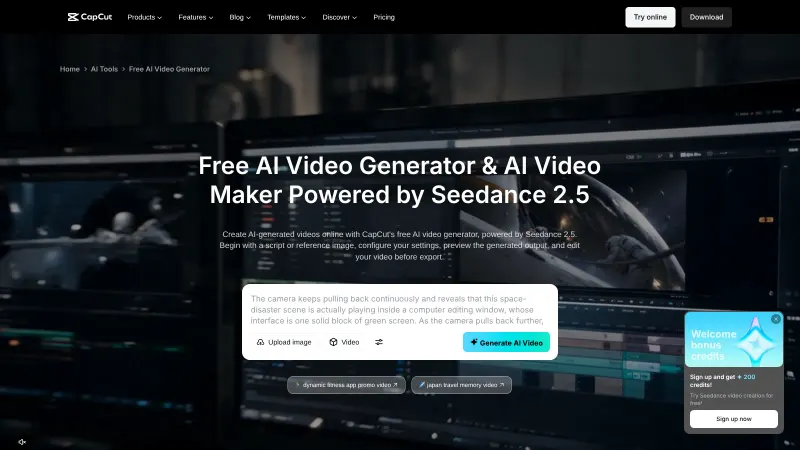
If you only need a quick explainer or social clip, CapCut can do most of the work. According to CapCut's guide, you open the free AI video maker, click "Instant AI video", choose a style such as Cartoon 3D, enter your topic (or use "Generate script"), pick an aspect ratio, duration and voiceover, and click Create. The trade-off is control: you won't get the same custom character across a series the way Elements allow.
Example: a complete worked example
Here's the whole process for one 30-second short, "Pip and the dark lighthouse". All prompts are examples to adapt.
| Stage | What you do | Output |
|---|---|---|
| Script | Run the Step 1 prompt for a kids' audience | 3 scenes: light goes out, Pip fixes it, a boat sails home safely |
| Character | Run the Step 2 reference sheet prompt; pick the best front view | Front, side and back images of Pip |
| Element | Create the "Pip" Element in Kling with all three images | @Pip ready to use in prompts |
| Voice | Design Pip's voice in ElevenLabs; generate 3 lines | scene1.mp3, scene2.mp3, scene3.mp3 |
| Scenes | Run one multi-shot prompt per scene at 720p, about 10 seconds each | 3 clips, about 30 seconds in total |
| Edit | Assemble in CapCut, add captions and gentle music, export 1080p | Finished vertical or horizontal short |
Scene 2 and scene 3 prompts follow the same pattern as Step 5:
@Pip. Soft 3D cartoon style, inside the lamp room. Shot 1 (4s): Medium shot, @Pip opens a small hatch and twists a loose bulb. Shot 2 (3s): Close-up, sparks, then the giant lamp glows warm yellow. Shot 3 (3s): Close-up, @Pip grins and says, "Good as new!"
@Pip. Soft 3D cartoon style, calm sea at dawn. Shot 1 (5s): Wide shot, the lighthouse beam sweeps across the water as a little fishing boat sails into harbour. Shot 2 (5s): Medium shot, @Pip waves from the balcony and says, "Welcome home!"
At Kling's published rate of 6 credits a second for 720p with native audio off, 30 seconds of keepers works out to about 180 credits, before any retakes. Budget for several attempts per scene.
Common mistakes and how to fix them
- The character looks different in every scene. You're probably describing the character from scratch each time. Use an Element (or your tool's character reference feature) and a clean, front-facing reference image with a neutral expression, as the LongStories guide also advises.
- Too much happens in one clip. Limit each shot to one action. If a shot fails, split it in two.
- Lip sync drifts. Keep dialogue lines short (under about eight words) and generate one line per shot.
- The style shifts between scenes. Start every prompt with the same style phrase, word for word, such as "Soft 3D cartoon style".
- Credits vanish fast. Draft at 720p with audio off, then upgrade only your final takes.
Tips to get better results
- Write camera directions. Wide, medium and close-up shots in each scene make it feel edited, not random. Our AI video prompt guide has more phrasing ideas.
- Keep a style card. Save your character description, style phrase and voice settings in one note and paste from it every time.
- Add sound last. Music and small sound effects in the edit hide a lot of rough edges.
- Check the licence. If you plan to monetise, confirm that each tool's plan allows commercial use. ElevenLabs, for example, lists commercial use from Starter up.
- Batch your work. Once your character is set up, you can script and generate several episodes in one session. This tutorial from AI Madame shows one approach to batch-creating animations with a consistent character.
Next steps
You now have a repeatable recipe: script, character, Element, voice, scenes, edit. To go further, learn the Kling interface in detail with our Kling AI guide, improve your narration with how to add AI voice in video, or keep costs down with how to make free AI videos. If you want to compare other generators, see our roundups of the best AI video generators and best animation AI tools.
FAQ
How to make cartoon videos using AI?
Write a short script, design an original character, and save it as a reusable reference in an AI video generator such as Kling. Generate each scene with a shot-by-shot prompt, add a voice with a tool like ElevenLabs, then edit the clips together in CapCut with captions and music before exporting.
How to make a cartoon video with AI?
For a quick result, use CapCut's "Instant AI video" option: pick a style such as Cartoon 3D, enter your topic, choose a voice and duration, and click Create. For more control over your character across scenes, build the video scene by scene in a generator that supports character references, then edit it yourself.
How to make AI cartoon videos?
Plan three short scenes, keep one action per shot, and reuse the same character reference and style phrase in every prompt. Draft at low resolution to save credits, upgrade your best takes, and add music and captions in the edit. Use only original characters, and check each tool's plan for commercial-use rights.
Sources
- Kling VIDEO 3.0 Omni Guide (Kling AI)
- Kling VIDEO 3.0 Model Guide (Kling AI)
- Kling AI: Next-Gen AI Video & Image Generator (Kling AI)
- ElevenLabs Pricing for Creators & Businesses of All Sizes (ElevenLabs)
- Voice Design | ElevenLabs Documentation (ElevenLabs)
- How to use ElevenLabs text to speech with CapCut (ElevenLabs)
- How to Create Cartoon Videos With AI: A Step-By-Step Tutorial (CapCut)
- How to Make an AI Cartoon: Step-by-Step Guide (2026) (LongStories)
- How to Create an Animated Character with AI (Tutorial 2026) (YouTube, Mariana Montoya)
- Create 3D Cartoon Animations with AI | Lip Sync & Consistent Characters (Step-by-Step) (YouTube, TutStick)
- How I Batch Create AI Animations with Character Consistency for Free (2026) (YouTube, AI Madame)