Best AI video call tools in 2026: 8 picks for meetings, avatars and tutors
The best AI video call tools in 2026, from AI meeting notes in Zoom, Meet and Teams to live AI avatars and a language tutor you can call.
 Written byFahad HashmiContributing writer, AI in energy and industry
Why you can trust The AI Future
Our writers research every product from its official pages, independent tests and user reports, link each claim to its source and correct mistakes openly. Unless an article says otherwise, we haven't tested the product hands-on ourselves. Companies can't pay for coverage or see reviews before they're published.
Read our editorial policy
Here's the short version. For most people, the best AI video call setup is the AI already built into the meeting app you use: Zoom, Google Meet or Microsoft Teams can now summarize a call and answer questions about it while it's happening. If you need notes across all three, add Otter.ai or Read AI. And if you want to talk to an AI on video, for language practice or to build a talking agent into a product, Duolingo, Tavus and HeyGen's LiveAvatar are the serious options.
The eight picks cover three jobs: meetings, notes and talking to an AI. Prices were checked in early November 2026. One thing I'd flag up front: the same tech that powers a friendly avatar tutor also powers deepfake scam calls, so there's a short warning section near the end.
Key takeaways
- If your team already pays for Zoom, Google Workspace or Microsoft 365, turn on the built-in AI before buying anything else.
- Otter.ai and Read AI join Zoom, Meet and Teams calls, so they make sense when your meetings are spread across platforms.
- Duolingo's Video Call with Lily is the easiest way to practise speaking a language with an AI face, but the calls are short.
- Tavus and LiveAvatar are developer tools for building real-time AI video agents, priced by the minute or by credits.
Our ranking method
Nobody at The AI Future ran hands-on tests for this roundup, and there are no original screenshots here. We compared each tool using official product and pricing pages, help articles, independent write-ups and public ratings (App Store and Trustpilot), as of early November 2026. We ranked them on six criteria:
- Live usefulness during a call, such as summaries, catch-up, translation or real-time conversation.
- After-call output, meaning the quality and format of notes, recaps and action items.
- Platform reach, or how many video apps the tool works with.
- Free tier depth, judged by what you can actually do without paying.
- Price for one person and for a small team.
- Consent controls, including recording notices and likeness consent for avatars.
We left out apps sold as "AI girlfriend" video calls. A lot of them are adult-oriented, and that's not what this list is for.
The 8 best AI video call tools at a glance
| # | Tool | Category | Best for | Free tier | Starts at |
|---|---|---|---|---|---|
| 1 | Zoom Workplace | Meeting app | All-round AI meetings | Yes (limited) | $14.16/mo |
| 2 | Google Meet | Meeting app | Google Workspace teams | Yes (limited) | $19.99/mo |
| 3 | Microsoft Teams | Meeting app | Microsoft 365 companies | Yes (limited) | $21/user/mo |
| 4 | Otter.ai | AI notetaker | Notes across platforms | Yes | $8.33/mo |
| 5 | Read AI | AI notetaker | Meeting coaching and metrics | Yes | $19.75/user/mo |
| 6 | Duolingo Video Call | AI tutor | Speaking practice | No | $16.99/mo |
| 7 | Tavus | AI video agent | Building AI video agents | Yes | $20/mo |
| 8 | HeyGen LiveAvatar | Real-time avatar API | Avatars inside your app | Yes | $99/mo |
Notes: Zoom's price is Workplace Pro billed annually. Google's price is the Google AI Pro plan, since Gemini notes aren't in free Meet. Microsoft's figure is the Copilot Business add-on, which sits on top of a Microsoft 365 business plan. Duolingo's is one US observation of Super; your region will differ.
The best AI video call tools in 2026, ranked
Zoom Workplace – best for all-round AI meetings
Zoom Workplace is the familiar video meeting app, now with AI summaries, in-meeting questions and translated captions built in. Find it at zoom.com.
Strengths
Zoom's AI is the most complete package if you just want your normal calls to get smarter. Even the free Basic plan includes meeting summaries for 3 hosted meetings a month and 20 AI queries, though meetings still cap at 40 minutes. Pro, at $14.16 per user per month billed annually, adds unlimited summaries and unlimited in-meeting questions, so you can ask what you missed without interrupting anyone.
There's also a newer, pricier layer. ZoomMate, Zoom's agent-style assistant, is a $20 a month add-on that runs on a credit system. I think most people can skip it; the core meeting AI in Pro covers the video call part well. On the App Store, Zoom Workplace is rated 4.7 out of 5 from more than 3.2 million ratings.
Key features
- Meeting summaries with next steps, shared by email or Zoom Chat.
- In-meeting questions to catch up on what you missed.
- Translated captions in 33 languages (Live Translation is a $5 add-on).
- AI note-taking in My Notes for Zoom, third-party and in-person conversations on Pro.
Pros
- Useful AI on the free plan, not just a trial.
- Pro price includes unlimited summaries.
- Works on desktop, mobile and Zoom Rooms.
Cons
- Free meetings still stop at 40 minutes.
- ZoomMate and translation are extra add-ons.
- ZoomMate's credit-based pricing is harder to predict.
Zoom Workplace pricing: Free, then Pro from $14.16 per user a month billed annually (checked November 2026)
Google Meet – best for Google Workspace teams
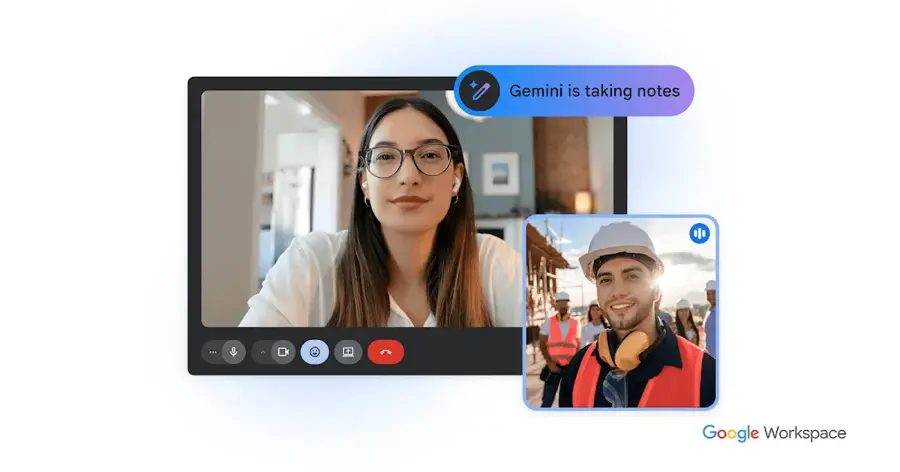
Google Meet is Google's browser-based video call app, with Gemini handling notes, translation and catch-up summaries on paid plans. See Google Meet.
Strengths
Meet's headline AI feature is "Take notes for me". It saves organised notes to a Google Doc, gives late joiners a "Summary so far", and emails the organiser a link to the recap shortly after the call. The catch is language: it works in eight languages and only one per meeting, which rules it out for mixed-language calls. On the Workspace plans table, Gemini in Meet isn't included in Business Starter; you need Standard or above.
For individuals, the cheaper path is a Google AI Pro subscription, which Fellow puts at $19.99 a month standalone. Fellow also points out that notes land as separate files in Drive and the feature only runs inside Meet (Fellow sells a rival notetaker, mind you). Free Meet still allows 100 participants and 60 minutes for plain calls. The Google Meet app has a 4.8 rating from about 2.3 million App Store reviews.
Key features
- "Take notes for me" saves notes to Google Docs.
- "Summary so far" catches you up if you join late.
- Recap email to the organiser, also linked in the Calendar event.
- Admins can require participants to consent before notes or recording start.
Pros
- No install needed, it runs in the browser.
- Notes drop straight into Docs and Calendar.
- Admin consent prompts are built in.
Cons
- Gemini notes support eight languages, one per meeting.
- No AI notes in free Meet or Business Starter.
- Only works on Meet calls.
Google Meet pricing: Free for basic calls; Gemini notes need Google AI Pro (about $19.99 a month) or Workspace Business Standard and up (checked November 2026). See pricing
Related: Gemini vs ChatGPT compared
Microsoft Teams – best for Microsoft 365 companies
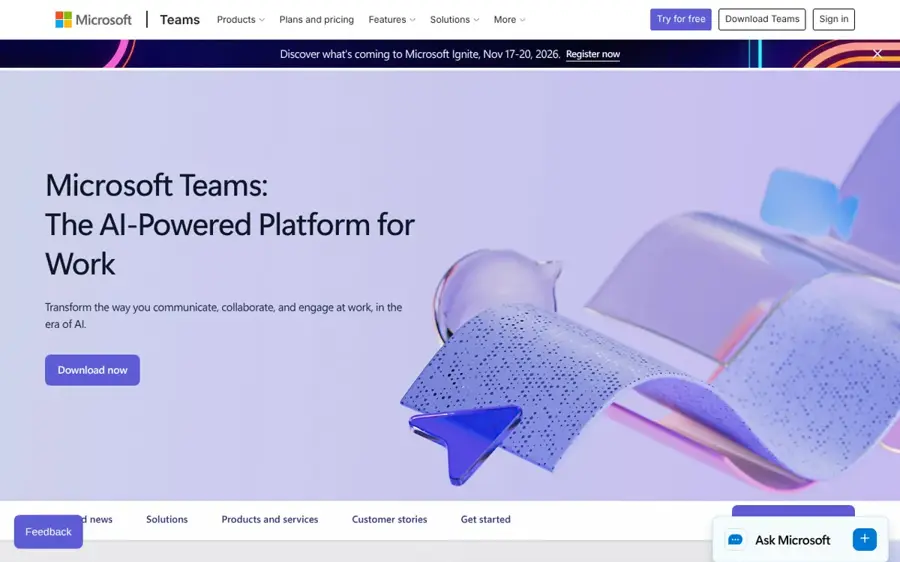
Microsoft Teams is Microsoft's chat and meeting app, and Copilot adds meeting transcripts, recaps and Q&A for licensed users. Visit Microsoft Teams.
Strengths
If your company lives in Outlook and SharePoint, Copilot in Teams is the obvious pick. It transcribes meetings and turns them into summaries with decisions and next steps. Copilot Business costs $21 per user a month on an annual term or $25.20 billed monthly, on top of a qualifying Microsoft 365 business plan. Copilot Chat is free with a work account, but it doesn't do meeting recaps.
One number surprised me. Strategic Micro Systems notes that only about 15 million of 450 million commercial Microsoft 365 subscribers pay for Copilot. That's roughly 3.3%, which probably says more about cost than features. Microsoft Teams holds a 4.8 App Store rating from about 3.4 million reviews.
Key features
- Copilot meeting summaries with decisions and action items.
- Copilot Chat at no extra charge with a work account.
- One licence covers Teams, Outlook, Word, Excel and PowerPoint.
- Bundles such as Business Standard with Copilot at $23.50 per user a month.
Pros
- Deep link to your email, files and calendar.
- Strong admin and compliance controls.
- One bill if you're already on Microsoft 365.
Cons
- Copilot costs extra on top of the base plan.
- Messy SharePoint permissions become a real risk.
- Overkill if you only want meeting notes.
Microsoft Teams pricing: Copilot Chat at no extra charge; Copilot Business from $21 per user a month on an annual term, plus a Microsoft 365 plan (checked November 2026). See pricing
Related: Microsoft AI and Copilot review
Otter.ai – best for notes across platforms
Otter.ai is an AI notetaker that joins Zoom, Teams and Meet calls, or records bot-free from your desktop, then writes the summary and action items. Try it at otter.ai.
Strengths
Otter's selling point is reach. You can schedule its meeting agent to join all your Zoom, Teams and Meet calls, or record straight from a Mac or Windows desktop without a bot appearing in the participant list. It also has an MCP server so ChatGPT or Claude can search your meeting history.
The free plan is fine for short calls and frustrating for long ones. Castmagic lists 300 minutes a month and a 30-minute cap per conversation, which cuts an hour-long meeting in half. Pro is $8.33 a month billed annually, with 1,200 minutes and a 90-minute cap. On the App Store, Otter scores 4.8 from roughly 88,000 ratings.
Key features
- Auto-joins Zoom, Microsoft Teams and Google Meet meetings.
- Bot-free recording from the desktop app or Chrome.
- Pre-meeting briefings built from past conversations.
- Otter AI Chat answers questions across meetings.
Pros
- Works across all three big meeting apps.
- Cheap Pro plan on annual billing.
- Bot-free recording option.
Cons
- Free plan caps each conversation at 30 minutes.
- Monthly billing roughly doubles the Pro price.
- Per-user pricing adds up for teams.
Otter.ai pricing: Free, then Pro from $8.33 a month billed annually (checked November 2026). See pricing
Related: Otter AI review Granola AI alternatives
Read AI – best for meeting coaching and metrics
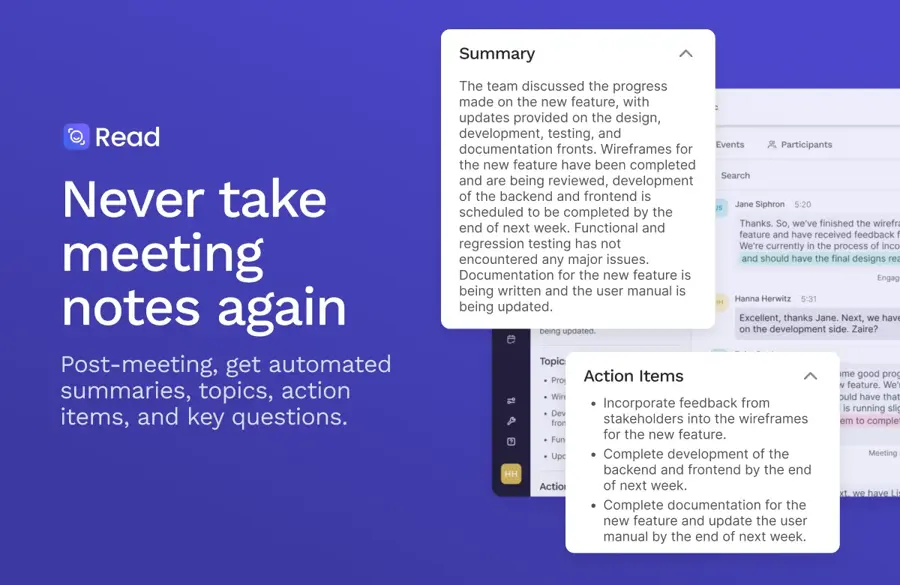
Read AI is a meeting assistant that adds live notes, summaries and speaker metrics to Zoom, Teams and Meet calls. Find it at read.ai.
Strengths
Read AI goes further than notes, with a personalised coaching report with talking speed, filler words, bias and charisma scores. The free plan gives you 5 meeting transcripts a month, with meetings up to an hour; Pro raises that to unlimited transcripts and 4-hour meetings for $19.75 per user a month billed annually.
The reviews are a warning sign, though. On Trustpilot, read.ai has a 1.3 TrustScore from 111 reviews, and one reviewer wrote: "One star because I cannot give negative stars. Truly obnoxious, borderline spam/malware, probably GDPR non-compliant." Honestly, I'd only install it after checking its auto-join and sharing settings.
Key features
- Live in-meeting dashboard with transcript and engagement metrics.
- Coaching reports on pace, filler words and charisma.
- Ask Read search across meetings, email and messages.
- Reports in 16+ languages.
Pros
- Unique coaching and engagement metrics.
- Works on Zoom, Teams and Meet.
- Free plan includes search and summaries.
Cons
- Very poor Trustpilot score.
- One Trustpilot reviewer called it borderline spam.
- Video playback needs a higher tier.
Read AI pricing: Free, then Pro from $19.75 per user a month billed annually (checked November 2026). See pricing
Related: Read AI review
Duolingo Video Call – best for speaking practice
Duolingo Video Call lets you "call" Lily, an animated AI character, for a short spoken conversation in the language you're learning. It lives inside the Duolingo app.

Strengths
This is probably the friendliest AI tutor on video right now, and it's built for nervous speakers. Lily adjusts to your level, and the launch post says you won't hear her correct your grammar; you can ask her to repeat herself or slow down. Calls run about 1 to 3 minutes.
Access has shifted since launch. FamilyPro reports that Video Call is now included for most new Super subscribers, and that Duolingo has said Max's long-term role is undecided. The Duolingo app is rated 4.7 from over 5.5 million App Store ratings, though that covers the whole app, not just Lily.
Key features
- Spontaneous spoken conversations with Lily.
- Difficulty adapts to your level.
- Calls from the learning path or the Practice Hub.
- No penalties for mistakes during the call.
Pros
- Low-pressure way to practise speaking.
- Now bundled into Super for most new subscribers.
- Fun character design keeps it light.
Cons
- Calls last only 1 to 3 minutes.
- Limited set of courses.
- Not available on the free plan.
Duolingo Video Call pricing: No free plan for Video Call; Super pricing varies by region, with one US observation at $16.99 a month (checked November 2026)
Related: AI tutors explained
Tavus – best for building AI video agents
Tavus builds real-time AI video agents, called PALs, that can see, hear, talk and even join your Zoom or Google Meet calls. Learn more at tavus.io.

Strengths
Tavus is the most ambitious tool here. A PAL can present slides, share its screen and join Meet, Zoom or Teams calls, and companies use them as sales reps, coaches and tutors; Tavus says Salesforce built an AI sales rep called Piper on it. There's a no-code PAL Maker and a full API.
Pricing splits in two. Consumers get 15 minutes of voice and video calls free, then $20 a month for 150 minutes. Developers get 25 free minutes of conversational video, then a $59 Starter plan with 100 minutes and $0.37 per minute after that. As far as I can tell, there's no meaningful independent rating yet: the Tavus Trustpilot page had zero reviews when I checked. I'd want some before betting a customer-facing product on it.
Key features
- Real-time conversational video with lifelike replicas.
- PALs can join Zoom, Google Meet and Teams calls.
- Presentation mode and a Magic Canvas for visuals.
- Support for 30+ languages.
Pros
- Most capable live AI video agent on this list.
- Free tiers for both consumers and developers.
- Works inside existing meeting apps.
Cons
- Per-minute costs add up fast at scale.
- Few independent reviews so far.
- Custom replicas need consent and setup.
Tavus pricing: Free, then consumer plans from $20 a month and developer plans from $59 a month (checked November 2026). See pricing
Related: HeyGen AI review
HeyGen LiveAvatar – best for avatars inside your app
LiveAvatar is HeyGen's real-time avatar API: it streams a talking 1080p avatar into your own website or app for live conversations. See liveavatar.com.

Strengths
Where Tavus sells a whole agent, LiveAvatar is more of a building block. You can use its full stack or bring your own LLM and text-to-speech, and it claims a median time to first frame under 300 ms. Custom avatars can be built from one image or two minutes of footage of a "consented likeness", which is the right default for a tool this realistic.
The free tier is a sandbox: 10 credits a month, sessions capped at 2 minutes and a watermark. Essential costs $99 a month with one custom 720p avatar and 20-minute sessions; Business is $475. LiveAvatar has no separate rating I could find, but its parent company has a 4.2 Trustpilot score from over 5,000 reviews. For recorded avatar videos, regular HeyGen is cheaper.
Key features
- Real-time 1080p avatars, half-body or full-body.
- 100+ preset avatars and custom avatars from consented footage.
- Full mode or Avatar Only mode with your own voice stack.
- Unlimited concurrency on paid plans.
Pros
- Very low latency for live use.
- Flexible: use your own LLM.
- Clear consent step for custom avatars.
Cons
- Free tier is watermarked with 2-minute sessions.
- $99 entry price for custom avatars.
- Developer-only; no consumer app.
HeyGen LiveAvatar pricing: Free, then paid plans from $99 a month (checked November 2026). See pricing
Related: HeyGen AI review How to use HeyGen
Choosing the right AI video call tool
Start with the AI in the app you already pay for
If your company runs on Google Workspace Business Standard or Microsoft 365 with Copilot, you're likely paying for meeting AI already. A separate notetaker only earns its fee when your calls are spread across platforms.
Match the free plan's caps to your longest meeting
Per-conversation caps bite before monthly totals do. Here's a worked example with Otter. Say you have four 60-minute calls a week: that's about 17 hours, or roughly 1,040 minutes a month. The free plan gives you 300 minutes and cuts each call at 30, so it fails on both counts. Pro's 1,200 minutes and 90-minute cap fit, for $8.33 a month on annual billing, or about $100 a year.
Ask for consent before a bot joins
Recording laws differ by country and state. Google lets admins require explicit consent before notes or recording start, which I'd switch on. For other tools, tell people up front.
Pick avatar tools by latency and consent rules
For a live AI face, delay matters more than visual polish. LiveAvatar quotes under 300 ms to first frame. Avoid any avatar tool that doesn't ask for consent before cloning a real person.
Limits and failure modes
These tools are good at summarising and bad at judgement. Here's where they tend to break:
- Mixed languages: Google's notes handle one language per meeting, so a bilingual call will produce a patchy summary.
- Crosstalk and poor audio: summaries are only as good as the transcript, and overlapping speakers confuse speaker labels.
- Permissions: Copilot and similar tools can surface files that were shared too widely years ago.
- Runaway costs: avatar APIs bill per minute or credit, so a popular demo can burn a monthly budget in days.
I'd still check any AI summary before sending it to a client. It's a draft.
Free vs paid: what you actually get
| Tool | Free plan gives you | First paid tier adds |
|---|---|---|
| Zoom Workplace | 40-minute meetings, 3 AI summaries a month, 20 AI queries | 30-hour meetings, unlimited summaries ($14.16/mo) |
| Google Meet | 60-minute group calls, no Gemini notes | Take notes for me, Summary so far (AI Pro, $19.99/mo) |
| Otter.ai | 300 minutes, 30 minutes per call | 1,200 minutes, 90 minutes per call ($8.33/mo) |
| Read AI | 5 transcripts, 1-hour meetings | Unlimited transcripts, 4-hour meetings ($19.75/mo) |
| HeyGen LiveAvatar | 10 credits, 2-minute sessions, watermark | Custom avatar, 20-minute sessions ($99/mo) |
Free plans suit the odd short call. With regular hour-long meetings, you'll probably hit a cap within a month.
Watch out for deepfake video call scams
The realism that makes Lily or a Tavus PAL work also helps criminals. In one widely reported case, an employee at a multinational's Hong Kong office sent HK$200 million (over US$25 million) after a group video call where the CFO and colleagues were all deepfakes built from old footage. Interpol has since launched a campaign warning that scammers can fake a boss on video or clone voices from social media posts to pressure families for money.
Red flags are boring but reliable:
- Urgency, secrecy or emotional pressure on the call.
- Requests to pay by crypto, gift cards or wire transfer.
- A caller who avoids interaction, or ends the call abruptly when you ask questions.
Hong Kong police advised people to ask the participants to move and confirm requests through another channel. Interpol also suggests agreeing a safe word with family. I'd add one rule: hang up and call back on a number you already have. For more on spotting fakes, see our guide to telling whether a video is AI and our piece on the dangers of AI.
Final verdict
For most readers, I think the right move is boring: use the AI inside Zoom, Meet or Teams, and only add Otter.ai if your calls are scattered across apps. Zoom gets my top spot because its free plan gives you real AI summaries, not just a teaser, and Pro is fairly priced at $14.16. Duolingo's Lily is a charming extra, but 3-minute calls won't replace a human tutor. Tavus and LiveAvatar are impressive for builders, and I'd guess they'll be the ones to watch in 2027. Making AI video instead? Try our best AI video generators.
FAQ
Can AI join a video call for me?
Yes, in a limited sense. Otter.ai and Read AI can join Zoom, Teams and Meet calls to take notes, and Tavus PALs can join calls and talk.
Is there a free AI video call app?
Several have free tiers. Zoom's Basic plan includes 3 AI meeting summaries a month, Otter's free plan gives 300 minutes, and Tavus offers 15 free minutes of PAL calls.
Is it legal to record a video call with an AI notetaker?
It depends on where you and the other participants are. Some places require everyone's consent before recording. The safest habit is to announce the notetaker at the start and use consent prompts, such as the ones Google Meet admins can turn on.
Can I practise a language on a video call with AI?
Yes. Duolingo's Video Call with Lily is built for this, with conversations of 1 to 3 minutes that adapt to your level. Tavus and LiveAvatar can power tutors too, but they're developer tools.
How can I tell if a video call is a deepfake?
Look for urgency, secrecy and unusual payment requests, and ask the person to move or answer something only they'd know. Then verify through a separate channel, such as calling back on a known number.