Best AI image enlarger tools in 2026: 6 upscalers compared
The best AI image enlarger for prints, free use, AI art and logos, with October 2026 prices and an honest look at what upscaling can't recover.
 Written byMuhammad Usman SiddiquiFounder and editor-in-chief
Why you can trust The AI Future
Our writers research every product from its official pages, independent tests and user reports, link each claim to its source and correct mistakes openly. Unless an article says otherwise, we haven't tested the product hands-on ourselves. Companies can't pay for coverage or see reviews before they're published.
Read our editorial policy
Short answer: if you're enlarging real photos for print, the AI image enlarger to pay for is Topaz Gigapixel at $149 a year. If your budget is zero, download Upscayl, which is free and open source. And if you want an upscaler that paints in new texture on AI art, Magnific is the one people reach for, though it's the priciest way to get there.
Everything else on this list is a specialist. Let's Enhance suits online sellers who'd rather not install anything, Adobe Super Resolution makes sense if you already pay for Lightroom, and Vectorizer.AI fixes the one job a pixel upscaler can't: turning a tiny logo into a file you can print at any size. One warning before you spend anything. An upscaler doesn't recover lost detail; it guesses it, and I think that's the single most misunderstood thing about this whole category.
Key takeaways
- Topaz Gigapixel is the safest pick for real photos you plan to print, and it renders on your own computer.
- Upscayl is the best free AI upscaler in 2026 for most people, as long as your computer has a Vulkan-compatible graphics card.
- Magnific and other generative upscalers invent texture, which can look great on AI art and wrong on a real person's face.
- Logos and line art usually come out better as vectors than as upscaled pixels.
- No upscaler can restore a licence plate, a face or text that the original pixels never captured.
Our ranking method
Nobody at The AI Future ran hands-on tests for this roundup, so there are no screenshots of our own before-and-after files here. We compared each tool using its official product and pricing pages, published independent comparisons such as Dupple's upscaler roundup, and user ratings on Trustpilot, all as of late October 2026. We ranked on six criteria:
- Faithfulness, meaning how closely results stay true to the source photo according to published comparisons.
- Maximum output size and scale factor.
- Privacy, including whether the tool can run offline on your own machine.
- Price for an individual, including how usable the free tier is.
- Ease of use for someone who isn't a photo editor.
- User sentiment from Trustpilot and similar review sites.
Prices are US list prices before tax. They change often, so check the linked pricing page before you subscribe.
The 6 best AI image enlargers at a glance
| # | Tool | Category | Best for | Free tier | Starts at |
|---|---|---|---|---|---|
| 1 | Topaz Gigapixel | Desktop upscaler | Enlarging real photos for print | No | $149/yr |
| 2 | Upscayl | Free desktop app | Free, private upscaling | Yes | Free |
| 3 | Magnific | Creative suite | Adding texture to AI art | Yes (limited) | $20/mo |
| 4 | Let's Enhance | Web upscaler | Product photos and print prep in a browser | Yes (limited) | $9/mo |
| 5 | Adobe Super Resolution | Lightroom feature | Photographers already on Lightroom | No | $19.99/mo |
| 6 | Vectorizer.AI | Vector converter | Logos and line art at any size | Yes (limited) | $9.99/mo |
The best AI image enlargers in 2026, ranked
Topaz Gigapixel – best for enlarging real photos for print
Topaz Gigapixel is a Mac and Windows upscaler that enlarges photos with a choice of AI models and can run entirely on your own computer.
Strengths
Gigapixel has been around longer than most of its rivals; Topaz says it was the first commercially available AI image upscaler, launched in 2019. The bigger point is choice. On the product page you'll find separate models for low-resolution sources, text and shapes, art and CG, face recovery and a generative option called Redefine, so you're not stuck with one look for every file. Dupple counts 11 models with output up to 16x and calls it the safest choice for real photography because it "enlarges without lying too much". Local rendering means client files never leave your machine, and unlimited cloud rendering is included if your GPU is slow.
User sentiment is more mixed than the marketing. Topaz Labs as a company sits at 3.6 out of 5 from about 56,700 reviews on Trustpilot, where the site's AI summary says customers "expressed deep dissatisfaction with the subscription model". One September 2026 reviewer was kinder: "At the moment Photo Restoration is amazing." Honestly, I think the gripes are about billing far more than about image quality.
Key features
- Separate models for photos, low-res files, text, art and faces.
- Upscaling up to 16x, according to Dupple.
- Local rendering plus unlimited cloud rendering.
- Works as a standalone app or a plugin for Photoshop and Lightroom Classic.
- Pro licence for organisations with more than $1M in annual revenue.
Pros
- Stays close to the source photo on its standard models.
- Files can stay on your computer.
- Fits into an existing Adobe workflow as a plugin.
Cons
- Subscription only, since Topaz ended perpetual licences in October 2025 (per Dupple).
- Needs a decent graphics card for big batches.
- Pro tier jumps to $499 a year for larger businesses.
Topaz Gigapixel pricing: No free plan, then $149 a year paid upfront or $29 a month with no commitment (Render a House, checked October 2026). See pricing
Related: Best AI picture tools for editing and upscaling
Verdict: if your upscaled photo ends up on a wall or in print, this is the one to pay for.
Upscayl – best for free, private upscaling
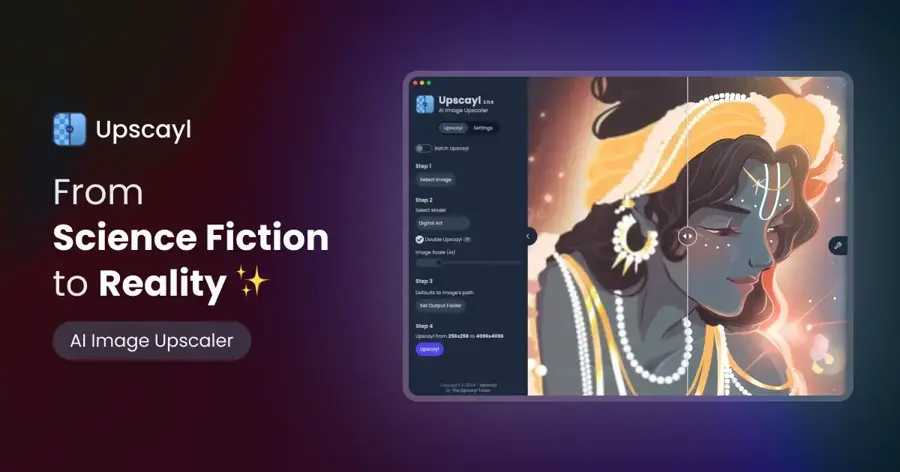
Upscayl is a free, open-source desktop upscaler for Windows, macOS and Linux that runs on your own graphics card.
Strengths
Upscayl is the best free AI upscaler for most people, and I don't think it's close. There's no watermark, no account and no upload; the app's built on Real-ESRGAN models, and version 2.15 is the current release according to its GitHub README. Dupple puts it at more than 50,000 GitHub stars and calls it "the best free option, full stop", while noting it "won't match Topaz on tricky portrait detail".
The catch is hardware. The README says you'll need a Vulkan-compatible GPU and warns that "many iGPUs (integrated graphics) do not work". If your laptop can't run it, there's a paid browser version called Upscayl Cloud, with a Pro plan at $24.99 a month for 300 credits.
Key features
- Upscaling up to 16x.
- Several models for photos, art and sharpening.
- Batch processing of whole folders.
- Runs offline, so images stay private.
- Optional Upscayl Cloud for devices without a suitable GPU.
Pros
- Completely free desktop app.
- No watermark or sign-up.
- Works on Linux, which many rivals skip.
Cons
- Many integrated graphics chips won't run it.
- Fewer specialised models than Gigapixel.
- Plain interface with little guidance.
Upscayl pricing: Free desktop app; Upscayl Cloud has a 10-credit free trial, then a Pro plan at $24.99/month for 300 credits (checked October 2026). See pricing
Related: Best open source AI tools Best AI photo retouching tools
Verdict: try this first; pay for something else only if it falls short on your files.
Magnific – best for adding texture to AI art
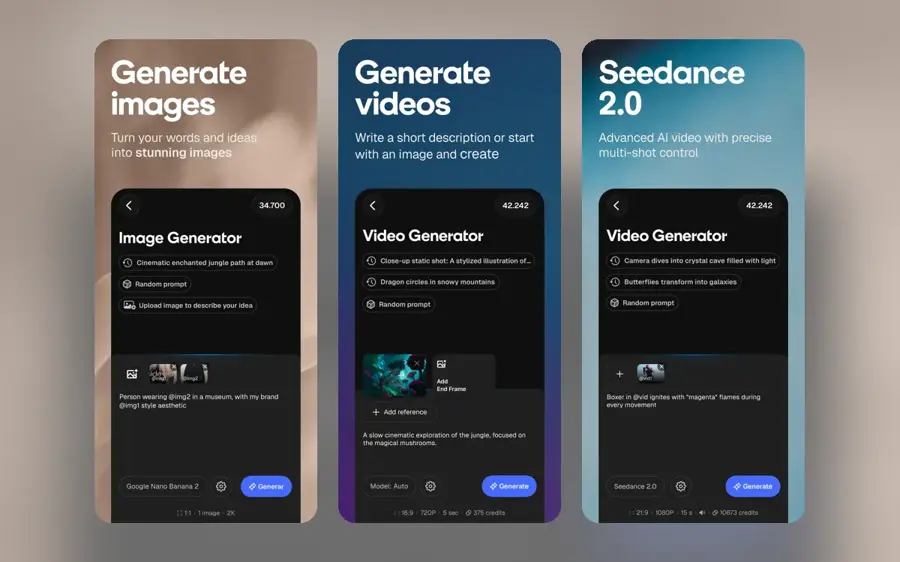
Magnific is a browser-based creative suite whose upscaler adds new, generated detail to images, with a slider to control how much it invents.
Strengths
Magnific started as a viral upscaler. Freepik bought it in May 2024, and on April 28, 2026 Freepik renamed its whole business Magnific, according to The Next Web. So the upscaler now sits inside a large suite with stock assets and image and video models, all paid for from one credit pool. That's handy if you'd use the rest. It's a lot of subscription if you only want bigger pictures.
The appeal is creative. Dupple describes it as the opposite of Gigapixel: it "invents" pores, threads and foliage, and "on real human faces it will happily turn your subject into someone slightly different." That's fine for a Midjourney render. For a wedding photo, I'd stay away. On Trustpilot, Magnific scores 3.9 out of 5 from about 3,200 reviews, though most reviews cover the wider suite rather than upscaling alone.
Key features
- Creativity slider that controls how much detail is invented.
- Precision upscaler up to 16x, per Dupple.
- Premium+ and above also include Topaz upscalers inside the suite.
- Image, video and audio models on the same credits.
- 250 million-plus stock assets included with paid plans.
Pros
- Striking results on renders, concept art and AI images.
- No install; runs in a browser.
- One bill covers generation and upscaling.
Cons
- Can change faces and small details.
- Large upscales use a lot of credits: Dupple says one 1,200 x 1,200 image costs 180 to 1,530 credits.
- Expensive if upscaling is all you need.
Magnific pricing: Free plan for limited image generation, then paid plans from $20/month, or $14.50/month billed annually (Render a House, checked October 2026)
Related: Best AI image generators
Verdict: a creative tool for AI art and renders, not a restoration tool for real photos.
Let's Enhance – best for product photos and print prep in a browser
Let's Enhance is a web-based upscaler that enlarges photos for online shops, print and social media using credits, with nothing to install.
Strengths
The pitch here is predictability for people who aren't editors. Dupple says it "leans on presets for specific outcomes rather than raw sliders" and suits catalogue work where results need to look consistent. On the plans page, one image costs one credit, and unused credits roll over on personal plans, up to six months' worth. That's fairer than tools that wipe your balance every month.
It's also well rated: 4.1 out of 5 from 188 reviews on Trustpilot. One June 2026 reviewer wrote that they'd "subscribed to let'senhance to refresh old family b & w photos". Trustpilot does flag that the company hasn't invited reviews recently, so the sample may not be representative.
Key features
- Upscaling up to 256 megapixels on Starter and 512 megapixels on Max.
- Accepts input files up to 64 megapixels or 50MB on paid plans.
- Rollover credits on personal plans.
- Background removal and AI image generation on paid tiers.
Pros
- Runs in any browser.
- Simple presets for non-experts.
- Credits carry over while you're subscribed.
Cons
- Free output is watermarked and capped at 8 megapixels.
- Only 10 free credits.
- Costs add up at volume, since every image uses a credit.
Let's Enhance pricing: Free with 10 credits, then paid plans from $9/month billed annually or $12/month billed monthly (checked October 2026). See pricing
Related: Best AI picture tools Best AI photo retouching tools
Verdict: the easiest paid option if you've got a few dozen product shots to fix and no desktop software.
Adobe Super Resolution – best for photographers already on Lightroom
Adobe Super Resolution is an AI upscaling option inside Lightroom, Lightroom Classic and Camera Raw that doubles a photo's width and height.
Strengths
If you already pay Adobe, you've probably got this already. As Digital Photography School explains, Super Resolution doubles the horizontal and vertical pixels, so a 24-megapixel file becomes a 96-megapixel one. It works best on RAW files, and it saves a new DNG next to your original, which keeps things non-destructive.
The limits are real, though. Aiarty, which sells a competing upscaler (keep that in mind), says Super Resolution "does not recover lost details, reduce noise, correct blur or missed focus" and isn't available in Lightroom mobile or on the web. The same write-up reports that Adobe added a separate Generative Upscale option in February 2026 that uses Topaz Gigapixel models for 2x or 4x enlargements. I haven't seen Adobe confirm that detail, so treat it as one source's account.
Key features
- 2x upscale per side, or four times the pixel count.
- Saves a new DNG and leaves the original untouched.
- Works on RAW, DNG, TIFF and JPEG files.
- Sits inside the Enhance dialog alongside AI Denoise and Raw Details.
Pros
- No extra app if you're already subscribed.
- Fits a normal Lightroom catalogue workflow.
- Good on clean RAW files.
Cons
- Only 2x, which is small next to 16x rivals.
- Won't fix noise, blur or compression artefacts on its own.
- Not available on Lightroom mobile or web.
Adobe Super Resolution pricing: No free plan; it comes with Lightroom, and the Photography plan (Photoshop plus Lightroom, 1TB) is $19.99/month on an annual plan billed monthly (Dupple, checked October 2026). See pricing
Related: How to use Photoshop AI Best AI photo retouching tools
Verdict: use it for clean RAW files you already edit in Lightroom; don't subscribe just for this.
Vectorizer.AI – best for logos and line art at any size
Vectorizer.AI converts PNG, JPG and other bitmaps into SVG, PDF, EPS and DXF vectors that can be scaled to any size without blurring.
Strengths
This one isn't an upscaler in the usual sense, and that's the point. When a client sends a 400-pixel logo and you need a banner, upscaling pixels gives you a bigger blurry logo. A vector redraws the shapes as paths, so the file stays sharp at any size. Vectorizer.AI fits real circles, corners and curves, and you can preview results free before paying. PopularAI named it "the best pure online AI image to vector converter for most people".
It won't work on photos, though. Our Vectorizer AI review found its Trustpilot profile has only two reviews, and one user complained about being shown a preview only to hit a paywall at the download button. Fair warning.
Key features
- Exports SVG, PDF, EPS and DXF, plus cleaned-up PNG.
- Unlimited free previews before you subscribe.
- Presets for cutting and engraving machines.
- An API with credit plans for developers.
Pros
- Output scales without any quality loss.
- Clean shapes with fewer anchor points.
- Cheap if you have a backlog of logos.
Cons
- Useless for photographs.
- No downloads without a subscription.
- Busy or noisy images may still need manual cleanup.
Vectorizer.AI pricing: Free previews, then $9.99/month for unlimited web images, billed monthly (checked October 2026). See pricing
Related: Vectorizer AI review
Verdict: for logos, icons and cut files, convert to vector instead of upscaling.
Limits of an AI image enlarger: invented detail
Every tool above adds pixels that weren't in your file. A classic resize stretches existing pixels and blurs them; an AI model looks at the surrounding area and predicts what probably belongs there, based on millions of training images. When the prediction's right, it looks like recovered detail. When it isn't, you get skin that looks waxy, bricks in a pattern that never existed or eyelashes on the wrong person.
So there's a hard line. If a licence plate is six pixels wide, no model can tell you the real number; it can only draw a plausible one. The same goes for text on a distant sign, a stranger's face in a crowd and serial numbers. I'd never use an upscaled image as evidence of what something actually looked like, and I'd be wary of anyone who does.
Generative tools push this further. Magnific and Gigapixel's Redefine model are built to invent texture, which Dupple sums up as letting a model hallucinate texture "that look real but aren't in your source". Standard models stay closer to the original. Neither kind fixes everything else, either: as Aiarty notes about Lightroom, enlarging a noisy, blurry or heavily compressed JPEG mostly gives you a bigger noisy, blurry JPEG. For old family photos with scratches, a restoration tool is a better first step; our guide on restoring old photos with AI covers that.
Choosing the right AI image enlarger
Decide between faithful and creative first
Real people, real products and anything going on a website as a true record need a faithful upscaler: Gigapixel's standard models, Upscayl, Let's Enhance or Super Resolution. AI art, game assets and concept renders can take a creative one like Magnific. Getting this wrong is how a portrait ends up looking like a stranger.
Keep private files on your own machine
Client work, medical images and anything under NDA should stay local. Gigapixel and Upscayl both run offline; Magnific, Let's Enhance, Vectorizer.AI and Upscayl Cloud all need an upload.
Match the scale factor to the job
A 2x enlargement covers most crops and A4 prints from a modern camera. Poster sizes from a phone photo are where 4x to 16x tools earn their price. Most people, I suspect, never go past 4x.
Count the real monthly cost
Credit plans look cheap until you upscale big files. Let's Enhance charges one credit per image at any size, while Magnific charges more for bigger scale factors. If you'll process hundreds of images a month, a flat desktop licence like Gigapixel's probably works out cheaper.
Free vs paid: what you actually get
| Tool | Free version | What paying adds |
|---|---|---|
| Upscayl | Full desktop app, no watermark | Cloud processing for devices without a suitable GPU ($24.99/mo for 300 credits) |
| Let's Enhance | 10 credits, watermark, 8MP output | No watermark, up to 512MP output, rollover credits |
| Magnific | Limited daily image generation | Credits for upscaling, video and stock downloads |
| Vectorizer.AI | Unlimited previews, no downloads | Unlimited downloads of your own files |
| Topaz Gigapixel | None listed | Full app with local and cloud rendering |
| Adobe Super Resolution | None | Part of a Lightroom subscription |
The best free AI enhancer for most people is Upscayl, provided your graphics card can run it. Free web tiers are mostly demos: 10 credits and a watermark won't get you far. That's not a criticism, really; somebody pays for those GPUs.
Final verdict
If you only pick one, pick Upscayl, because it costs nothing and handles everyday enlargements well enough that many people will never need more. Pay for Topaz Gigapixel when prints or client work depend on faithful results, and the $149 a year is easy to justify against a single reshoot. I'd only buy Magnific if you already make AI art or want the rest of its suite. For logos, skip upscalers entirely and use Vectorizer.AI. And whichever you choose, treat the extra detail as a good guess, not a fact.
For a wider look at photo tools that also edit and retouch, see our best AI picture tools roundup.
FAQ
What is the best free AI image enlarger?
Upscayl is probably the best free option. It's open source, runs on Windows, macOS and Linux, upscales up to 16x and adds no watermark. You'll need a Vulkan-compatible graphics card, though, and many integrated laptop chips won't run it. If yours won't, Let's Enhance gives 10 free credits in a browser.
Can AI really increase image resolution without losing quality?
Partly. It adds pixels and keeps edges clean, but it can't recover detail the camera never captured; the model predicts what's likely there, and on tiny files that guess can be wrong.
Is Topaz Gigapixel worth it in 2026?
For photographers and print shops, I think so. It costs $149 a year or $29 a month for personal use, runs locally and offers models for different kinds of source. Casual users who upscale a few images a year will likely be fine with free Upscayl. Larger businesses need the $499 Pro licence.
Should I upscale or vectorize a logo?
Vectorize it if you can. A vector file such as SVG or EPS scales to any size without blurring, which suits signs, merch, embroidery and print. Upscaling a logo just gives you a bigger bitmap with soft edges and slightly smudged lettering. Tools like Vectorizer.AI convert simple flat logos well, but busy images, gradients and photos may still need manual cleanup or a redraw by a designer.
Is it safe to upload my photos to an online upscaler?
That depends on the service's terms and on what's in the photo. Web tools like Magnific and Let's Enhance process your images on their servers. For private, client or confidential images, a local app such as Upscayl or Gigapixel keeps files on your own computer.