Best AI object removers in 2026: 10 picks for every budget
The best AI object remover tools in 2026, from free phone erasers to Photoshop, with prices, free-plan limits and independent test results.
 Written byAlap ZahidReviews and guides editor
Why you can trust The AI Future
Our writers research every product, link each claim to its source and correct mistakes openly. Companies can't pay for coverage or see reviews before they're published.
Read our editorial policy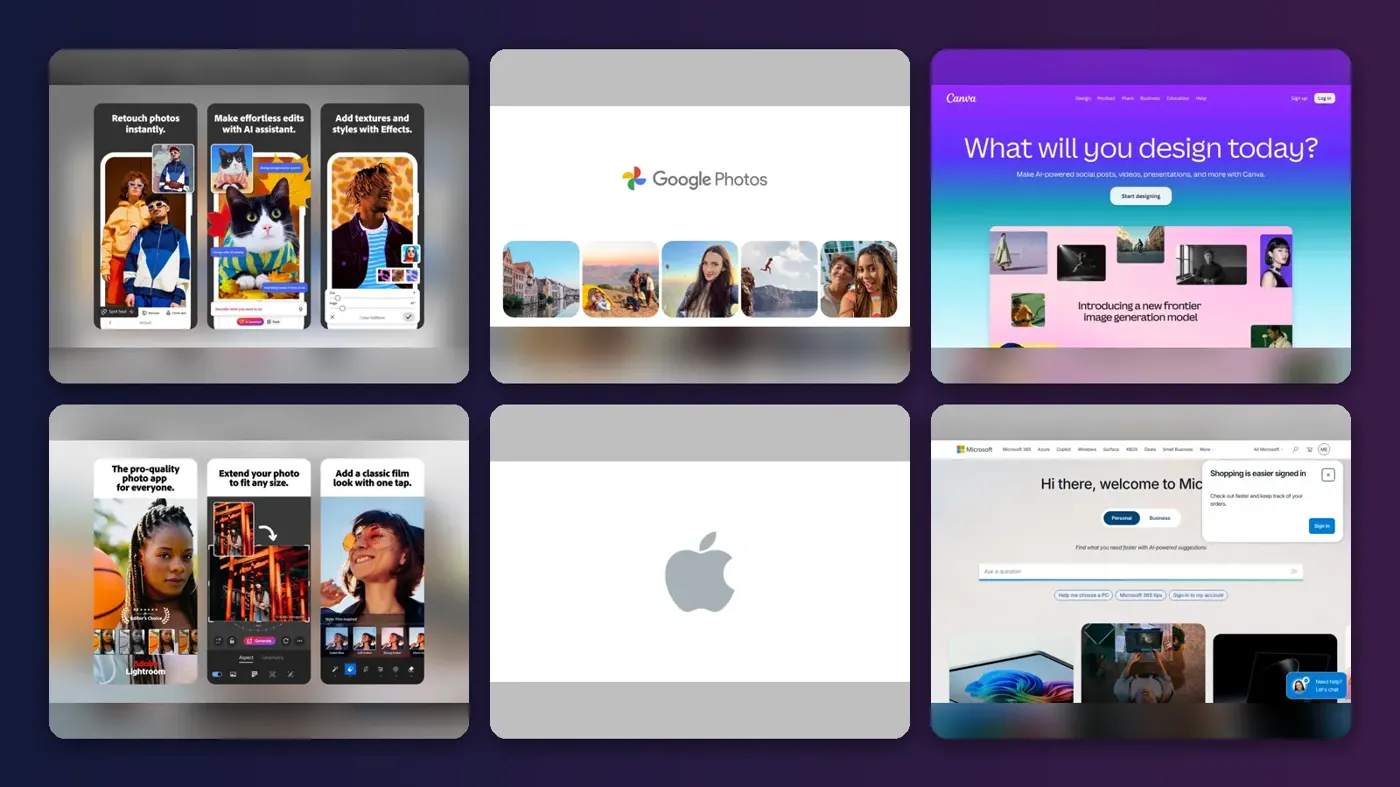
Short answer: the best AI object remover for most people is the one already on your phone. Google Photos Magic Eraser and Apple Photos Clean Up both erase people, wires and clutter for free in a few taps. If you edit professionally, pay for Adobe Photoshop, whose Remove tool and Generative Fill still give you the most control.
Everything else on this list is a specialist. Canva suits social and marketing designs, Photoroom suits product shots, and Cleanup.pictures is the quickest option when you just need to remove an object from a photo in your browser without signing up for much. Below we rank 10 tools to remove objects from photos with AI, with current prices and the limits that matter on free plans.
Key takeaways
- Start free. Google Photos, Apple Photos and the Windows Photos app all include AI removal at no extra cost on supported devices.
- $20 a month buys the pro tier. Adobe’s Photography plan bundles Photoshop and Lightroom, both with generative removal.
- Free web tools cap quality. Cleanup.pictures, for example, limits free exports to 720p.
- Busy scenes still trip up every tool. Independent tests show artifacts, leftover shadows and smudged backgrounds on complex shots, so zoom in before you share.
How we ranked them
Nobody at The AI Future ran hands-on tests for this roundup, and we have not produced our own screenshots. Instead, we compared each AI object remover using official product and pricing pages, published independent tests from outlets like TechRadar, PCWorld, Tom’s Guide and Creative Bloq, and user ratings on sites like Capterra and Software Advice, as of late October 2026. We scored each tool on six criteria:
- Removal quality: how cleanly it fills the gap, based on published tests.
- Control: brush, lasso, tap-to-select, multiple variations and undo options.
- Free tier: what you can do without paying, including resolution limits.
- Price: the cheapest paid plan that unlocks full quality.
- Platforms: phone, desktop, web or all three.
- Extras: what else you get, such as background removal or design templates.
Prices are in US dollars and can change by country, app store and promotion. Always check the vendor’s page before you buy.
Our top picks at a glance
| # | Tool | Category | Best for | Free tier | Starts at |
|---|---|---|---|---|---|
| 1 | Adobe Photoshop | Pro photo editor | Professional retouching | No | $19.99/mo |
| 2 | Google Photos | Phone gallery app | Free edits on Android and iPhone | Yes | Free |
| 3 | Canva | Design platform | Social and marketing graphics | Yes | $144/yr |
| 4 | Adobe Lightroom | Photo editor | Photographers editing many shots | No | $19.99/mo |
| 5 | Apple Photos | Built-in gallery app | iPhone users | Yes | Free |
| 6 | Windows Photos | Built-in desktop app | Free editing on a PC | Yes | Free |
| 7 | Picsart | Mobile and web editor | All-in-one mobile editing | Yes (limited) | $10.50/mo |
| 8 | Cleanup.pictures | Web tool | Fast one-off fixes in a browser | Yes (limited) | $3/mo |
| 9 | Photoroom | Product photo app | Ecommerce product photos | Yes (limited) | $7.50/mo |
| 10 | Fotor | Web photo editor | Budget all-round editing | Yes (limited) | $8.99/mo |
Paid prices are the lowest advertised rate, usually billed annually. "Free" means the remover is included with the device or app at no extra cost.
The best AI object removers in 2026, ranked
Adobe Photoshop – best for professional retouching
Adobe Photoshop is the industry-standard photo editor, with an AI Remove tool and Generative Fill for erasing anything from tourists to power lines. Visit Photoshop.

Why it stands out
Photoshop gives you several ways to remove the same object: a quick brush-based Remove tool, Generative Fill for larger areas, and Distraction Removal for things like wires. That choice matters, because no single method wins every time. In a test by Creative Bloq, Distraction Removal handled wires and cables in real photos well but left a phone line’s shadow behind, and struggled on a digital painting. Its headline verdict was "mixed results".
PCWorld found Generative Fill beat both the Remove tool and the free Windows Photos eraser on a busy ferry scene, though it still added an unwanted extra tower. Takeaway: Photoshop will not do every job in one click, but it gives you the most tools to fix what the first pass gets wrong.
Key features
- Remove tool: brush over an object and AI fills the gap.
- Generative Fill: select an area and generate a replacement.
- Distraction Removal: targets wires, cables and people.
- Layers: every fix can sit on its own layer for easy undo.
- Web and mobile: Photoshop runs on desktop, web and mobile on most plans.
Pros
- Most control of any tool here
- Several removal methods for hard cases
- Bundled with Lightroom on the Photography plan
Cons
- No free plan, only a trial
- Steep learning curve for beginners
- Generative credits vary sharply by plan
Adobe Photoshop pricing: No free plan → paid plans from $19.99/month for the Photography plan, which includes 1,000 generative credits; the standalone Photoshop plan is $22.99/month with 25 credits, according to Comparedge (checked October 2026). See pricing
Verdict: pick Photoshop if photo editing is part of your job.
Google Photos – best for free edits on Android and iPhone
Google Photos includes Magic Eraser, a free AI tool that removes unwanted objects from your pictures on Android, iPhone and Chromebook. Visit Google Photos.

Why it stands out
Magic Eraser is the easiest way for most people to remove objects from photos with AI. Google’s Photos editing page says you can tap suggested distractions or brush or circle anything you want gone. A Camouflage option changes an object’s color so it blends in instead of disappearing.
The big draw is cost. Google moved Magic Eraser from Pixel phones and paid subscribers to all Google Photos users at no charge in 2024, as BTW Media reported. You need Android 8 or iOS 15 or later, and Google says feature availability varies by device. The more powerful Magic Editor has tighter limits on some devices.
Key features
- Suggested distractions: the app spots people and objects to remove.
- Brush or circle: mark anything it missed.
- Camouflage: recolor an object so it blends in.
- Cross-platform: Android, iOS and Chromebook Plus.
- Magic Editor: move and resize objects with generative AI.
Pros
- Free for all Google Photos users
- Works on iPhone, not just Android
- Fast, tap-based workflow
Cons
- Less control than a desktop editor
- Feature availability varies by device
Google Photos pricing: Free → included in Google Photos; extra storage and some Magic Editor features need a Google One plan (checked October 2026). See pricing
Verdict: if you only pick one free tool, pick this one.
Canva – best for social and marketing graphics
Canva is an online design platform whose Magic Eraser lets you brush over objects in any photo you drop into a design. Visit Canva.

Why it stands out
Canva makes sense when the photo is going straight into a post, flyer or slide. You erase the object and keep designing in the same window. According to eesel AI’s June 2026 pricing guide, Magic Eraser is available on the free plan and does not draw from Canva’s monthly AI credit pool.
Paid plans add higher AI allowances. Canva Pro costs $144 a year for one person, per eesel, and comes with up to 2,000 standard AI uses a month. Canva is not built for pixel-level retouching, so treat it as a design tool that removes objects, not a photo editor.
Key features
- Magic Eraser: brush to remove objects inside any design.
- Magic Grab and Magic Edit: move or replace parts of an image.
- Background Remover: on paid plans.
- Templates: thousands of layouts for social posts and ads.
- Team sharing: collaborate on brand assets.
Pros
- Magic Eraser works on the free plan
- Edit and design in one place
- Low annual price for Pro
Cons
- Not a precise retouching tool
- AI credit pools can run out quickly on newer features
Canva pricing: Free → paid plans from $144/year for Canva Pro (checked October 2026). See pricing
Related: Best AI image generators
Verdict: best value if you design social content every week.
Adobe Lightroom – best for photographers editing many shots
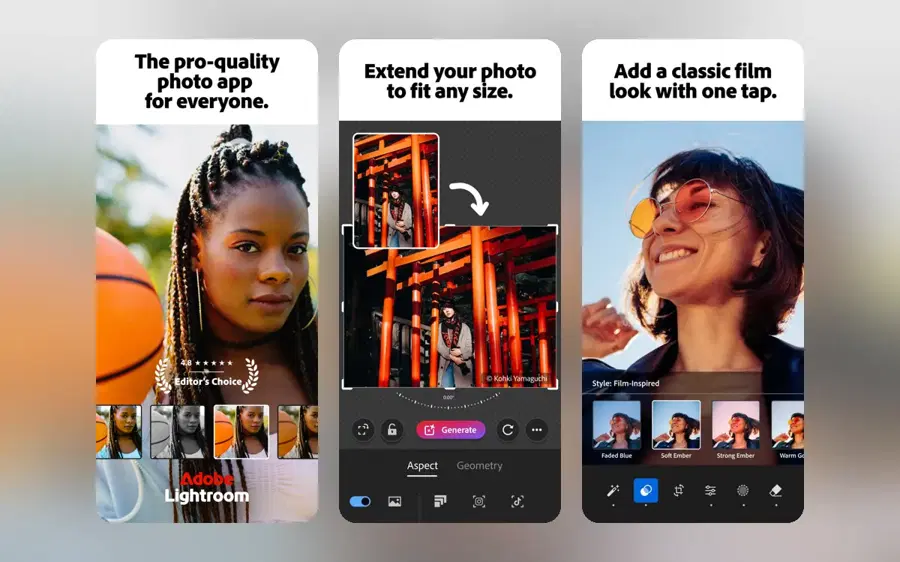
Adobe Lightroom is a photo organizer and editor with Generative Remove, an AI brush that erases objects and offers several fills to choose from. Visit Lightroom.
Why it stands out
If you shoot weddings, travel or events, you probably live in Lightroom anyway. Generative Remove means you no longer need to jump into Photoshop for every stray person or sign. TechRadar found it gave better results than the older Content-Aware Fill for objects of all sizes. It called the tool "next-level Lightroom editing."
Each brush stroke produces several candidate results, and edits stay non-destructive, so you can toggle them off later. You get it on desktop, Lightroom Classic, mobile and web. The cheapest route is Adobe’s Photography plan, which also includes Photoshop.
Key features
- Generative Remove: brush once, pick from several fills.
- Non-destructive edits: switch removals on and off.
- Every platform: desktop, Classic, iPad, mobile and web.
- Catalog tools: organize and batch-edit thousands of photos.
- Cloud storage: 1TB on the Photography plan.
Pros
- Several variations per removal
- Fits a photographer’s existing workflow
- Same plan includes Photoshop
Cons
- No free plan
- Overkill for occasional phone snaps
Adobe Lightroom pricing: No free plan → paid plans from $19.99/month for the Photography plan (annual, billed monthly), per Comparedge (checked October 2026). See pricing
Related: Best AI picture tools for editing and upscaling
Verdict: the smart choice for photographers who edit in bulk.
Apple Photos – best for iPhone users
Apple Photos includes Clean Up, an Apple Intelligence tool that removes distracting people and objects from photos on supported iPhones. Visit Apple.

Why it stands out
Clean Up is free and already on your phone if it supports Apple Intelligence. Tom’s Guide explains that it highlights distractions for you, and you can tap, brush or circle anything else. You do not need a separate app or account.
Quality is decent, not perfect. In Tom’s Guide’s own baseball photo, the writer noted: "I’ve noticed the background left in their place looks kind of distorted." The edited image also replaces the original in your library, though you can revert it later.
Key features
- Auto-suggestions: highlights likely distractions.
- Tap, brush or circle: three ways to select.
- On-device: built into the Photos app.
- Revert: restore the original at any time.
Pros
- Free on supported devices
- No learning curve
- No extra app or login
Cons
- Needs an Apple Intelligence-capable iPhone
- Backgrounds can look smeared on close inspection
Apple Photos pricing: Free → included with Photos on supported Apple devices (checked October 2026). See pricing
Verdict: the default choice on a recent iPhone.
Windows Photos – best for free editing on a PC
The Photos app built into Windows includes Generative Erase, a free AI tool for painting over and removing objects. Visit Microsoft.

Why it stands out
If you edit on a PC and do not want a subscription, start here. PCWorld found Generative Erase removed objects "about as well as Photoshop does, too, and for free", at least compared with Photoshop’s basic Remove tool. Its own tests showed limits: a busy ferry scene defeated it and a faint cable remained in a simpler shot.
Turn off the Auto Apply option if you want fine control, since it applies the erase on every click. PCWorld’s test is from 2024, so expect the tool to have changed since.
Key features
- Erase tab: paint over objects in the Photos editor.
- Auto Apply toggle: erase per stroke or in one go.
- Free: part of Windows, no account required.
- Simple undo: edits are not saved until you choose.
Pros
- Completely free on Windows
- Comparable to Photoshop’s basic remover in PCWorld’s test
- Nothing to install on most PCs
Cons
- Struggles with complex scenes
- Few advanced controls
Windows Photos pricing: Free → included with Windows (checked October 2026). See pricing
Verdict: the best free AI removal tool for Windows users.
Picsart – best for all-in-one mobile editing
Picsart is a mobile and web photo editor with an AI Remove tool that erases people, objects and text by brush, auto-selection or a typed description. Visit Picsart.

Why it stands out
Picsart stands out for how you select things. Its object removal page says you can brush over an area, let AI select it, or simply type a request like deleting the person in the background. It runs on the web, iOS, Android and Windows, and now offers plugins for chat assistants such as ChatGPT and Claude.
The free plan is tight. Toolradar lists just 5 AI credits per week on Free. Picsart’s own page shows a 4.9/5 Trustpilot score, but that is the vendor’s display, so weigh it accordingly.
Key features
- Text prompts: describe what to remove.
- AI selection: picks out people and objects for you.
- Every platform: web, mobile and Windows apps.
- Full editor: filters, collage, background removal and stickers.
Pros
- Flexible selection methods
- Large editing toolkit for social content
- Works across phone and desktop
Cons
- Very small free AI allowance
- Prices differ between Picsart and third-party listings
Picsart pricing: Free (limited credits) → paid plans from $10.50/month for Pro billed yearly, per Picsart (checked October 2026). See pricing
Related: Best AI picture editing tools
Verdict: choose Picsart if you edit and post from your phone.
Cleanup.pictures – best for fast one-off fixes in a browser
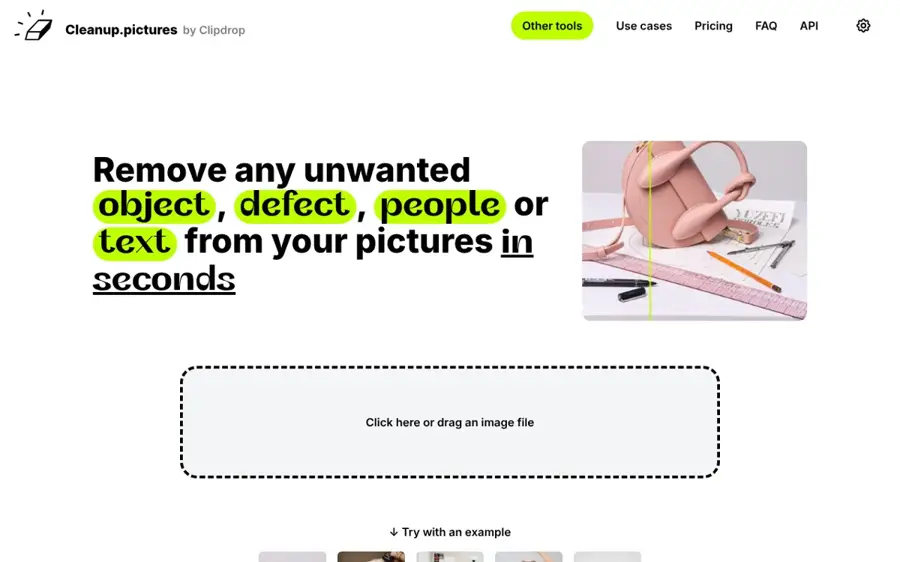
Cleanup.pictures is a browser-based AI tool that removes objects, people, text and blemishes from photos with a simple brush. Visit Cleanup.pictures.
Why it stands out
Cleanup.pictures does one job. You upload an image, brush over what you want gone, and download the result. Toolradar says the free plan allows unlimited images but caps exports at 720p, which is fine for a quick social post but too low for print.
Pro is cheap. 10Web lists paid plans from $3 a month, adding higher resolution, background removal and uncropping. User review data is thin: Toolradar cites a single G2 review averaging 4 out of 5, so there is little independent feedback to go on.
Key features
- Brush removal: paint over objects, text or blemishes.
- No install: works in any browser.
- Unlimited processing: on free and paid plans.
- API: usage-based pricing for developers.
Pros
- Extremely simple
- Unlimited free edits
- Very low paid price
Cons
- Free exports capped at 720p
- Few user reviews to judge reliability
Cleanup.pictures pricing: Free (720p) → paid plans from $3/month, per 10Web (checked October 2026). See pricing
Verdict: the quickest option for a single fix.
Photoroom – best for ecommerce product photos
Photoroom is an AI photo editor for product images, with background removal and a Retouch tool for erasing dust, tags and stray objects. Visit Photoroom.
Why it stands out
Photoroom is built for sellers who need clean, consistent product shots for marketplaces and online stores. CostBench says the free plan includes 250 exports a month across Background Remover, Retouch and templates, with standard-resolution exports.
User views are mixed. Photoroom scores 4.6/5 from 17 reviews on Software Advice, yet one user wrote that "Sometimes the AI backgrounds are not clean and looks low quality." CostBench also lists a Trustpilot score of 2.5/5 from 25 reviews as of July 2026.
Key features
- Retouch: brush away objects and blemishes.
- Background Remover: one-tap cutouts.
- Batch editing: process many product shots at once.
- Templates: marketplace-ready layouts.
- Apps: web, iOS and Android.
Pros
- Generous free export allowance
- Built for product workflows
- Cheap annual Pro plan
Cons
- Mixed user reviews
- Less suited to landscapes and portraits
Photoroom pricing: Free (250 exports/month) → paid plans from $7.50/month billed yearly, or $12.99 month to month, per CostBench (checked October 2026). See pricing
Related: Generative AI in ecommerce
Verdict: the specialist pick for online sellers.
Fotor – best for budget all-round editing
Fotor is a web and mobile photo editor with an AI object remover alongside enhancers, filters and design templates. Visit Fotor.

Why it stands out
Fotor sits between a simple web tool and a full editor. You get object removal plus a broad set of AI tools for enhancing and stylizing photos, on a cheap plan. It has a solid reputation with users, scoring 4.5/5 from 1,096 reviews on Capterra.
One Capterra reviewer praised "many free features & many ways to earn free usage." The trade-off is depth: Fotor will not match Photoshop on tricky fills, and its best tools sit behind the Pro tiers.
Key features
- AI object remover: brush away unwanted items.
- Photo enhancer: sharpen and upscale images.
- Templates: social posts and simple designs.
- Web and mobile: edit from a browser or app.
Pros
- Strong user ratings at scale
- Low entry price
- Many tools in one subscription
Cons
- Advanced features locked behind Pro
- Less precise than desktop editors
Fotor pricing: Free → paid plans from $8.99/month for Pro, per Capterra (checked October 2026). See pricing
Related: Best AI picture tools
Verdict: a good budget editor if you want more than removal.
How to choose the right AI object remover
Start with what you already own
Before you sign up for anything, try the eraser built into your phone or PC. Google Photos, Apple Photos and Windows Photos are free, and for a stray tourist or a bin in the background they are often enough.
Match the tool to the scene
Simple backgrounds like sky, sand and walls are easy for every tool. Busy scenes with patterns, text or overlapping people are where results fall apart, as the PCWorld and Creative Bloq tests show. If you regularly fix hard shots, Photoshop or Lightroom are worth the money.
Check the export resolution
Free web tools often cap resolution. A 720p export looks fine on Instagram but soft on a laptop screen and poor in print. Check the limit before you rely on a free plan for client work.
Look for variations and undo
Tools that offer several fills, like Lightroom’s Generative Remove, save time because you can pick the cleanest one. Non-destructive edits let you go back if a client wants the object restored.
Use it honestly
Removing clutter is everyday editing. Removing something to change what a photo shows, such as in news, insurance or legal contexts, can mislead people. Only edit photos you own or have permission to change.
Free vs paid: what you actually get
| Feature | Free tools | Paid tools |
|---|---|---|
| Basic object removal | Yes, on Google Photos, Apple Photos, Windows Photos and Canva | Yes |
| Export resolution | Often capped, e.g. 720p on Cleanup.pictures | Full resolution |
| Multiple fill variations | Rare | Common, e.g. Lightroom Generative Remove |
| AI allowance | Small, e.g. 5 credits a week on Picsart Free | Hundreds or thousands of credits a month |
| Layers and fine control | Limited | Full in Photoshop and Lightroom |
| Typical price | $0 | $3 to $20 a month |
For casual use, free tools cover most jobs. Pay when you need full-resolution exports, many edits a month, or more control over hard shots. If you also create images from scratch, see our guides to the best AI image generators and free AI image generators.
Final verdict
Most people should start with Google Photos Magic Eraser or Apple Photos Clean Up: they are free and quick. Choose Windows Photos if you edit on a PC. Choose Canva if your photos end up in designs, and Photoroom if you sell products online.
If editing is part of your work, pay for Adobe’s Photography plan. At $19.99 a month you get Photoshop and Lightroom, the two strongest AI removal tools on this list. Everything else is a useful specialist.
FAQ
What is the best free AI object remover?
For phones, Google Photos Magic Eraser is the best free choice because it works on both Android and iPhone. On a PC, the Windows Photos app’s Generative Erase is free and, in PCWorld’s test, comparable to Photoshop’s basic Remove tool.
How does AI remove objects from photos?
You mark the object with a brush, lasso or tap. The AI then predicts what the hidden background should look like, using surrounding pixels and, in generative tools, an image model that creates new detail. This is called inpainting.
Can AI remove people from photos?
Yes. Every tool on this list can remove people, and Apple Photos and Google Photos even suggest them automatically. Results are best when the person is small and the background is simple.
Why do removed objects leave blurry patches?
The AI has to invent what was behind the object. On complex textures, it can smear details or repeat patterns, and shadows are often missed. Try a smaller brush, a second pass, or a tool that offers several variations.
Can you tell if a photo has been edited with AI?
Sometimes. Look for smudged textures, repeated patterns and missing shadows where something was removed. Our guide on how to tell if a photo is AI generated covers more signs.
Sources
- Adobe Photoshop Pricing 2026 (Comparedge)
- Edit Photos with AI: Magic Eraser & Unblur (Google Photos)
- Google will bring AI-powered editing tools to all users for free (BTW Media)
- Clean Up is Apple's take on Magic Editor (Tom's Guide)
- Canva AI pricing in 2026 (eesel AI)
- Cleanup.pictures (Toolradar)
- Cleanup.pictures (10Web)
- Adobe Lightroom's new Generative Remove AI tool (TechRadar)
- Why pay? One of Photoshop's best features is free within Windows (PCWorld)
- Remove People From Photo Online - AI People Remover (Picsart)
- Picsart pricing (Toolradar)
- Photoroom pricing (CostBench)
- Photoroom Software Reviews, Demo & Pricing (Software Advice)
- Fotor Pricing 2026 (Capterra)
- I tried Photoshop's new Distraction Removal AI tool, with mixed results (Creative Bloq)